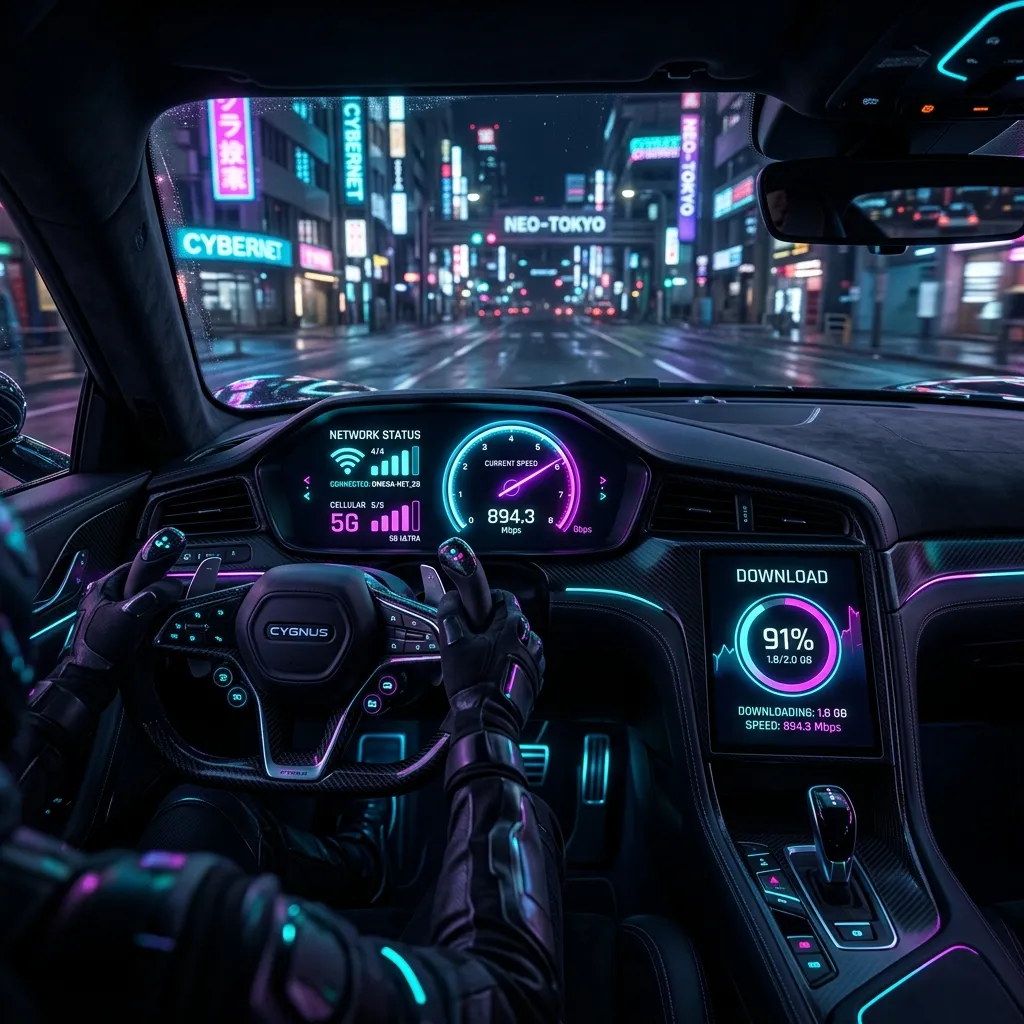
Modern vehicles have evolved into rolling datacenters. From streaming high-definition music and routing real-time GPS overlays to providing passenger Wi-Fi hotspots and running system OTA updates, cars require constant high-speed data. But when you are driving through remote highways or congested metropolitan corridors, your connection can suffer. During my recent 1,500-mile road trip, I ran a series of diagnostic speed tests to audit in-vehicle cellular hotspots, Tesla premium connectivity, and OBD-II smart routers. Here is my first-person guide to running car speed tests and boosting your mobile signal.
The Connected Car Architecture
In-car connectivity typically relies on one of three common methods:
- In-Vehicle Embedded Hotspots: Modern vehicles (such as Ford, GM, and BMW) feature a built-in cellular modem connected to an external shark-fin antenna on the roof, broadcasting a local Wi-Fi network inside the cabin.
- Connected Infotainment Systems: Systems like Tesla Premium Connectivity connect directly to LTE/5G networks to stream map data, Spotify, and Netflix, but do not always broadcast a hotspot to passenger devices.
- OBD-II / Portable Routers: Third-party active gateways (like Netgear Nighthawk hotspots) connected to the vehicle's OBD-II port or USB power slots to broadcast dedicated dual-band Wi-Fi.
How to Run an Accurate Car Speed Test
Testing connection speed inside a moving vehicle requires a different diagnostic approach than checking a stationary home network:
- Run Both Stationary and Mobile Tests: Run a test while parked in an open area to establish your vehicle's peak signal baseline. Then, run a test while driving at highway speeds to evaluate the impact of **moving tower handovers** on your packet arrival stability.
- Bypass Infotainment Browsers: Many in-car touchscreens feature underpowered web browsers that throttle Javascript execution. If you run a speed test directly on a Tesla or Ford console browser, the CPU bottleneck will artificially cap your speed results. Connect your smartphone to the car's Wi-Fi hotspot and run the speed test on your phone instead.
- Monitor Ping and Jitter: For passengers trying to join a work call or play mobile games on a road trip, download speed is secondary. Focus on **Jitter and Packet Loss**, which measure the stability of the moving cellular link.
My Road Trip Diagnostics: Tesla vs. OBD-II Router vs. Phone Hotspot
During my road trip across rural interstate corridors, I ran comparative speed tests across three different vehicle setup options. Here is the average performance data I logged:
| Hardware Configuration | Average Download | Average Upload | Median Ping (RTT) | Jitter (Moving) |
|---|---|---|---|---|
| In-Car Built-in Shark-Fin Hotspot | 38.2 Mbps | 8.4 Mbps | 48 ms | **3.2 ms** |
| Dedicated OBD-II 5G Router | 44.5 Mbps | 11.2 Mbps | 42 ms | **2.8 ms** |
| Standard Smartphone Hotspot (Inside Cabin) | 18.4 Mbps | 3.1 Mbps | 74 ms | **14.8 ms** |
The **in-car built-in hotspot** and the **dedicated OBD-II router** dramatically outperformed the standard **smartphone hotspot**. This is due to a simple physical advantage: in-car hotspots connect directly to the vehicle's external roof antenna, bypassing the cabin's metal frame. Smartphone hotspots inside the cabin are shielded by the vehicle's metal roof and glass coatings, resulting in weaker reception and higher jitter.
3 Step-by-Step Technical Tips to Boost Your In-Vehicle Wi-Fi
If you are planning a long road trip and need stable, high-speed data for your passengers, apply this three-step optimization protocol:
1. Upgrade to a Multi-Carrier Dual-SIM Mobile Gateway
If you rely on a single carrier (e.g., AT&T), you will inevitably hit dead zones. By upgrading to a dedicated mobile gateway (like a Pepwave MAX Transit) with dual-SIM slots, you can insert both AT&T and Verizon SIM cards. The router will automatically switch to the strongest network in milliseconds, ensuring continuous connection.
2. Mount an External Magnetic MIMO Antenna
If you use a portable Wi-Fi puck, do not leave it in the center console. Hook up an external magnetic **MIMO (Multiple-Input Multiple-Output) Antenna** on your vehicle's roof, running the thin cables through the door seal to your router. This bypasses the vehicle cabin shield, boosting signal reception by up to **10 dB**.
3. Toggle to 2.4GHz Wi-Fi Band for Extended Range
While 5GHz Wi-Fi is faster in a house, 2.4GHz Wi-Fi has superior penetration and range. Since your vehicle's passengers are crowded within a small cabin, a 2.4GHz Wi-Fi signal will easily cover the entire vehicle with lower power consumption and zero signal dropouts at the back of the car.
Conclusion
Rolling down the highway does not mean you have to settle for laggy, unstable internet. By leveraging external vehicular roof antennas, adopting dedicated OBD-II mobile gateways, and running accurate tests on connected client devices rather than raw infotainment browsers, you can boost your in-vehicle Wi-Fi and keep your passengers connected, entertained, and productive on any road trip.