A WiFi analyzer shows you what a basic speed test can't: which channels your network and your neighbors' networks are actually using, where your signal strength drops off within your home, and whether interference is quietly degrading your connection in ways you'd never diagnose from a simple speed number alone.
What a WiFi Analyzer Actually Shows You
Unlike a speed test, which measures throughput at one point in time from one location, a WiFi analyzer app scans the airwaves continuously, showing signal strength across your home as you walk around with your phone, which channels and bands are being used by every visible network nearby, and how much channel congestion exists in your specific location and building.
Top Free WiFi Analyzer Options
WiFi Analyzer (Android)
One of the most popular free Android options, showing a visual graph of nearby networks' signal strength and channel usage, making it easy to spot which channels are overcrowded in apartment buildings with many overlapping networks.
NetSpot (Windows/Mac, Free Tier)
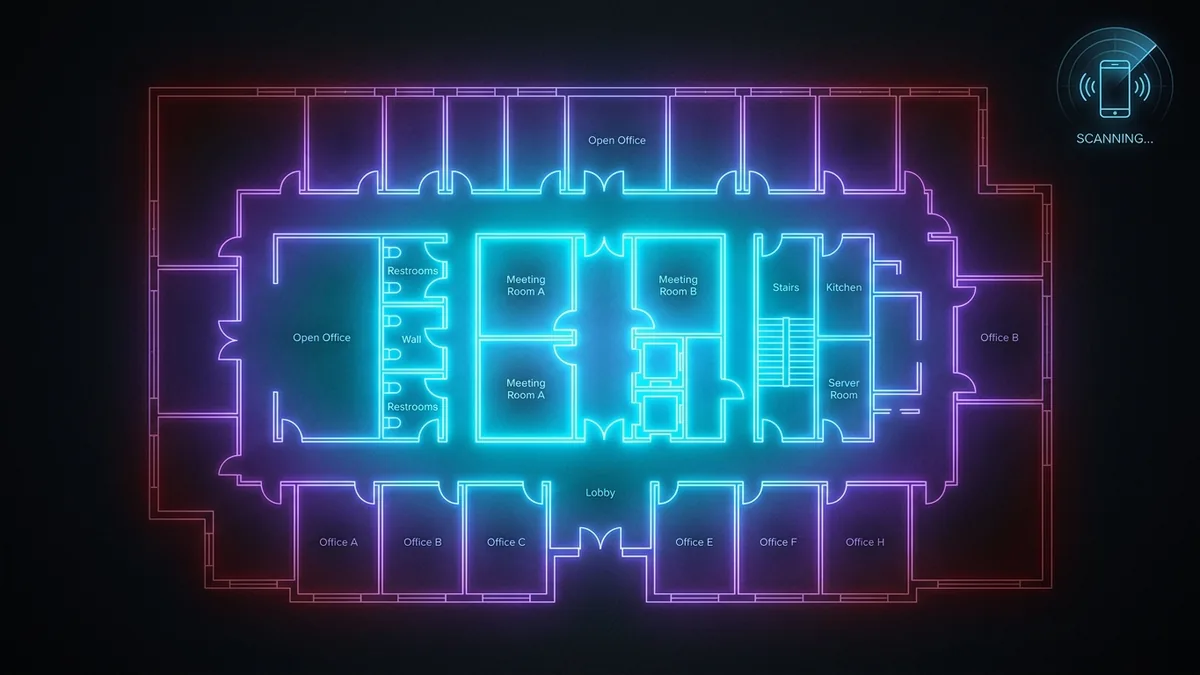
NetSpot's free tier lets you create a basic heatmap of your home by walking around with a laptop, visually showing exactly where signal strength drops off, which is more intuitive for finding literal dead zones than a channel-focused mobile app.
Built-In Router Admin Tools
Many modern routers include a basic WiFi analysis or "site survey" feature directly in their admin panel, showing nearby networks and suggesting a less congested channel without needing a separate app at all.
How to Use a WiFi Analyzer to Find Dead Zones
Walk through every room in your home with the app open, noting signal strength (usually shown in dBm, where numbers closer to 0 like -30 are excellent and numbers like -80 or worse are very weak) at each location. Rooms consistently showing weak signal are your genuine dead zones, worth addressing with router repositioning, a channel change, or an extender.
How to Use a WiFi Analyzer to Fix Channel Overlap
On the crowded 2.4GHz band, only channels 1, 6, and 11 don't overlap with each other in most regions, so if the analyzer shows several neighboring networks on channel 4 or 8, manually setting your router to channel 1, 6, or 11 (whichever shows least local usage) reduces interference immediately, often without any hardware purchase required.
Does This Matter Less on 5GHz?
5GHz has more available non-overlapping channels than 2.4GHz, making interference generally less of an issue on that band, though in very dense apartment buildings with many networks, even 5GHz can show some congestion worth checking with the same analyzer tools.
What to Do With What You Learn
If your analyzer reveals a genuine dead zone in a room you actually use, that's a coverage problem best solved with router repositioning or an extender/mesh system. If it reveals heavy channel congestion instead, a manual channel change costs nothing and often meaningfully improves consistency without any new hardware.
A Realistic Expectation From Free Tools
Free WiFi analyzer apps give genuinely useful diagnostic information for most home troubleshooting needs; professional-grade paid tools offer more precise heatmapping and reporting features, but for identifying dead zones and channel congestion in a typical home, the free options above are more than sufficient.
Understanding the Difference Between 2.4GHz and 5GHz Readings
When reviewing analyzer results, remember that 2.4GHz and 5GHz behave differently — 2.4GHz travels further through walls but is more prone to interference, while 5GHz offers more bandwidth and less congestion at closer range but drops off faster with distance. A dead zone reading on 5GHz doesn't necessarily mean a dead zone on 2.4GHz in the same location, so checking both bands separately gives a more complete picture of your home's actual coverage.
Using Analyzer Data to Justify a Mesh System Purchase
If your analyzer consistently shows multiple weak-signal rooms across different areas of your home rather than just one isolated spot, that pattern is a stronger justification for investing in a mesh system than a single extender, since mesh systems are specifically designed to solve multi-room coverage gaps more elegantly than repeatedly adding individual extenders.
Re-Testing After Any Change
After repositioning your router, changing channels, or adding an extender, re-running the analyzer scan in the same rooms you originally tested gives concrete before-and-after data confirming whether your change actually improved coverage, rather than relying on a subjective impression that a room "feels" better connected than before, which can be misleading if you've simply gotten used to a marginal improvement rather than a genuine fix to the underlying coverage problem you set out to solve in the first place.
A Final Recommendation
Spending fifteen minutes with a free WiFi analyzer app before spending money on new hardware is one of the highest-value troubleshooting steps available to any home network owner, since it turns guesswork about "where the WiFi is bad" into concrete, actionable data about exactly what's happening on the airwaves in your specific home.