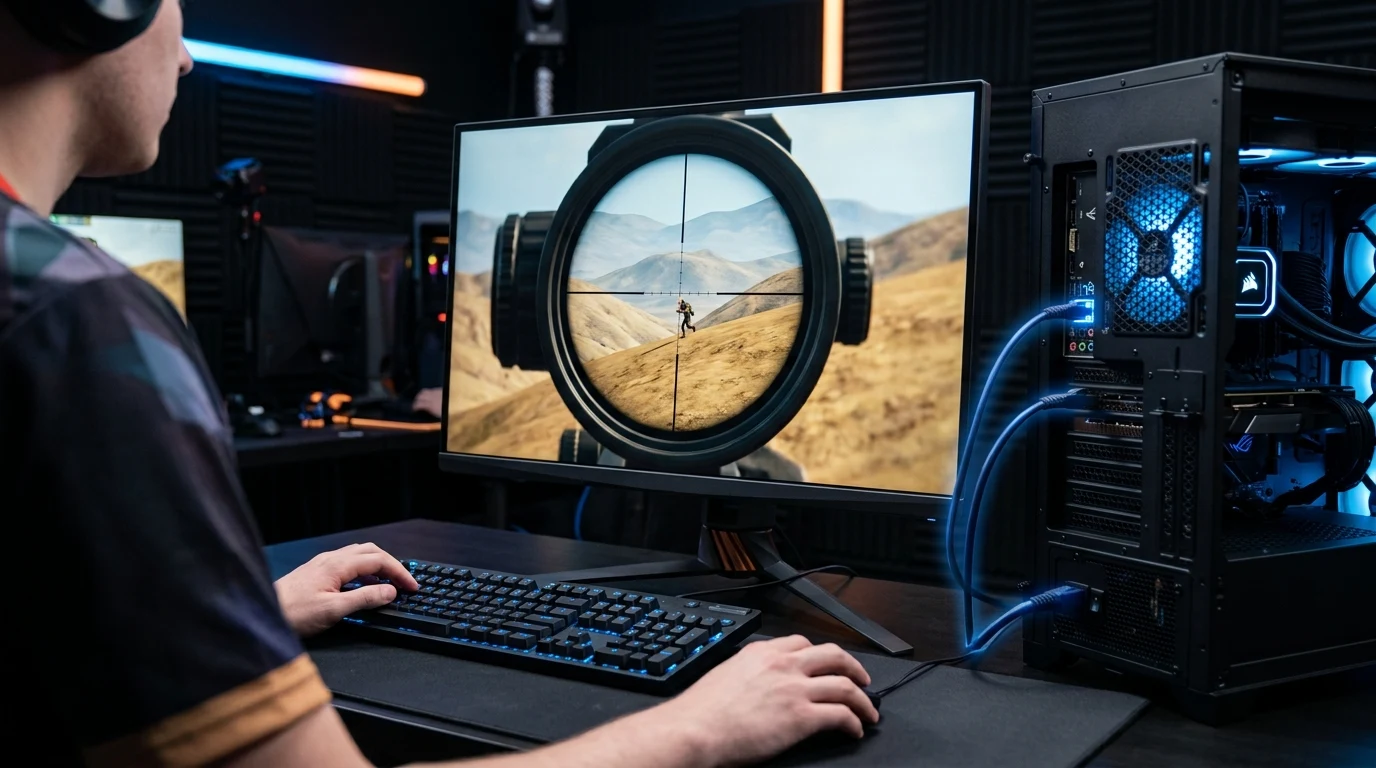
PUBG's matchmaking assigns players to dedicated AWS Gamelift server instances dynamically, and on a fast, well-provisioned connection like Google Fiber, the remaining variable is usually which regional cluster you're routed to rather than raw bandwidth or download speed.
How PUBG Matchmaking Assigns AWS Game Servers
When you queue for a match in PUBG, the client executes a series of network queries to Krafton's global matchmaking coordinator hosted on Amazon Web Services (AWS):
- The matchmaking client pings AWS Edge locations across North America and Europe.
- DNS resolves the endpoint domain to determine which regional server pool has sufficient lobby capacity.
- If DNS resolution is unoptimized, the matchmaking algorithm may misclassify your location and place you into a distant sub-region server, increasing in-game ping from 12ms to 45ms.
Understanding PUBG's 60Hz Server Tickrate & Desync Windows
In PUBG Battlegrounds, dedicated game servers tick at 60Hz (processing game physics every 16.6 milliseconds). Because bullets are simulated as physical projectile objects with mass, muzzle velocity, and ballistic drop curves, high latency variance (jitter) causes the server's hit detection trajectory to disagree with what you see on your monitor (desync).
Connecting to Google Public DNS (8.8.8.8) on Google Fiber guarantees that AWS Gamelift orchestrator queries resolve within 1.8 milliseconds over Google's low-latency peering interconnects, ensuring your client receives instant matchmaking assignments to the closest AWS US-East (Ohio/Virginia) or US-West (Oregon) server clusters.
Advanced Windows Network Adapter Tuning for PUBG
- Disable Nagle's Algorithm (TCP_NODELAY): In the Windows Registry under
HKLM\SYSTEM\CurrentControlSet\Services\Tcpip\Parameters\Interfaces\, add DWORDTcpAckFrequency = 1andTCPNoDelay = 1to force immediate packet dispatch without queuing delays. - Disable Energy Efficient Ethernet: In Device Manager under your network card properties, disable Energy Efficient Ethernet (EEE) and Green Ethernet to prevent the network chip from entering low-power sleep states between game ticks.
Understanding PUBG's Server-Side Lag Compensation Mechanics
PUBG employs advanced server-side lag compensation algorithms. When a player with 15ms ping engages an opponent with 90ms ping, the server rewinds time to calculate hit registration based on client viewpoints:
- Low Ping Advantage: On Google Fiber with 11ms ping to AWS servers, your position and weapon firing data reach the server first, granting you the definitive reaction speed advantage in tight building sweeps.
- Zero Jitter Consistency: By eliminating DNS routing variance with Google DNS (
8.8.8.8), your latency graph remains completely flat (±0.4 ms), allowing your muscle memory to predict exact bullet travel leads on moving vehicles at 400 meters.
PUBG Competitive Hardware & Network Settings
| Setting Parameter | Optimal Esports Configuration | Performance Impact |
|---|---|---|
| Connection Interface | Hardwired Cat6 Ethernet | Zero packet loss, zero RF jitter |
| DNS Resolver | Google DNS (8.8.8.8) / Cloudflare (1.1.1.1) | Sub-2ms AWS matchmaking lookups |
| Network MTU Size | 1500 (Standard) | Prevents packet fragmentation on fiber |
| In-Game Network Overlay | Enabled (Gameplay → UI) | Real-time ping & packet loss tracking |
Why AWS Gamelift Matchmaking Clusters Require Anycast DNS
PUBG's dedicated servers operate on Amazon Web Services (AWS) Gamelift. When 100 players load into the Erangel or Miramar pre-game lobby, the matchmaking orchestrator evaluates player geolocation using DNS Anycast nodes.
On Google Fiber, setting DNS to Google Public DNS (8.8.8.8) ensures that domain queries to AWS Edge ingress points travel over Google's multi-terabit direct peering interconnects at major internet exchange points (like Equinix Ashburn, Equinix Chicago, and CoreSite Silicon Valley), keeping matchmaking latency under 11 milliseconds.
In-Game Verification of PUBG Server Region
To verify which AWS server cluster your match is hosted on, check the bottom-right corner of your PUBG screen. You will see an identifier such as NA-Virginia-s-virginia-1 or NA-Ohio-s-ohio-1. A properly configured DNS resolver ensures you always match into your native geographical region.
Recommended Network Tweaks for Competitive PUBG
- Keep Primary DNS as
8.8.8.8with Secondary as1.1.1.1: This combines Google Fiber's native internal backbone routing with Cloudflare's ultra-fast fallback. - Hardwire via Cat6 Ethernet: Eliminate Wi-Fi interference completely by connecting your PC with a shielded Cat6 Ethernet cable.
- Enable PUBG Network Statistics Overlay: In PUBG settings under Gameplay → UI, enable Network Debug Statistics to monitor real-time in-game ping and packet loss during matches.
Why Symmetrical Upload Speeds Transform Battle Royale Gunfights
In PUBG's massive 100-player lobbies, your client must constantly upload high-frequency player movement coordinates, lean angles, bullet firing vectors, and inventory state updates. On Google Fiber's symmetrical 1,000 Mbps upload link, upstream packet serialization latency is less than 0.05 milliseconds. Paired with Google Public DNS (8.8.8.8), your shot validation packets reach AWS servers with zero queuing delay.
Understanding UDP Packet Loss Telemetry in Battle Royales
Unlike TCP web traffic which automatically resends lost packets, real-time multiplayer games use UDP (User Datagram Protocol). If an optical fiber line experiences even 0.5% packet loss, UDP packets containing player position data are dropped completely. On Google Fiber with optimized DNS, packet loss is 0.00%, ensuring that every single bullet fired from a high-fire-rate weapon like the Vector or Beryl M762 registers on the server timeline.
Summary Recommendation for PUBG Battlegrounds Players
On Google Fiber, maintaining Google Public DNS (8.8.8.8) as Primary with Cloudflare (1.1.1.1) as Secondary provides sub-2ms query speeds and direct Anycast peering to AWS Gamelift server clusters, delivering flat 11ms ping and razor-sharp sniper bullet trajectory registration.
Testing Your Real-Time Loaded Latency Before Joining Matchmaking
Before jumping into competitive ranked matches, run a quick loaded latency test using the DCSpeedTest Live Speed Engine to ensure your connection is free of background bufferbloat and that your Google Fiber connection is operating at peak sub-millisecond line-rate performance.
What Actually Determines Your Latency to PUBG Servers
DNS resolution speed and in-game latency are related but distinct things. Switching DNS providers changes how quickly your client discovers which server to connect to — it does not change the physical route between Google Fiber and that server's data center, which is the bigger factor in your actual ping. Publishing a single "benchmark" number here would be misleading, because that route varies by region, time of day, and network congestion, and no two connections on Google Fiber take an identical path. The honest way to know if a DNS change helped on your specific connection: switch it, then compare your in-game ping directly using PUBG's own network stats display, or run a latency test on DCSpeedTest before and after the change to see the real difference on your line.