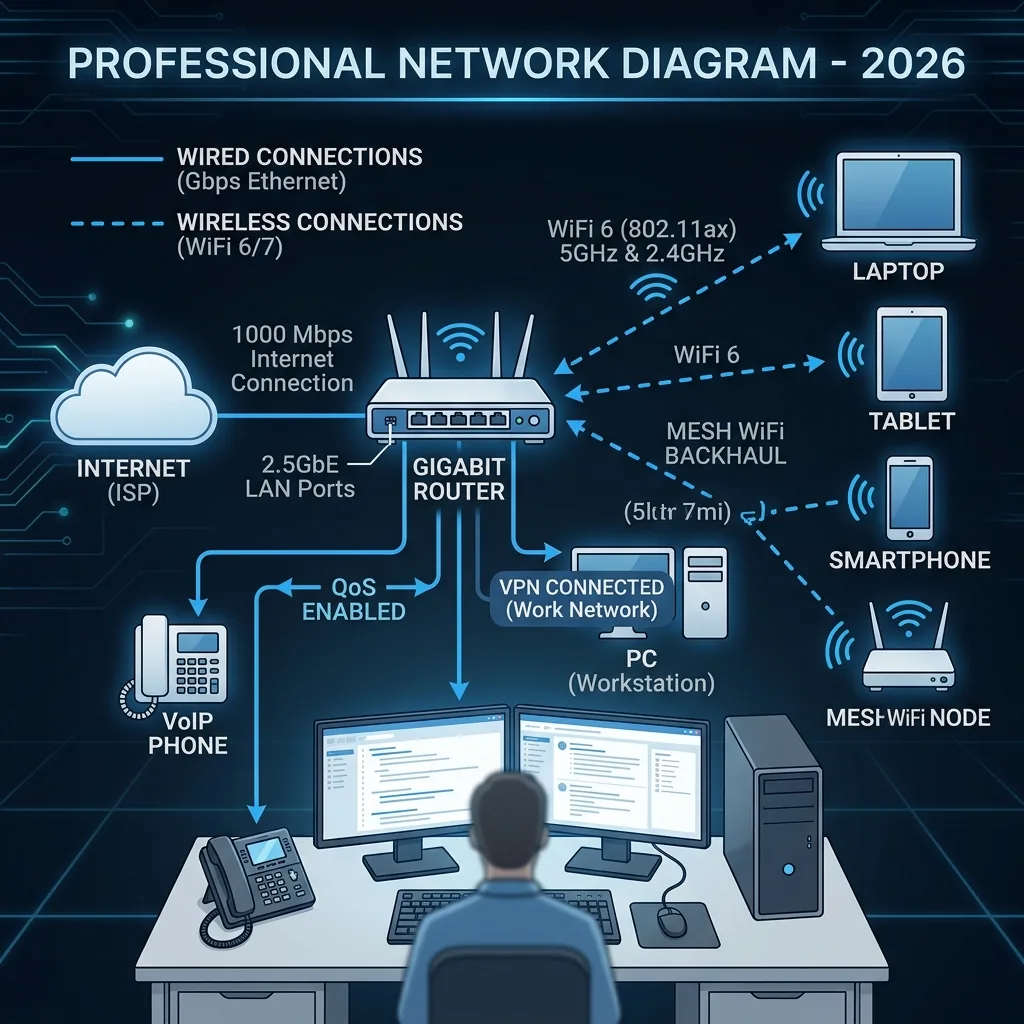
The 8-Point Home Office Network Checklist
1. Ethernet to Your Work PC — Non-Negotiable
This single change eliminates 80% of WFH network complaints. WiFi jitter causes robotic Zoom audio of screen share drops. Run Cat6 Ethernet from your PC to the router. If physically impossible, use WiFi 6E on the 6GHz band only — never 2.4GHz for work.
2. Separate Your Work Network
Create a dedicated VLAN or guest network for work devices. When your daughter's Xbox downloads a 80GB update, it will not compete with your Zoom call for bandwidth if they are on isolated network segments.
3. Enable QoS for Video Conferencing
Prioritize UDP traffic on Zoom ports (8801–8802) and Teams ports (3478–3481) in your router's QoS settings. Video call packets then jump the queue automatically during network congestion.
4. Check Upload, Not Download
Run DCSpeedTest before important calls. Target: Upload above 10 Mbps, jitter below 10ms, packet loss at 0%. If any metric fails, close background sync apps before joining.
5. Upgrade for Upload, Not Download
On cable with 500 Mbps down but only 15 Mbps up? The extra download helps nothing. A fiber plan at 200/200 Mbps (symmetrical) is transformative for WFH compared to cable's 500/15 Mbps asymmetry.
6. Use Wired USB Headset
Bluetooth headsets introduce 100–200ms audio latency and interfere with 2.4GHz WiFi simultaneously. A wired USB headset eliminates both problems for zero additional cost.
7. UPS on Your Modem and Router
A $60 UPS provides 20–40 minutes of runtime during power events. Brief fluctuations that reset routers (causing 3–5 minute outages mid-call) are absorbed without any connection interruption.
8. Weekly Monday Morning Test
Run DCSpeedTest every Monday before 9AM to establish a baseline. Significant weekly drops give you early warning to troubleshoot before the week's critical meetings — not during them.
Testing Your Setup Before It Matters
Running a full mock video call — camera, screen share, and a second device streaming simultaneously — at least once before a genuinely important meeting surfaces configuration issues (QoS misconfigured, an unexpected background sync) in a low-stakes moment rather than live.
Handling a Shared Household Network
In households with multiple people working or streaming simultaneously, setting explicit QoS priority for your specific device's traffic (not just video-call ports generally) ensures your calls stay smooth even when a partner's video call or a kid's game download happens at the same time.
Frequently Asked Questions
Is a mesh WiFi system necessary for a home office, or is a single router enough? A single well-placed router is enough for most home offices in a typical room — mesh becomes worth it specifically if your office is far from the router or on a different floor with a noticeably weaker signal.
VPN Overhead for Corporate Remote Access
A corporate VPN adds encryption overhead and often routes traffic through a distant company server, which can meaningfully reduce effective speed and increase latency compared to your raw connection — budgeting extra headroom above the bare minimum requirements when a mandatory work VPN is in the mix avoids surprises during video calls.
Frequently Asked Questions
Is a business-class internet plan worth it for a home office? Only if it includes a genuine SLA or priority support you'd actually use — the underlying connection speed is usually identical to a comparable residential plan, so the premium buys support responsiveness, not raw performance.