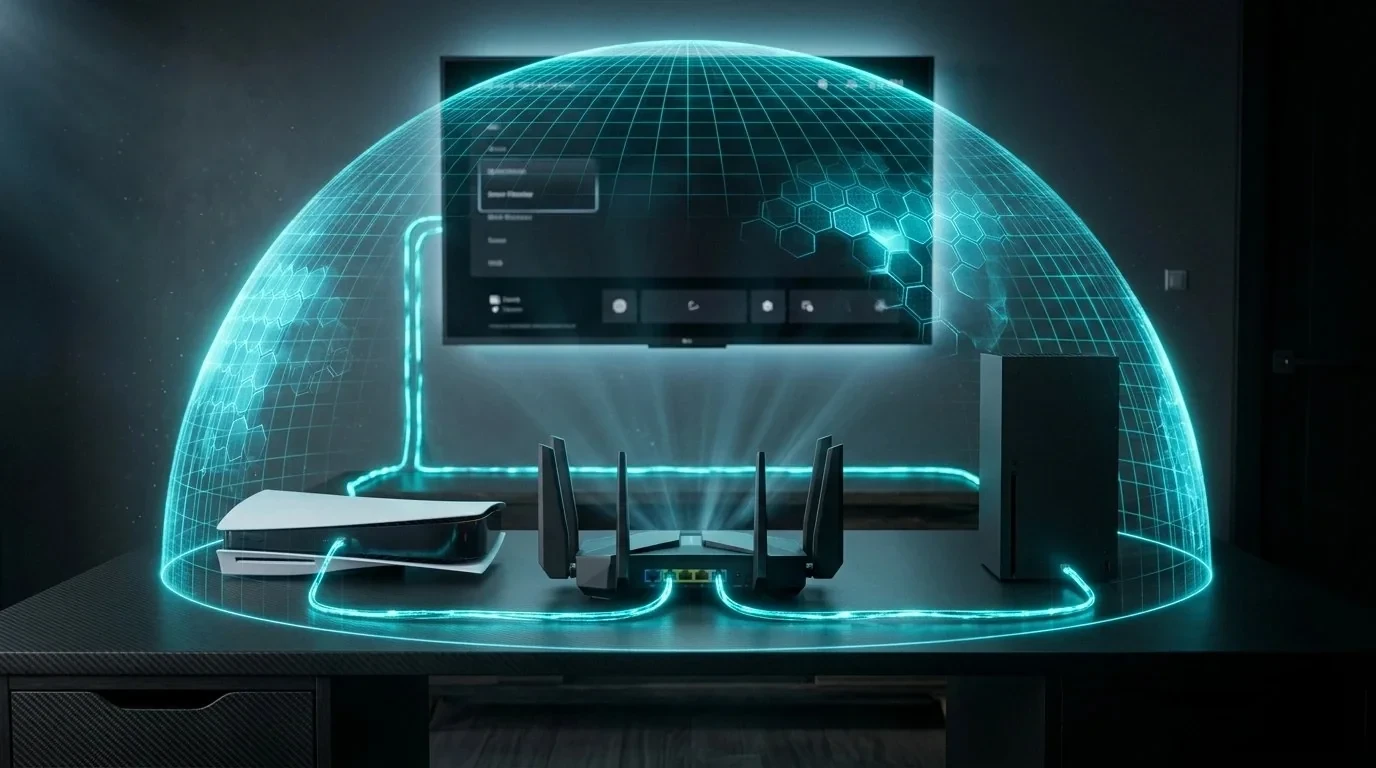
Frustrated by buffering on your living room Smart TV during live broadcasts while phones run smooth? Here is why cheap TV Wi-Fi chips fail and how to fix it.
The Sunday Night Living Room Mystery
It is a common scenario in households worldwide: on Sunday evening, the family gathers around the living room Smart TV to watch a live church service or fellowship broadcast. Moments into the sermon, the screen freezes with a spinning buffer circle. Perplexingly, family members pull out their smartphones in the very same room, and the broadcast streams with zero interruptions.
Why does a $1,000 Smart TV fail when a handheld smartphone succeeds? The answer lies in cheap television Wi-Fi receiver hardware and band steering traps.
The Hardware Reality: Smart TVs vs. Smartphones
Consumers assume television electronics match their screen size. In reality:
- Smartphones: Equipped with advanced 2x2 or 4x4 MIMO Wi-Fi 6/6E radio chips, sophisticated beamforming antennas, and powerful multi-gigabyte RAM caches that absorb radio dips.
- Smart TVs: Manufacturers prioritize display panels and often cut costs on internal networking, installing budget 1x1 antenna modules shielded behind heavy rear metal chassis and wall brackets.
The 2.4 GHz vs 5 GHz Band Steering Problem
Most modern ISP routers emit both 2.4 GHz and 5 GHz signals under a single unified Wi-Fi name (SSID). Because 2.4 GHz signals travel through walls with slightly stronger signal attenuation metrics, the TV automatically locks onto the 2.4 GHz frequency.
However, the 2.4 GHz band is severely crowded by neighboring routers, Bluetooth gadgets, microwave ovens, and smart home bulbs. While 2.4 GHz has enough bandwidth for web browsing, its frequent packet retransmissions starve live video feeds.
3 Immediate Fixes for Smooth Smart TV Live Streaming
- Split Your Router Wi-Fi Networks: Log in to your router settings and create distinct names:
Home_WiFi_2.4GandHome_WiFi_5G. Connect your Smart TV strictly to the 5 GHz band. - Run an Ethernet Cable (The Gold Standard): Connect your television directly to a router LAN port using a Cat6 cable. Even though most TV Ethernet ports operate at 100 Mbps, wired packet transmission has zero interference.
- Use a Dedicated Streaming Stick: External streaming devices like Apple TV, Roku Ultra, or Chromecast with Google TV feature superior wireless chipsets compared to built-in TV software.
Test Your Living Room TV Speed
Open the web browser on your Smart TV and navigate to DCSpeedTest. If your measured download speed is fluctuating wildly or jitter exceeds 20ms, your TV's wireless receiver is dropping packets.