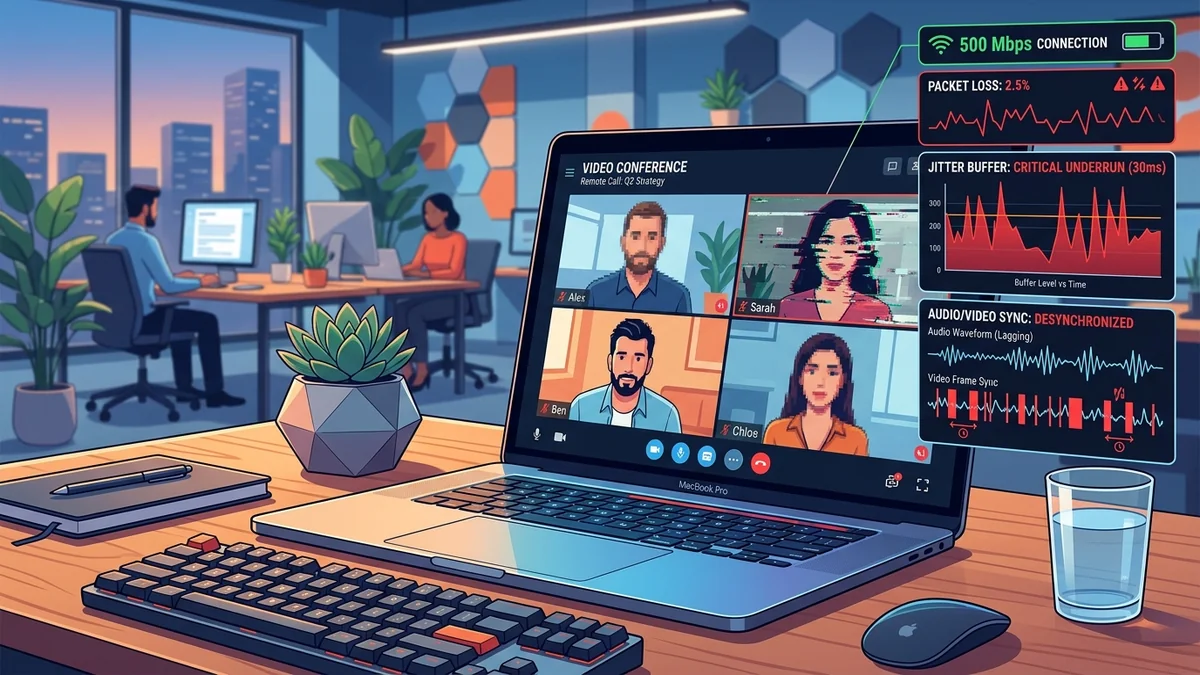
Few remote work experiences are more frustrating than an important client meeting or executive presentation where Zoom, Microsoft Teams, or Google Meet suddenly freezes, producing robotic audio and flashing the dreaded error: 'Your network connection is unstable.' You open a browser, run a speed test, and verify that your connection delivers a blazing 500 Mbps download. Why do video conferencing apps freeze on high-speed broadband? Because video calls do not care about bandwidth—they are governed strictly by real-time WebRTC UDP packet delivery, micro-jitter, and router Application Layer Gateway (SIP ALG) corruption.
1. The 4 Engineering Reasons Video Calls Freeze on Fast Connections
- UDP vs. TCP Architecture (No Retransmissions): File downloads and video streams (Netflix/YouTube) use TCP, which buffers seconds of content in advance. WebRTC video calls use UDP (User Datagram Protocol) to ensure real-time interaction (<150ms delay). Because UDP does not wait for lost packets to retransmit, even a tiny 1.5% packet drop causes the video codec to lose critical I-Frames, freezing your screen for 2 to 5 seconds.
- Wi-Fi Background Channel Scanning Drops: Windows and macOS constantly perform background spectral scans every 60 seconds to locate nearby Wi-Fi access points. During these 200-millisecond scanning intervals, the wireless card temporarily halts packet transmission, causing instant WebRTC frame drops.
- SIP ALG Router Packet Mangling: Stock router firmware includes a feature called SIP ALG (Application Layer Gateway) designed for legacy telecom hardware. It frequently rewrites UDP port headers incorrectly, corrupting WebRTC signaling streams and disconnecting audio.
- Upstream Buffer Saturation from Background Cloud Syncs: If your PC backs up files to OneDrive or Google Drive in the background, your narrow upstream pipe saturates, delaying outgoing camera feeds.
2. 📊 Zoom & WebRTC Video Call Health Benchmarks
| Network Diagnostic Metric | Ideal Target Value | Call Degradation Point | Zoom Freezing Threshold |
|---|---|---|---|
| Packet Loss (Upstream/Downstream) | < 0.5% | 1.0% – 2.5% (Audio stutter) | > 3.0% (Screen freezes completely) |
| Jitter (Latency Variation) | < 5 ms | 15 ms – 30 ms | > 40 ms (Buffer underrun) |
| Round-Trip Latency (RTT) | < 45 ms | 100 ms – 150 ms | > 250 ms (Noticeable speech overlap) |
| Bandwidth Required (1080p HD) | 3.8 Mbps Symmetric | 1.5 Mbps (Steps down to 720p) | < 600 Kbps (Video halts) |
3. 🛠️ 4 Steps to Stop Video Call Freezing Permanently
- Disable SIP ALG in Your Router: Open your router settings (
192.168.1.1), navigate to Advanced > WAN Setup / NAT Filtering, and uncheck SIP ALG. - Connect via Wired Cat 6 Ethernet: Eliminates Wi-Fi background scanning drops and local radio interference completely.
- Inspect Real-Time Zoom Statistics: During a call, navigate to Zoom Settings > Statistics > Video/Audio. Monitor real-time jitter and packet loss to verify if the issue is upstream (your microphone/camera) or downstream (incoming feeds).
- Enable Router Smart Queue Management (SQM): Prioritizes WebRTC UDP packets ahead of household background downloads.
4. 🔬 Real-Time Transport Protocol (RTP) & Jitter Buffer Underruns
Inside video conferencing software (Zoom, Teams, Discord), voice and video streams are transmitted via the Real-Time Transport Protocol (RTP) over UDP. Because human conversation feels awkward if audio latency exceeds 150ms, video apps maintain an ultra-tight internal Jitter Buffer (typically only 40ms to 60ms of audio/video frames stored in RAM).
When Wi-Fi interference or bufferbloat causes a burst of packets to arrive 70ms late, the jitter buffer empties completely (known as a Jitter Buffer Underrun). The audio playback engine has zero data to play, producing missing syllables and robotic pitch distortion. When delayed packets finally arrive in a bunch, the video engine drops them because they are already obsolete, freezing the speaker's face until the next I-Frame arrives.
5. 🛠️ Step-by-Step Real-Time Zoom Diagnostic Procedure
To pinpoint whether a freezing problem is on your local PC, your local Wi-Fi, or your ISP line:
- During an active Zoom meeting, click the ^ arrow next to the Mute button > Audio Settings > Statistics.
- Review the Audio / Video tabs in real time:
- Latency: Should stay below
50ms. - Jitter: Should stay below
5ms(if > 25ms, Wi-Fi or bufferbloat is the culprit). - Packet Loss: Should read
0.0%(if > 2.0%, video freezing is inevitable).
- Latency: Should stay below
- If packet loss appears on 'Send', your microphone/camera upload is dropping. If on 'Receive', incoming meeting feeds are dropping.
6. 🔐 Operating System & Network Card Driver Tweaks for Smooth Video
In addition to router settings, optimize your computer's local network interface controller (NIC):
- Disable 'Large Send Offload' (LSO) on NIC: In Device Manager > Network Adapters > Properties > Advanced, disable Large Send Offload (IPv4/IPv6). LSO can create packet burst delays that destabilize real-time WebRTC audio encoding.
- Set Wi-Fi Roaming Aggressiveness to 'Medium-Low': On laptops moving around a house, set roaming aggressiveness to Low or Medium-Low to prevent Windows from repeatedly disconnecting and reconnecting between nearby access points mid-call.
- Close Background Torrent and Cloud Apps: Ensure applications like Google Drive Sync, Dropbox, and BitTorrent clients are paused during critical client presentations to avoid sudden upstream buffer bloat.
7. 🏁 Final Summary: Ensuring Bulletproof Remote Work Video Stability
Resolving video conferencing freezes requires shifting focus from raw bandwidth numbers to packet transit reliability. By eliminating SIP ALG packet mangling on your router, running wired Ethernet instead of congested Wi-Fi, and configuring Smart Queue Management (SQM) to prevent background upload saturation, you eliminate WebRTC packet loss and guarantee smooth, professional, uninterrupted video presentations on Zoom, Microsoft Teams, and Google Meet.