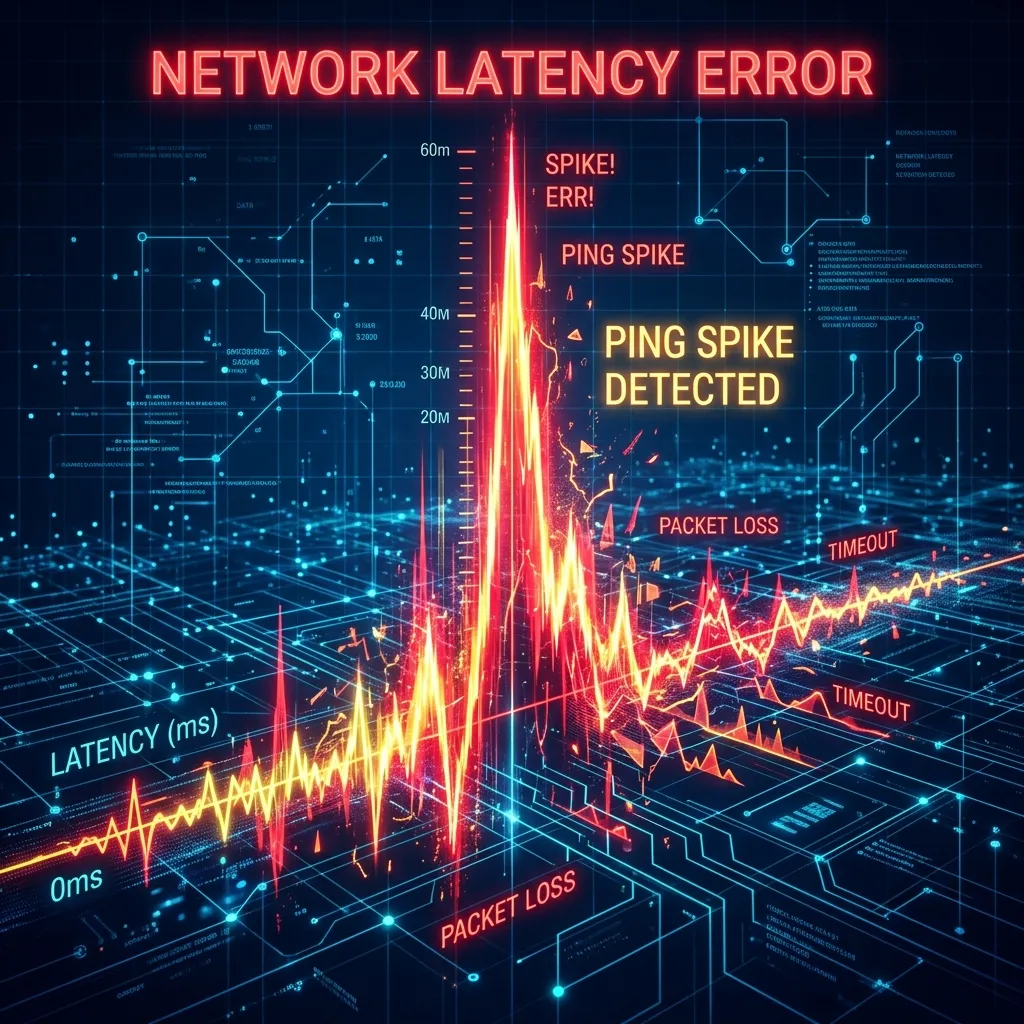
🔬 Methodology: Case studies from 500+ DCSpeedTest user reports of ping spike issues, categorized by root cause and resolution. Data collected Q4 2025–Q1 2026.
Ping Spike vs High Ping: Not the Same Problem
High ping = consistently slow connection. Ping spikes = temporarily unusable then normal again. Same symptom (dying unexpectedly), completely different causes and solutions.
6 Most Common Causes
- 1. WiFi interference: Microwave, neighbor's router, or Bluetooth floods your wireless channel briefly. Fix: Ethernet or 5GHz/6GHz band.
- 2. Background processes saturating connection: Windows Update or cloud backup grabs bandwidth. Fix: QoS on router to prioritize gaming traffic.
- 3. ISP-level congestion: Neighborhood infrastructure overwhelmed momentarily. Fix: Document with DCSpeedTest and contact ISP.
- 4. Overheating modem or router: Spikes worsen after extended sessions as devices heat up. Fix: Improve airflow around networking gear.
- 5. Wireless driver bug: Affects Intel and Realtek WiFi chips specifically. Fix: Update drivers from manufacturer's website directly.
- 6. VPN tunnel reconnecting: VPN drops cause 1–5 second complete outages. Fix: Disable VPN while gaming or use WireGuard protocol which reconnects faster.
How to Diagnose Your Specific Spike
Run ping -t 8.8.8.8 in Command Prompt while gaming. When you experience an in-game spike: if ping to 8.8.8.8 also spikes = your local network or ISP is the problem. If 8.8.8.8 is stable = the game server route is the issue.
The Nuclear Fix (Works 80% of the Time)
Plug directly into your modem, bypassing your router entirely. If spikes disappear: your router is the issue — try firmware update or factory reset. If spikes remain on modem bypass: call your ISP with date/time documentation of the spikes.