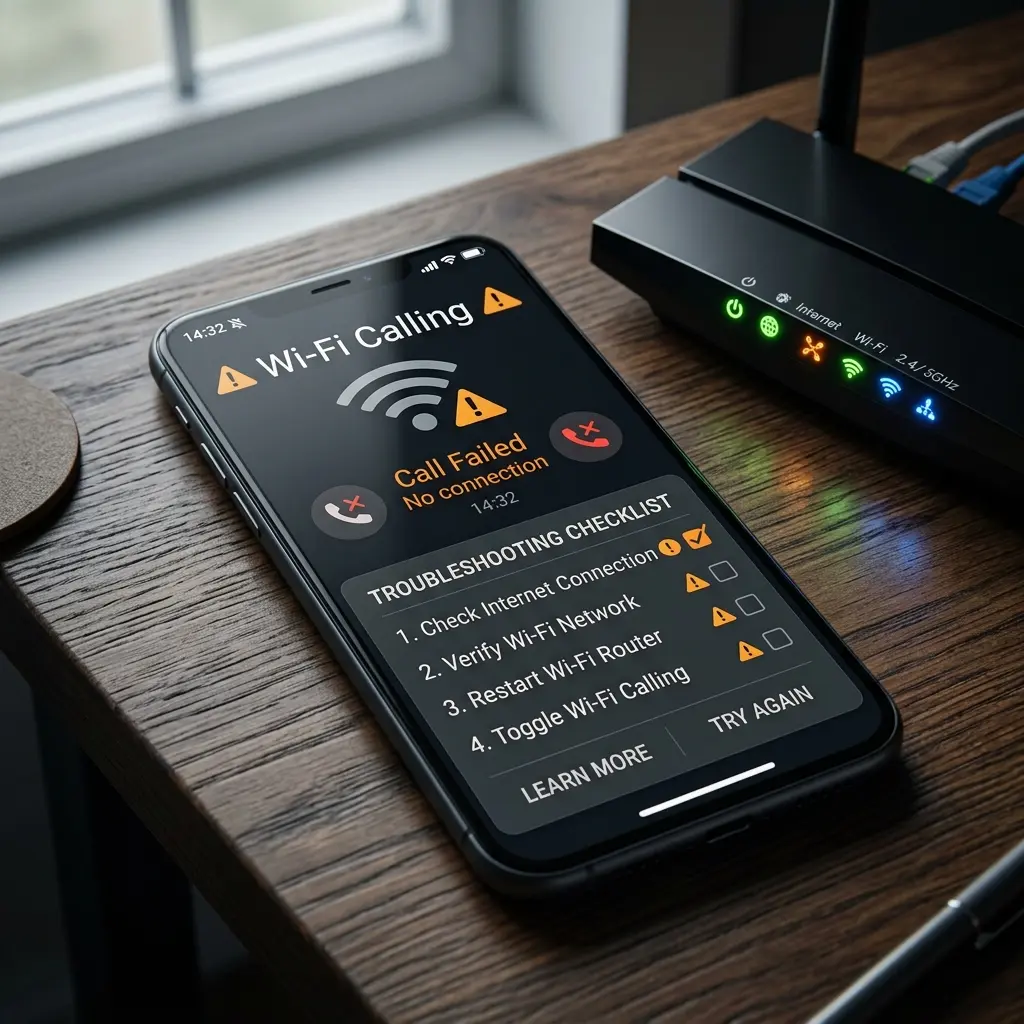
T-Mobile Wi-Fi Calling lets you make and receive calls over any WiFi connection when cellular signal is weak — inside buildings, basements, or rural areas. When it works, it's seamless. When it doesn't, the troubleshooting is maddeningly unclear. Here are the 11 fixes that actually work, in order of likelihood.
Fix 1: Confirm Wi-Fi Calling is Enabled on Your Device
The most common report: Wi-Fi Calling appears grayed out or toggled off after a software update. Steps by device:
- iPhone: Settings → Phone → Wi-Fi Calling → Enable "Wi-Fi Calling on This iPhone"
- Samsung Android: Phone app → Menu (3 dots) → Settings → Wi-Fi Calling → On
- Google Pixel: Settings → Network & internet → Calls & SMS → Wi-Fi calling → On
- Other Android: Settings → Connections → Wi-Fi Calling → On
After enabling, your phone must register with T-Mobile's servers. This takes 30-90 seconds. A "Wi-Fi" indicator will appear in your signal bar when active.
Fix 2: Toggle Airplane Mode On and Off
Wi-Fi Calling requires both cellular and WiFi radios to handshake with T-Mobile's IMS (IP Multimedia Subsystem) servers. Sometimes the registration fails silently. Enabling Airplane Mode for 10 seconds then disabling it forces a complete re-registration. This resolves approximately 30% of "not working" cases immediately.
Fix 3: Forget and Reconnect to Your WiFi Network
If your router assigned your phone a new IP via DHCP, the T-Mobile IMS session from the old IP becomes orphaned. Go to WiFi settings, forget your network, reconnect with your password, then wait 60 seconds. This solves cases where Wi-Fi Calling worked previously but suddenly stopped.
Fix 4: Check for VPN Conflicts
Wi-Fi Calling uses UDP port 500 and 4500 (IKEv2) to establish a secure tunnel to T-Mobile's network. Many VPN apps block or intercept these ports. If you have a VPN active (including built-in corporate VPN profiles), disable it temporarily and test Wi-Fi Calling. If it works without VPN, you need to configure split tunneling or a VPN exclusion for T-Mobile's IMS traffic.
Fix 5: Update Your Emergency Address (E911)
T-Mobile requires a valid E911 address registered to your account before Wi-Fi Calling activates. This is a legal requirement for emergency services routing. If you recently moved or your address was never set: log in to T-Mobile.com → Account → Profile → E911 Address. Update it, save, then restart your phone. Without a valid address, Wi-Fi Calling will not enable.
Fix 6: Check Router SIP ALG Settings
SIP ALG (Application Layer Gateway) is a router feature that attempts to manage VoIP traffic — and almost universally breaks Wi-Fi Calling in the process. It intercepts the IKEv2 packets that T-Mobile's system relies on. Log in to your router admin panel and disable SIP ALG. Location varies by router brand:
- ASUS: WAN → NAT Passthrough → SIP Passthrough → Disabled
- Netgear: Advanced → WAN Setup → Disable SIP ALG
- TP-Link: Advanced → NAT Forwarding → ALG → SIP ALG → Off
Fix 7: Reset Network Settings on Your Phone
Corrupted network profiles prevent proper IMS registration. This is more aggressive but highly effective:
- iPhone: Settings → General → Transfer or Reset iPhone → Reset → Reset Network Settings
- Android: Settings → General Management → Reset → Reset Network Settings
Warning: this deletes all saved WiFi passwords, Bluetooth pairings, and VPN configurations. Reconnect to WiFi immediately after, then test Wi-Fi Calling.
Fix 8: Check T-Mobile Account Status
Wi-Fi Calling requires an active T-Mobile plan on your line. If your account has a payment issue, suspension flag, or your plan was recently changed, Wi-Fi Calling may be automatically disabled. Log in to the T-Mobile app and verify your account is in good standing with no service alerts.
Fix 9: Update Carrier Settings (iPhone Only)
T-Mobile pushes carrier setting updates that enable Wi-Fi Calling features. On iPhone: go to Settings → General → About. If a carrier update is available, a popup will appear asking to update. Accept it, restart, and test. Many users have resolved Wi-Fi Calling issues with a carrier settings update that was pending for weeks.
Fix 10: Check NAT Type on Your Router
Wi-Fi Calling requires an open or moderate NAT to establish the IMS tunnel. Strict NAT blocks the necessary UDP ports. Run a test at DCSpeedTest and check your connection's NAT type. If strict, log into your router and enable UPnP, or manually port-forward UDP 500, 4500, and 5060 to your phone's local IP address.
Fix 11: Contact T-Mobile Support to Provision Wi-Fi Calling
Some accounts — particularly those ported from other carriers or on legacy plan types — have Wi-Fi Calling disabled at the account level, not the device level. No amount of phone-side troubleshooting will enable it. Contact T-Mobile support and specifically ask them to "provision Wi-Fi Calling on your IMEI." This is a backend flag they can toggle in under 5 minutes.
Frequently Asked Questions
Why does Wi-Fi Calling drop when I move from WiFi to cellular?
T-Mobile's handoff between Wi-Fi Calling and cellular calling is automatic but not always seamless. If your phone switches networks mid-call (e.g., leaving your home), the call may drop briefly as the system hands off. Enable "Prefer Wi-Fi Calling" in settings so the system prioritizes maintaining the WiFi session longer before switching to cellular.
Does Wi-Fi Calling use my WiFi data?
Yes, but minimally. A standard voice call uses approximately 0.5-1 MB per minute of WiFi data — roughly 30-60 MB for a one-hour call. HD Voice calls use slightly more. This is negligible compared to video streaming or browsing and will not impact most home internet plans.
Is T-Mobile Wi-Fi Calling free?
Yes. Wi-Fi Calling is included at no extra cost on all T-Mobile postpaid plans. Calls made via Wi-Fi Calling count as regular calls against your plan — if you have unlimited talk, Wi-Fi Calling calls are also unlimited. International calls over Wi-Fi Calling follow your plan's international calling rates.