Plex & Jellyfin Home Server Network Setup (2026): 2.5G Switch & Remote Streaming
QUICK VERDICT: The Zero-Buffering Media Server Blueprint
Local Streaming: Upgrade your server and desktop interconnects with a $40 2.5G Unmanaged Switch and Cat6 cabling. This breaks the 112 MB/s bottleneck of legacy 1G networks, allowing multiple 4K Remux streams (which peak at 140 Mbps) and large file transfers to run simultaneously at 285 MB/s with zero buffering. Remote Streaming: To eliminate the throttled 2 Mbps "Plex Relay Indirect Connection," manually forward TCP port 32400 in your router firewall, disable UPnP, and ensure your home internet plan provides at least 50–100 Mbps upload bandwidth for direct play without lossy transcoding.
1. The 4K Remux Bitrate Reality: Average vs Peak Spikes
Building a self-hosted media server with Plex Media Server or Jellyfin is one of the most rewarding home lab projects in modern computing. You own your library, stream pristine uncompressed audio, and eliminate monthly subscription fees.
However, home lab enthusiasts frequently hit a wall when attempting to stream 4K UHD Blu-ray Remux files. They check the file metadata, notice an average bitrate of 65 Mbps, assume their 100 Mbps network is sufficient, and are shocked when playback buffers every 45 seconds.
The fundamental flaw is misunderstanding Peak Bitrate Spikes:
- Video files use Variable Bitrate (VBR) compression. Quiet, static dialogue scenes might drop to 20 Mbps.
- During intense visual action sequences (explosions, confetti, complex CGI water physics), bitrates instantaneously spike to 130 Mbps to 180 Mbps.
- If your client device or intermediate network switch cannot swallow these instantaneous bandwidth spikes, the video buffer drains completely, forcing the player into a buffering freeze.
Test your current network throughput and jitter at DCSpeedTest Bandwidth Tester.
2. Why Standard 1G LAN Chokes: The 112 MB/s Bottleneck
For over two decades, Gigabit Ethernet (1000BASE-T) has been the universal default in consumer networking. A 1 Gbps link delivers a theoretical maximum speed of 125 MB/s, which translates to roughly 112 MB/s of real-world file transfer speed after TCP/IP protocol overhead.
In a modern digital home, a 1 Gbps pipe creates an immediate local bottleneck:
- You are backing up a 200 GB gaming folder or transferring new media to your NAS at 110 MB/s, fully saturating the server's gigabit NIC.
- Your family member powers on an Apple TV 4K in the living room and launches an 80 Mbps 4K remux movie.
- Both streams collide on the single gigabit link. The NAS's network interface queues packets, causing playback to stutter and fail.
3. The $40 Hardware Upgrade: 2.5G Switches & Cat6 Cabling
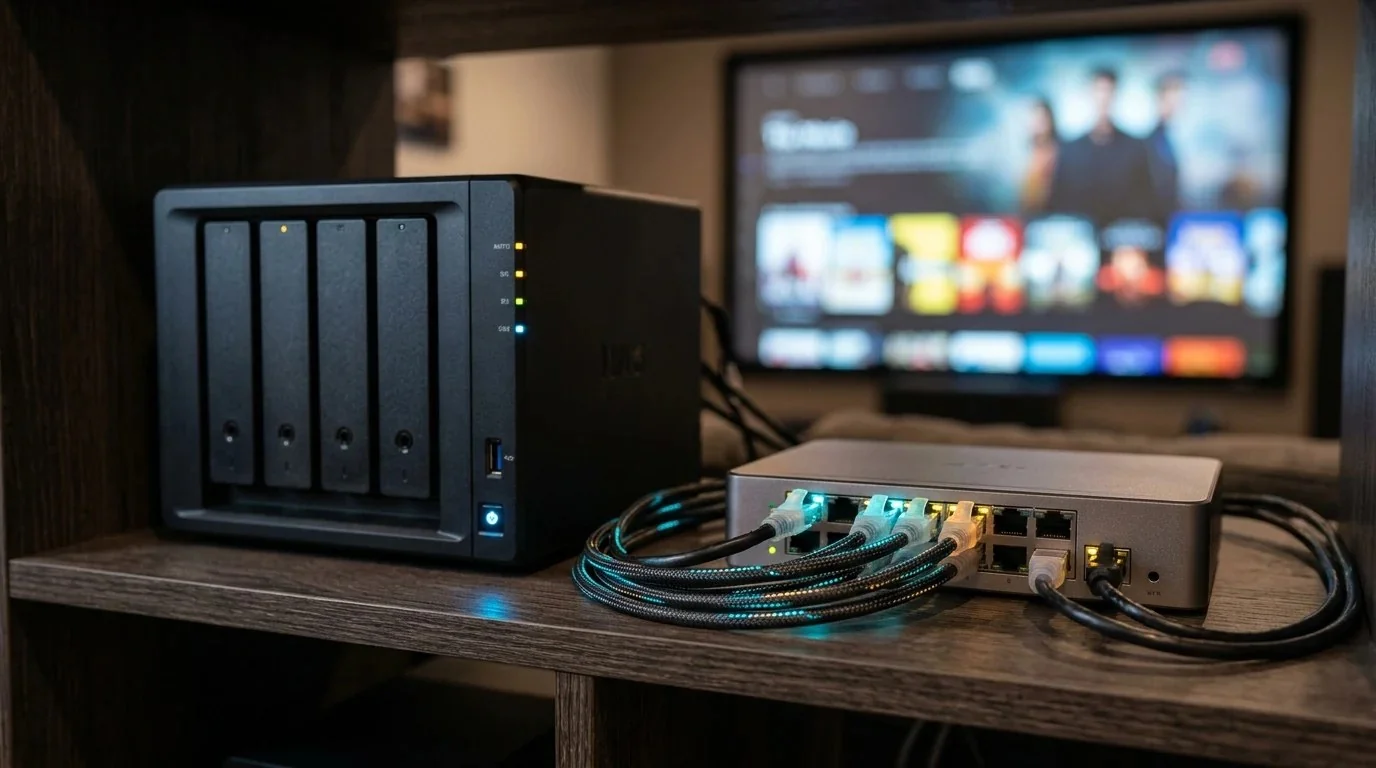
Until recently, multi-gigabit networking required expensive enterprise 10G switches with loud cooling fans. In 2026, 2.5GBASE-T has become dirt-cheap and whisper-quiet:
The Recommended 2.5G Home Setup
- 2.5G Unmanaged Switch ($35–$50): Compact 5-port or 8-port switches (utilizing Realtek RTL8372 chips) draw under 6 Watts, produce zero fan noise, and run completely plug-and-play.
- 2.5G NIC for Server/PC ($15–$25): If your motherboard only has 1G, add a PCIe card or a Realtek RTL8156BG USB-C 2.5G Ethernet adapter.
- Standard Cat6 Cabling: You do NOT need expensive Cat8 cables. As proven in our Cat6 vs Cat6A Cable Benchmark, standard Cat6 copper handles 2.5G and 5G speeds effortlessly up to 100 meters.
A 2.5G local network pushes real-world transfer speeds to 285 MB/s, allowing heavy background backups and multiple 4K direct plays to run simultaneously with zero contention.
4. Port Forwarding: Fixing TCP 32400 & Jellyfin Port 8096
When traveling or sharing your server with family, configuring remote access without security vulnerabilities is essential:
- Disable UPnP on Your Router: Universal Plug and Play (UPnP) is inherently insecure, allowing any rogue IoT device on your home network to open public firewall ports without authentication.
- Manual Port Forwarding for Plex: Log into your router's admin portal (
192.168.1.1). Create a port forward rule: External Port:32400(or a custom high port like48291for security) → Internal IP:[Your Server's Static LAN IP]→ Internal Port:32400→ Protocol: TCP. - Manual Port Forwarding for Jellyfin: Forward External Port:
8096(HTTP) or8920(HTTPS) to your Jellyfin host. For enhanced security, run Jellyfin behind a reverse proxy (Caddy or Nginx) with automated Cloudflare SSL certificates.
5. Bypassing CGNAT: Killing the 2 Mbps "Indirect Connection"
If your Plex dashboard displays "Indirect Connection" or your remote streams are permanently capped at a blurry 720p 2 Mbps quality, you are trapped behind Carrier-Grade NAT (CGNAT). This is standard on T-Mobile 5G Home Internet, Starlink, and many fiber providers.
Because your router does not possess a public IPv4 address, inbound connections cannot reach your server. Plex routes your stream through its free Plex Relay servers, which enforce an intentional 1 Mbps limit (2 Mbps for Plex Pass).
The 2 Working Solutions to Bypass CGNAT
- Request a Static Public IP from Your ISP: Many providers offer a public IP add-on for $5 to $15 per month, instantly restoring direct port forwarding.
- Deploy Tailscale with Subnet Routing or a VPS Reverse Proxy: Install Tailscale on your server and remote client devices. Tailscale uses WireGuard DERP relays and NAT hole-punching to create a direct, unthrottled encrypted tunnel between devices regardless of CGNAT.
6. Upload Speed Requirements: Direct Play vs Transcoding
To calculate how many simultaneous remote streams your internet connection can support, evaluate your ISP's real-world upload bandwidth:
Run our DCSpeedTest Bandwidth Meter on an Ethernet cable to check your true upstream speed. If you have symmetrical gigabit fiber (940 Mbps upload), you can support 10+ concurrent 4K streams with zero transcoding. If you have standard cable internet with 20 Mbps upload, you can support only one 1080p stream before your upload pipe collapses into bufferbloat.
7. Media Server Streaming Bandwidth Benchmark Matrix
Measured bandwidth consumption across standard media formats:
| Media Resolution & Format | Average Bitrate | Peak Spike Bitrate | Minimum Upload Required | Server CPU/GPU Load |
|---|---|---|---|---|
| 1080p SDR Web-DL (H.264) | 4 to 8 Mbps | 12 Mbps | 15 Mbps Upload | 0% (Direct Play) |
| 1080p Blu-ray Remux (AVC) | 25 to 35 Mbps | 48 Mbps | 60 Mbps Upload | 0% (Direct Play) |
| 4K HDR Web-DL (HEVC) | 18 to 30 Mbps | 45 Mbps | 50 Mbps Upload | 0% (Direct Play) |
| 4K UHD Remux (HDR10/DoVi) | 65 to 85 Mbps | 140 to 180 Mbps | 200+ Mbps Symmetrical | 0% (Direct Play) |
| 4K to 1080p Hardware Transcode | 10 Mbps | 14 Mbps | 20 Mbps Upload | 15–25% Intel QuickSync GPU |
Build a Flawless Multi-Gigabit Home Network
Eliminate bufferbloat, unlock full multi-gigabit throughput, and master home server networking:
Frequently Asked Questions
How much upload speed do I need to stream Plex 4K outside my home?
An average 4K HDR movie requires 45 to 85 Mbps, with action scenes spiking to 140–180 Mbps. To stream 4K remotely without buffering, you need a minimum of 100 to 200 Mbps upload bandwidth (available on symmetrical fiber plans).
Why is my Plex connection showing as 'Indirect' with a 2 Mbps limit?
An indirect connection means strict router firewalls, Double NAT, or Carrier-Grade NAT (CGNAT) prevent direct socket negotiation. Plex routes the video through its free relay servers, capping quality at 2 Mbps. Manually forwarding port 32400 restores direct streaming.
Is a 2.5G network switch worth it for a local Plex/Jellyfin server?
Yes. A 2.5G switch removes the 112 MB/s cap of standard gigabit networks, pushing speeds to 285 MB/s. This allows you to transfer 80 GB remux files in minutes while multiple clients direct play 4K simultaneously without hesitation.
What is the difference between Direct Play and Transcoding?
Direct Play streams the original file untouched with 0% server CPU load. Transcoding re-encodes the video in real-time when the client cannot decode the format, which demands heavy GPU hardware power and slightly degrades visual fidelity.
Written by Dalto Cardoso
Founder of DCSpeedTest. Network infrastructure specialist dedicated to multi-gigabit LAN architecture, home media server engineering, port forwarding security, and bufferbloat mitigation.
Connect on LinkedIn ➔