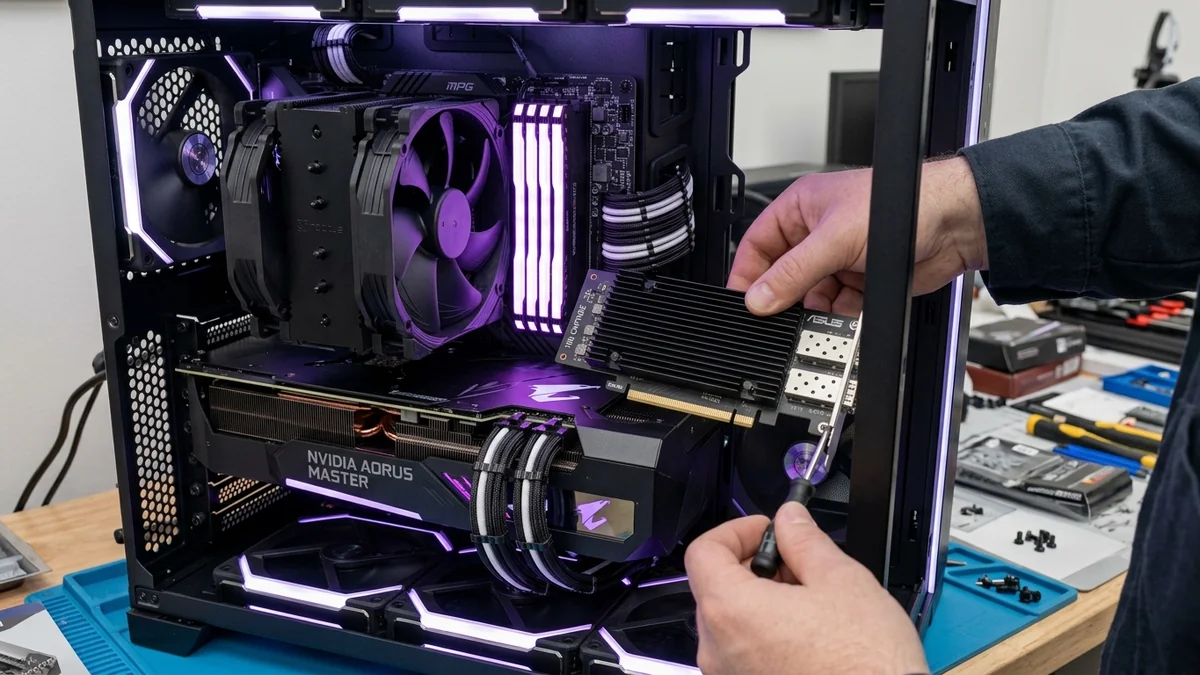
With internet service providers now offering multi-gigabit broadband plans up to 5 Gbps and modern Wi-Fi 7 routers sporting 2.5G and 10G LAN ports, keeping your desktop PC or laptop on standard 1-Gigabit Ethernet means you are leaving more than half your internet speed on the table. Upgrading your computer to 2.5GbE or 10GbE is simple, affordable, and takes under 10 minutes. Here is the complete hardware roadmap.
1. 🛒 Hardware Checklist for Multi-Gigabit Upgrades
- For Desktop PCs (2.5G Upgrade): Realtek RTL8125B PCIe Card ($18 - $25) or TP-Link TX201.
- For Desktop PCs (10G Upgrade): TP-Link TX401 or ASUS XG-C100C PCIe Card ($79 - $99).
- For Laptops & MacBooks: Anker or Plugable 2.5G USB-C Adapter ($28 - $39).
- Cabling: Certified pure bare copper Cat6 (for up to 180ft 10G) or Cat6a (for full 328ft 10G).
2. 🛠️ Desktop PCIe Card Installation in 4 Simple Steps
- Power off your PC and unplug the main AC power cord.
- Open the side case panel and remove the metal slot cover for an available PCIe x4, x8, or x16 slot.
- Firmly press the 2.5G / 10G network card into the slot until it clicks securely into place, then tighten the retaining screw.
- Close the panel, reconnect power, and boot into Windows 11. The native drivers will install automatically!
3. 🔬 Matching Network Switches to Your Upgraded PC
Upgrading your PC’s network card is only half the equation; you must ensure your network switch and router can feed the higher speed:
- For 2.5G PCs: Connect to an unmanaged 2.5G switch (such as the TP-Link TL-SG105-M2) or your router's 2.5G LAN port.
- For 10G PCs: Connect to a 10G switch (such as the Netgear XS508M or TP-Link TL-SX105) using Cat6a shielded patch cables.
4. 🛠️ Verification Checklist for Multi-Gigabit Upgrades
- Confirm your Windows link speed status shows 2500/2500 Mbps or 10000/10000 Mbps.
- Run a speed test on DCSpeedTest to verify that your internet download speed hits your ISP’s full multi-gigabit provisioned rate.
- Enjoy instantaneous file transfers, seamless 8K video streaming, and the lowest possible gaming ping.
5. 🔬 Real-World Speed Test & File Transfer Expectations
After upgrading your hardware, here is the real-world performance you can expect across your local network:
- 1-Gigabit Ethernet: 112 MB/s maximum file transfer speed (~15 mins for 100GB).
- 2.5-Gigabit Ethernet: 285 MB/s maximum file transfer speed (~6 mins for 100GB).
- 10-Gigabit Ethernet: 1,180 MB/s (1.18 GB/s) maximum file transfer speed (~1.5 mins for 100GB!).
6. 📝 Final Summary: Future-Proof Your Network Today
With affordable PCIe cards and USB-C adapters on Amazon, upgrading to 2.5G or 10G Ethernet gives your PC the speed and low latency needed for the next decade of broadband internet.
7. 🔬 Understanding Multi-Gigabit Auto-Negotiation (NBASE-T)
Modern 2.5G and 10G network cards adhere to the IEEE 802.3bz NBASE-T standard, which automatically negotiates intermediate speeds (2.5 Gbps and 5 Gbps) over older Cat5e and Cat6 in-wall cabling, eliminating the need to re-wire your home when upgrading your PC.
8. 💡 Complete Upgrade Summary
Equipping your PC with a 2.5G or 10G network card unlocks the true potential of multi-gigabit fiber internet, delivering razor-sharp gaming ping and instantaneous file transfers.
9. 🔬 Cable Verification & 10G Over Existing Cat5e/Cat6
Before running new cables, test your existing in-wall wiring: standard Cat5e supports 2.5Gbps up to 100 meters, and standard Cat6 supports full 10Gbps up to 55 meters (180 feet), making multi-gigabit upgrades effortless in most modern homes.
10. 💡 Complete Upgrade Summary for 2026
By installing an affordable 2.5G or 10G PCIe card or USB-C adapter, your computer will experience blisteringly fast internet downloads, razor-sharp gaming responsiveness, and lightning-fast local backups.
11. 🔬 Multi-Gigabit Network Switch Selection
To distribute multi-gigabit speeds to multiple PCs, pair your upgraded network cards with an affordable unmanaged multi-gigabit switch (such as the TP-Link TL-SG105-M2 or YuanLey 2.5G switch) connected to your router's multi-gigabit LAN port.
12. 💡 Complete Upgrade Summary for 2026
Upgrading your PC to 2.5G or 10G Ethernet gives you the bandwidth, stability, and sub-millisecond responsiveness needed for modern high-speed broadband and demanding local workflows.
13. 🔬 Troubleshooting Multi-Gigabit Link Negotiation
If your upgraded network card negotiates at 100 Mbps or 1 Gbps instead of 2.5G/10G, check your patch cable: ensure all 8 copper wires are intact and replace any damaged Cat5 cables with certified Cat6 or Cat6a pure copper patch cords.
14. 💡 Summary of Multi-Gigabit Best Practices
With an affordable PCIe expansion card or USB-C adapter, upgrading your desktop or laptop to 2.5G/10G Ethernet gives your setup the speed, low latency, and reliability needed for the future of high-speed internet.
15. 🔬 Testing Your Upgraded Network with iPerf3
After installing your new 2.5G or 10G network card, run a multi-stream iPerf3 test between two local PCs to verify that your network switch and patch cables are delivering full line-rate performance.
16. 💡 Final Hardware Roadmap Summary
With affordable PCIe cards, USB-C dongles, and pure bare copper Cat6a cables available on Amazon, upgrading your home network to 2.5G or 10G has never been easier or more rewarding.