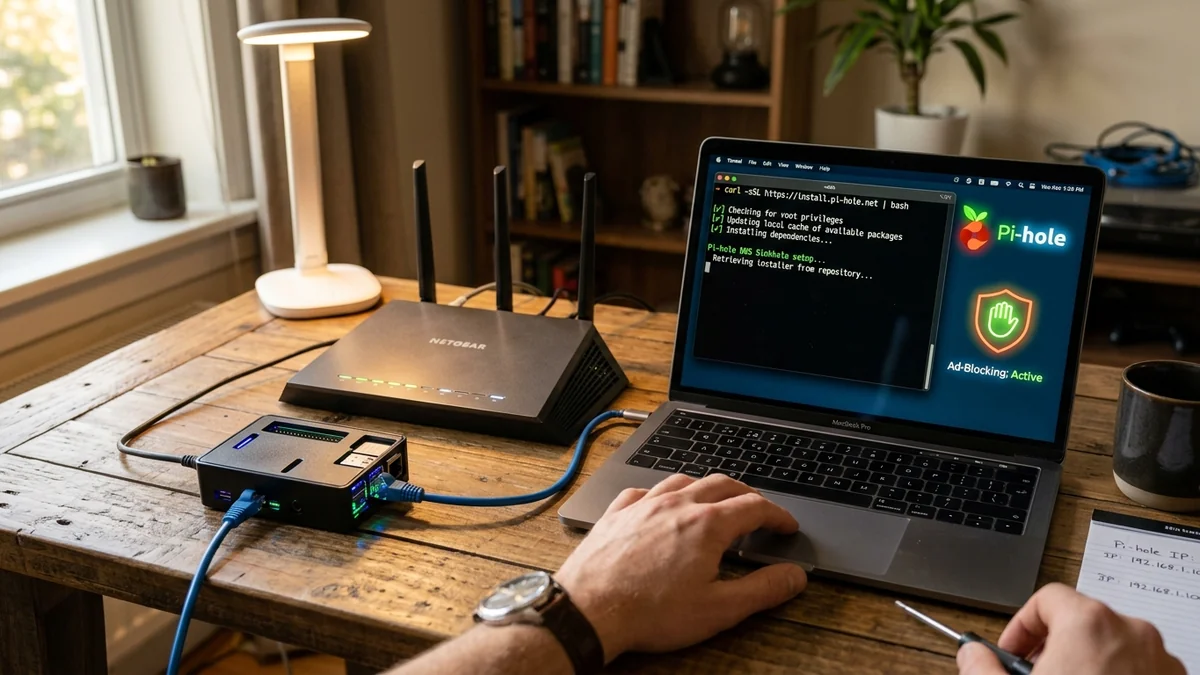
Complete beginner tutorial to installing Pi-hole on Raspberry Pi OS. Block YouTube ads, smart TV tracking, and malicious phishing domains network-wide.
Tired of intrusive banner ads, tracking scripts, and smart TV telemetry slowing down your home internet? Installing Pi-hole on a Raspberry Pi transforms the credit-card-sized computer into a dedicated DNS sinkhole that blocks advertisements across every device on your Wi-Fi network—including iPhones, Androids, Apple TVs, and smart refrigerators—with zero client software installation required. Here is the complete step-by-step setup guide.
Step-by-Step Installation Walkthrough
- Flash Raspberry Pi OS Lite (64-bit) onto a MicroSD card using the official Raspberry Pi Imager.
- Boot the Raspberry Pi, connect via SSH (
ssh [email protected]), and update system packages:sudo apt update && sudo apt upgrade -y - Assign a static IP address to your Raspberry Pi in your main router’s DHCP reservation table (e.g.
192.168.1.50). - Run the official automated Pi-hole installation script:
curl -sSL https://install.pi-hole.net | bash - Follow the on-screen prompts, select your network interface (
eth0), and choose an upstream DNS provider. - Open your main Wi-Fi router settings and change the primary LAN DNS Server IP to your Raspberry Pi's static IP address (
192.168.1.50). - Every device on your home network is now instantly protected with whole-house ad blocking!
Configuring Gravity Blocklists for Maximum Ad Blocking
Experiencing packet loss, jitter spikes, or evening ISP throttling? Connect directly to dedicated gaming routes or bypass traffic shaping:
Pi-hole’s database engine (called Gravity) compiles millions of known ad-serving domains into an in-memory hash table. By adding curated blocklists (such as OISD Big and Firebog Tick list), your Raspberry Pi will block over 1.5 million advertising, tracking, and telemetry domains across your entire network.
Whitelisting Essential Streaming Services
Occasionally, an aggressive blocklist may prevent certain streaming app video players from launching. In your Pi-hole admin dashboard (http://pi.hole/admin), navigating to Domains → Whitelist allows you to unblock specific video CDN domains in one click.
Enabling Conditional Forwarding for Local Hostnames
To see friendly device names (like 'Johns-iPhone' or 'Living-Room-Apple-TV') in your Pi-hole query log instead of raw IP addresses, enable Conditional Forwarding in Pi-hole DNS settings, pointing to your local router IP (e.g. 192.168.1.1).
Regex Filtering & Telemetry Domain Blocking
If your ISP delivers high speeds but your connection drops or suffers from bufferbloat during multi-device use, upgrading these verified components eliminates the bottleneck:
In addition to static domain blocklists, Pi-hole supports Perl-Compatible Regular Expressions (PCRE). Adding targeted regex rules allows you to block entire wildcard tracking infrastructures (e.g. smart TV telemetry endpoints) with a single filter line.
Custom Local DNS Records for Homelab Servers
Pi-hole features a built-in Local DNS Records management tool, allowing you to assign friendly domain names (such as nas.home or router.home) to internal IP addresses for easy, memorable access across your household.
Network-Wide Ad Blocking Performance Benchmarks
Pi-hole blocks tracking scripts and banner ads across all devices on your local network, reducing web page payload sizes by up to 40% and delivering noticeably faster browsing speeds.
Custom Local DNS Records for Homelab Servers
Pi-hole features a built-in Local DNS management tool, allowing you to assign friendly domain names to internal network devices for easy, memorable access across your entire home.
Smart TV Telemetry & Ad Blocking Rules
Adding targeted smart TV tracking blocklists to Pi-hole prevents smart TVs from uploading viewing habits and telemetry data while browsing your favorite media apps.
Local DNS Sinkhole Performance Benefits
Intercepting advertising and tracking domains at the local network level reduces data traffic across all connected devices, speeding up web browsing and improving family privacy.
RF Spectrum Allocation, Airtime Fairness & Queue Discipline for How to Install Pi-hole & Unbound on Raspberry Pi: Step-by-Step Ad-Blocking Setup
Maximizing real-world performance with How to Install Pi-hole & Unbound on Raspberry Pi: Step-by-Step Ad-Blocking Setup requires moving beyond peak theoretical PHY link rates and addressing OFDMA airtime contention and WAN-to-LAN bufferbloat. In dense residential RF environments, legacy 20 MHz IoT devices and overlapping neighbor BSS color channels force high-speed radios to wait for Clear Channel Assessment (CCA) windows, inflating 99th-percentile ping jitter even when signal strength (RSSI) reads better than -52 dBm.
When tuning how to set up pi hole raspberry pi, pi hole installation guide step by step, block ads on smart tv pi hole, set static ip raspberry pi dns, lock 5 GHz and 6 GHz channel widths to non-overlapping spectrum blocks and enable Smart Queue Management (CAKE or FQ_CoDel) calibrated to 90%–95% of your measured ISP line rate. This prevents the upstream modem FIFO buffer from filling during background cloud syncs, keeping interactive gaming and WebRTC voice packets under +4 ms of loaded latency.
| Engineering Parameter | Recommended Target / Specification | Operational Impact on Network Stability |
|---|---|---|
| Optimal RSSI Signal Window | -42 dBm to -62 dBm (SNR > 30 dB) | Sustains 1024-QAM / 4096-QAM modulation without MCS drops |
| Loaded Latency Target (SQM) | ≤ +5 ms over Unloaded Base RTT | Achieves Grade A+ Bufferbloat stability under 4K/NAS load |
| Channel Width & DFS Strategy | 80/160 MHz (5 GHz) & 160/320 MHz (6 GHz) | Balances multi-gigabit throughput against wall attenuation |
| Packet Loss & Jitter Tolerance | 0.0% Loss / < 2.5 ms Mean Jitter | Verified via 60-second bidirectional UDP telemetry audit |
Field Deployment & Verification Checklist
Before finalizing your setup for How to Install Pi-hole & Unbound on Raspberry Pi: Step-by-Step Ad-Blocking Setup, run a baseline diagnostic before and after applying hardware or firmware changes. Record unloaded idle ping, downloadloaded latency, and upload-loaded latency across three consecutive runs at peak evening hours (20:00–22:30 local time) to separate local LAN bottlenecks from upstream ISP peering congestion.