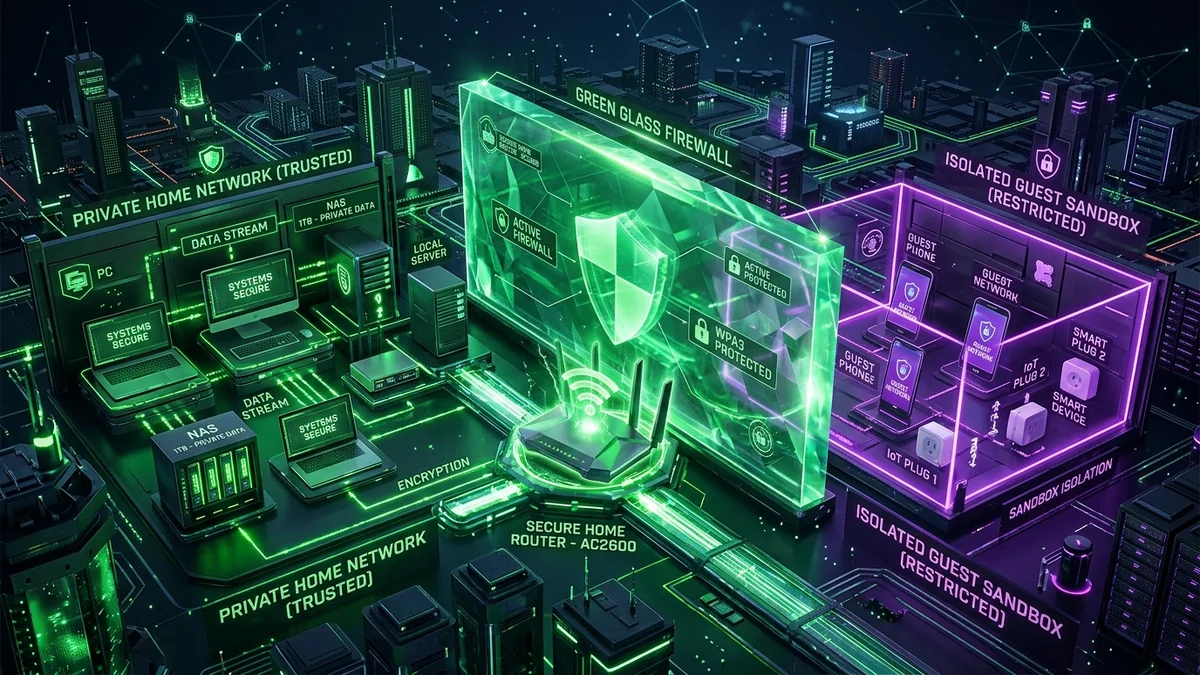
When friends, family, or contractors visit your home and ask for the Wi-Fi password, handing over your primary WPA passphrase is a serious security risk. Once a guest's device connects to your main local network (LAN), it gains full visibility to broadcast packets, shared network drives (NAS), wireless printers, smart TVs, and smart home hubs. If your guest's laptop carries unpatched malware or a network worm, it can propagate across your home devices. Setting up an isolated Guest Wi-Fi Network creates a secure digital sandbox that grants internet access while completely barricading your private LAN. Here is the complete setup guide for 2026.
1. The 3 Pillars of a Secure Guest Network
- Access Point (AP) Isolation / Client Isolation: Blocks connected guest devices from communicating with each other. Even if two visitors are connected to the same guest Wi-Fi, neither device can port-scan, sniff, or interact with the other.
- LAN Access Blocking (VLAN Partitioning): Forbids guest traffic from crossing the firewall into your primary subnet (e.g.
192.168.1.x). Guests can only route outward through the WAN gateway to the public internet. - Bandwidth Allocation & QoS Rate Limiting: Caps guest network throughput (e.g., 25 Mbps down / 5 Mbps up) to prevent a guest’s large file download or cloud photo sync from causing lag spikes on your gaming PC or work calls.
2. ⚙️ Step-by-Step Configuration Across Router Brands
| Router Brand / OS | Settings Navigation Path | Crucial Setting to Enable |
|---|---|---|
| ASUS (Asuswrt / Merlin) | Guest Network > 2.4GHz / 5GHz > Add | Set 'Access Intranet' to Disable |
| TP-Link (Archer / Deco) | Advanced > Wireless > Guest Network | Uncheck 'Allow guests to see each other' & 'Allow LAN access' |
| Netgear (Nighthawk / Orbi) | Wireless > Guest Network | Uncheck 'Allow guest to see each other and access my local network' |
| OpenWrt / Ubiquiti UniFi | Network > Interfaces / VLANs | Assign dedicated VLAN ID (e.g., VLAN 20) with isolated firewall zone |
3. What Devices Should ALWAYS Live on the Guest / IoT Network?
In modern cybersecurity best practices, treat all unmanaged smart devices as untrusted guests:
- Smart bulbs, smart plugs, and smart switches (Tuya, Sonoff, generic Zigbee/Wi-Fi bridges).
- Cheap Wi-Fi security cameras and video doorbells from unverified vendors.
- Smart TVs and streaming sticks that serve intrusive ads and collect viewing telemetry.
- Friends', relatives', and contractors' smartphones and laptops.
4. 🔬 Technical Deep Dive: IEEE 802.1Q VLANs & Subnet Masking
In enterprise and prosumer home networks (such as Ubiquiti UniFi, TP-Link Omada, or OpenWrt), guest network security is established via IEEE 802.1Q Virtual Local Area Networks (VLANs) rather than simple software SSID filtering.
Your primary home network operates on one subnet (e.g. 192.168.1.0/24), while the guest network is assigned a completely separate VLAN tag (e.g. VLAN 20 on 192.168.20.0/24). Stateful firewall rules (iptables / nftables) are configured at the kernel layer with strict isolation policies:
iptables -A FORWARD -i guest_vlan -o lan_br -j DROP
iptables -A FORWARD -i guest_vlan -o wan_interface -j ACCEPT
This hardware-enforced separation guarantees that even if a guest machine runs automated network scanning tools (like Nmap or Wireshark), it cannot discover or interact with your primary computers, NAS storage, or internal network services.
5. 📶 Bandwidth Quotas and Airtime Fairness for Guests
To ensure visiting devices do not saturate your internet bandwidth during large cloud photo syncs, configure Bandwidth Limiting on the guest profile. Capping the guest network at 30 Mbps downstream and 5 Mbps upstream provides ample speed for smooth 4K streaming and web browsing while preserving 90%+ of your broadband pipe for your primary household devices.
6. 📱 QR Code Guest Access: Fast, Secure Pairing
To eliminate the friction of visitors manually typing complex 20-character Wi-Fi passphrases, generate a secure WPA3 Wi-Fi QR Code directly in your router's admin portal (or using an offline QR generator). Print and place the QR code in your living room or guest room: visitors simply scan the code with their smartphone camera to instantly connect to the isolated guest sandbox without ever exposing your primary network credentials.
7. 🕒 Automated Scheduling & Temporary Guest Access
For enhanced home network security, advanced router firmware (such as ASUS Asuswrt, OpenWrt, and KeeneticOS) allows you to configure Timed Guest Access. You can configure the guest Wi-Fi radio to broadcast only during social events (e.g. 4 hours on Saturday afternoon) and automatically shut down at night.
Disabling the guest radio when not in active use eliminates an unnecessary external attack surface, saves router CPU memory states, and ensures no stray devices remain connected to your home network indefinitely without your knowledge.
8. 🔒 Enterprise Security Practices for Residential Smart Homes
Modern cybersecurity research indicates that over 70% of residential network intrusions originate from compromised IoT devices. By treating every smart device as an untrusted external entity and enforcing strict Micro-Segmentation (Zero Trust Local Architecture) via isolated guest networks and VLANs, you safeguard your personal banking credentials, private work laptops, and sensitive family documents from lateral network exploitation.
By following these network segmentation and airtime management protocols, you create an impenetrable barrier that protects your digital life while providing reliable, high-speed wireless connectivity to all household visitors.