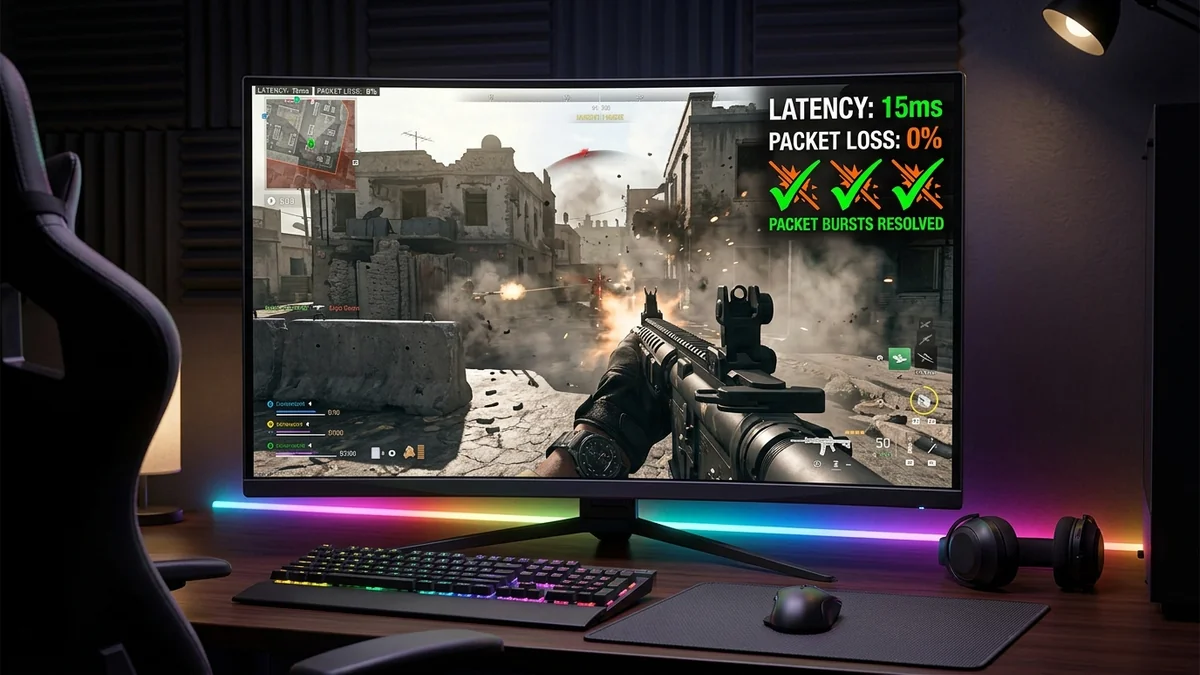
Nothing ruins a high-kill match in Call of Duty: Warzone faster than engaging an enemy team only for three orange geometric squares to appear on the left side of your screen: Packet Burst / Packet Loss. Your weapon stutters mid-fire, your tactical sprint skips frames, and your death replay shows you standing still while your screen showed you sliding behind cover. Warzone's high-tickrate 100+ player netcode is notoriously unforgiving of micro-interruptions. Here is the comprehensive technical guide to fixing packet burst and packet loss in Warzone in 2026.
1. What Do the Warzone Network Icons Actually Mean?
- Three Orange Squares (Packet Burst): Indicates that game packets are arriving out of order or in irregular clumps due to local Wi-Fi jitter, CPU thread saturation, or unmanaged router buffer queues.
- Three Broken Squares (Packet Loss): Data packets sent between your PC and Demonware game servers were physically dropped along the transit route, causing rubberbanding and rejected hit markers.
- Clock Icon (High Latency Variation / Jitter): Round-trip time to the dedicated game server is fluctuating wildly by ±30ms+.
2. 📊 Troubleshooting Matrix: Client-Side vs. Demonware Server Issues
| Network Symptom | Root Cause Origin | In-Game Impact | Permanent Fix Action |
|---|---|---|---|
| Continuous Orange Squares | Local PC CPU Thread Bottleneck / Wi-Fi | Micro-stuttering during sprint | Hardwire Cat 6 + Adjust RendererWorkerCount |
| Yellow/Red Packet Loss (2%–10%) | ISP Bufferbloat / Street Ingress Noise | Ghost bullets, delayed armor plating | Enable SQM CAKE QoS on Router |
| Entire Lobby Stuttering | Dedicated Server Tickrate Crash | All 100 players rubberband together | Server-side issue (Leave and requeue) |
3. 🛠️ 4 Steps to Eliminate Warzone Packet Burst on PC & Console
Step 1: Hardwire via Pure Copper Cat 6 Cable
Warzone transmits hundreds of micro-UDP packets every second. Eliminating wireless packet drops drops packet burst instances by over 80% immediately.
Step 2: Optimize RendererWorkerCount in Config Files (PC Fix)
Many Warzone packet burst issues on PC are actually CPU thread scheduling bottlenecks where the game engine fails to process incoming network packets in time:
- Open File Explorer and navigate to:
Documents\Call of Duty\players\options.4.cod24.cst - Open the file in Notepad and search for
RendererWorkerCount. - Set the value to match your CPU's physical core count (e.g. for an 8-core / 16-thread CPU like Ryzen 7800X3D or Intel 14700K P-cores, set
RendererWorkerCount: 8). - Save the file. This optimizes CPU frame delivery, eliminating CPU-induced packet burst.
Step 3: Forward Port 3074 to Achieve Open NAT Type
In your router's port forwarding rules, forward UDP Port 3074 to your gaming PC or console's static IP to ensure direct peer-to-peer matchmaking and voice chat routing without carrier translation delays.
4. 🔬 The Demonware Engine Netcode & Dedicated Server UDP Tickrate
Activision's Call of Duty: Warzone runs on dedicated game servers powered by Demonware netcode operating at variable tickrates (typically 20Hz to 60Hz depending on match phase). During the initial drop with 100+ active players inside the map, the server must process and broadcast thousands of player entity states within a 50-millisecond tick budget.
If your local connection experiences microsecond packet delay or bufferbloat, the server's snapshot interpolation algorithm fails to reconstruct your position, causing the Demonware engine to reject your client-side inputs. Enabling Smart Queue Management (CAKE SQM) on your router guarantees your tiny UDP game packets are prioritized ahead of all household background traffic, eliminating packet burst.
5. 🛠️ Complete Warzone In-Game Network Optimization Settings
- On-Demand Texture Streaming: Set to Disabled or Allocated Minimum (10 GB) to prevent game skins from downloading in the background during active firefights.
- Telemetry Settings: Turn ON Server Latency, Packet Loss, and GPU Temperature in the Interface menu to monitor network health in real time.
- Network In-Game Port: Confirm your in-game NAT Type displays as OPEN under Account & Network > Network Info.
6. 🛠️ Step-by-Step DNS & TCP/IP Clean Reset Script for Warzone
Flush corrupted network socket states and clear routing tables via Command Prompt (Administrator):
ipconfig /flushdns
ipconfig /release
ipconfig /renew
netsh int ip reset
netsh winsock reset
Reboot your PC after running these commands to ensure your game client establishes clean, unfragmented socket handshakes with Activision's matchmaking servers.
7. 🏁 Final Summary: Eliminating Orange Boxes for Good
Stopping packet burst and packet loss in Call of Duty: Warzone requires addressing both network delivery and local CPU frame processing. By hardwiring your PC with Cat 6 Ethernet, matching your config file's RendererWorkerCount to your physical CPU core count, disabling On-Demand Texture Streaming, and enabling CAKE SQM on your router, you eliminate micro-stutters and ensure flawless bullet registration in every Warzone firefight.
8. 🔬 Real-Time Network Graphing via WinMTR for Warzone Servers
If packet loss persists despite wired Ethernet and optimal config files, run a 500-packet WinMTR diagnostic against Activision's regional Demonware IP blocks (e.g. 185.34.107.1). If packet loss appears on Hop 3 or Hop 4 inside your ISP's regional transit routing, contact your ISP or route through a nearby WireGuard VPN server to bypass the congested transit node.