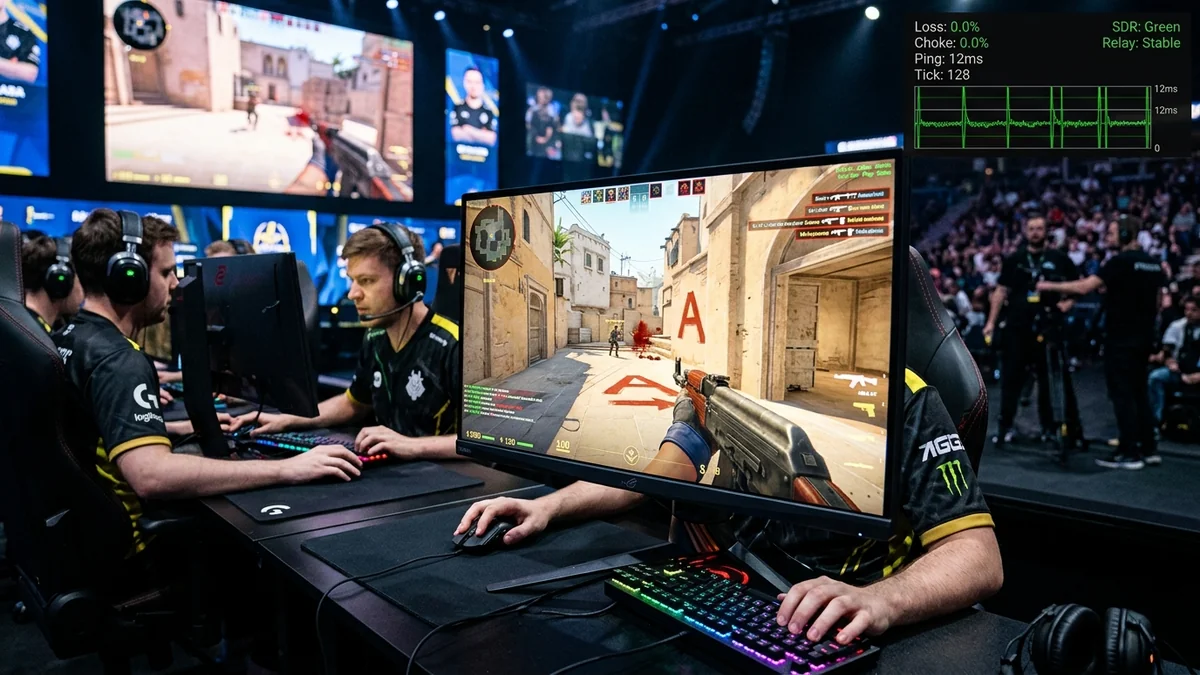
In Counter-Strike 2 (CS2), Valve introduced the groundbreaking Sub-Tick Architecture, designed to eliminate tickrate discrepancies by timestamping exact player clicks between ticks. However, sub-tick netcode transmits significantly denser network payload bursts than legacy CS:GO. When your in-game top-right telemetry HUD flashes red text showing 'Loss: 2.5%' or packet frame delivery spikes, your shots miss, spraying feels unresponsive, and enemy models appear to teleport. Here is the technical guide to fixing packet loss and sub-tick stutter in CS2 in 2026.
1. What Do the CS2 Telemetry Numbers Mean?
- Loss In (Downstream Packet Loss): Packets sent by Valve's server failed to reach your PC, causing missing enemy animations and sudden player teleportation.
- Loss Out (Upstream Packet Loss): Your shooting, moving, and grenade throw inputs failed to reach the server, resulting in 'ghost bullets' and rejected clicks.
- Frame Time Jitter (Frame Delivery Variance): Irregular frame pacing caused by local GPU shader compilation or CPU thread queuing.
2. ⚙️ Step 1: Optimize CS2 In-Game Network Settings
Navigate to Settings > Game > Telemetry and Settings > Game > Network:
- Buffering to Smooth Packet Loss: Set to '1 Packet' (or '2 Packets') if you experience unstable Wi-Fi. This creates a tiny 1-packet interpolation buffer that smooths out micro-packet drops. For clean wired fiber, leave on 'None' for lowest input latency.
- Max Acceptable Matchmaking Ping: Set to
35 msto prevent matchmaking from placing you in overseas server clusters. - Max Acceptable Game Traffic Bandwidth: Set to 'Unrestricted' (executes
rate 1000000).
3. 🚀 Step 2: Autoexec & Console Rate Commands
Add these verified network commands to your CS2 autoexec.cfg file:
rate 1000000
cl_net_buffer_ticks 0
mm_dedicated_search_maxping 35
cq_netgraph 1
4. 🔬 Step 3: Steam Datagram Relay (SDR) Routing Optimization
CS2 routes traffic through Steam Datagram Relay (SDR), Valve's private overlay network. If your ISP has bad routing to Valve's nearest relay node:
- Open the CS2 developer console (~) and type
status. - Look for the line:
Connected to SDR relay [city code]. - If the SDR relay shows high ping or packet drops, route through an optimized WireGuard VPN connected to the server city to force Steam to select a clean SDR relay ingress point.
5. 🔬 Sub-Tick Payload Bursting & Windows Conntrack UDP Buffers
In CS2, every player action (shooting, crouching, moving, jumping) generates a sub-tick timestamped payload. During intense execute situations where 10 players throw smoke grenades, flashbangs, and trade fire simultaneously, Valve's server transmits sudden bursts of 100+ UDP packets within a 15-millisecond window.
If your Windows network adapter's internal Receive Buffers (Rx) are set to the legacy default of 256, your network card drops packets during these microsecond bursts. Opening Device Manager > Network Adapters > Properties > Advanced and increasing Receive Buffers to 512 or 1024 eliminates local network card buffer overflow, permanently fixing CS2 packet loss.
6. 🛠️ Complete CS2 Autoexec Launch Options
Right-click Counter-Strike 2 in your Steam Library > Properties > General > Launch Options, and add:
7. 🔬 The Difference Between CS2 Tickrate and Sub-Tick Packets
In legacy CS:GO, player positions and shooting actions were evaluated strictly at fixed 64Hz or 128Hz tick boundaries. If you clicked between ticks, your shot was delayed until the next server tick. In Counter-Strike 2, Sub-Tick timestamping records the exact microsecond of your click and transmits a sub-tick delta payload to the server.
Because sub-tick updates are time-critical, any local packet jitter or bufferbloat causes the server to reject the timestamp, resulting in shots not registering and player models snapping backward. Hardwiring with Cat 6 Ethernet and configuring CAKE SQM on your router ensures that 100% of your sub-tick packets arrive on time.
8. 🏁 Final Summary: The Clean CS2 Competitive Setup
Eliminating packet loss in Counter-Strike 2 requires optimizing both game client rate settings and your physical network connection. By configuring rate 1000000 in your autoexec, increasing Windows network adapter receive buffers, and hardwiring directly to your router, you guarantee crisp, responsive sub-tick hit registration in every competitive match.
9. 🔬 Measuring Sub-Tick Network Health with Steam Console
During active CS2 matches, open the console and monitor cq_netgraph 1. If the sub-tick network graph shows solid green blocks, packet pacing is synchronized with the server. If red or yellow spikes appear, adjust your cl_net_buffer_ticks to 1 or verify that background cloud syncs are paused.
10. 💡 Troubleshooting Server-Side Valve SDR Relay Outages
If you experience sudden 5% packet loss that affects everyone on the server, Valve's regional Steam Datagram Relay (SDR) node may be experiencing temporary transit routing congestion. In the CS2 developer console, typing status reveals the SDR cluster ID (e.g. ord for Chicago, iad for Virginia, fra for Frankfurt). If packet loss is localized to one specific cluster, reconnecting through a nearby WireGuard VPN forces SDR to route your connection through an alternative, uncongested regional ingress hub.
Maintaining zero packet loss in Counter-Strike 2 ensures that your aim, spray control, and movement mechanics are represented with 100% fidelity on the server, giving you the competitive confidence needed to dominate high-level Premier and Faceit matches.