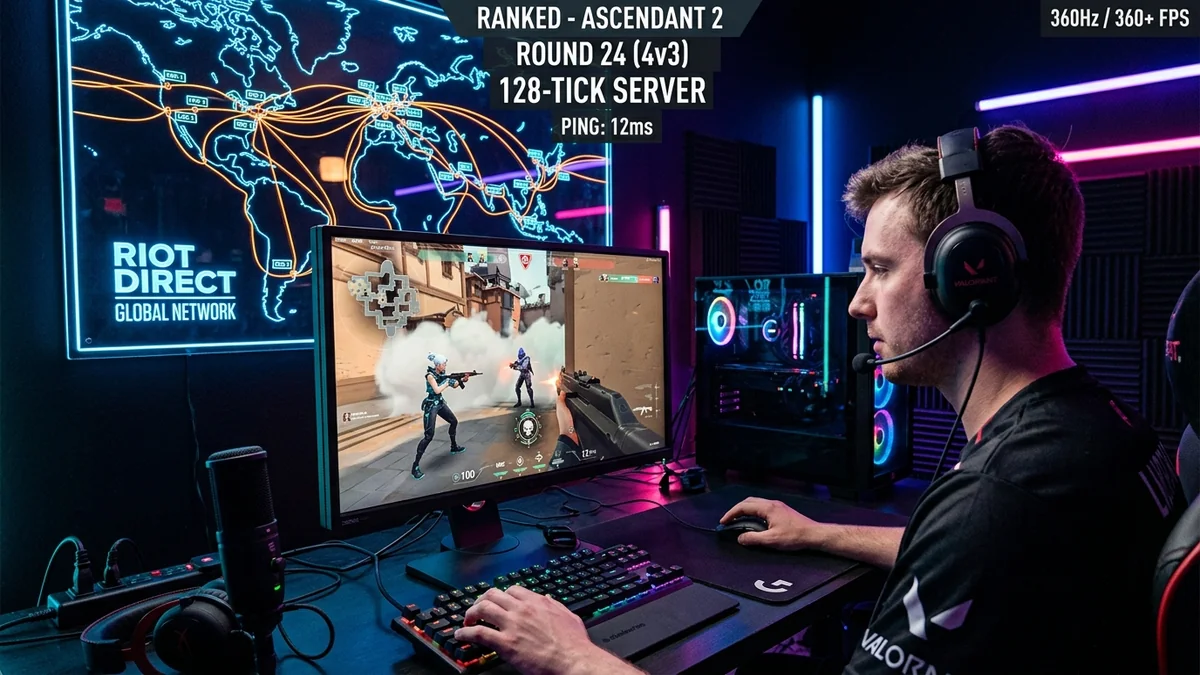
Riot Games built Valorant around a core competitive promise: 128-tick dedicated servers, proprietary Riot Direct global routing, and sub-35ms ping for over 70% of players. Yet, competitive ranked players frequently encounter sudden 'Network Problem' warning icons in the top right corner, fluctuating average ping, and ghost headshots. In a 128-tick game engine where server updates occur every 7.81 milliseconds, even minor local jitter or sub-optimal ISP routing severely disrupts client prediction. Here is the engineering guide to fixing high ping and achieving flawless hit registration in Valorant in 2026.
1. The 128-Tick Architecture & Riot Direct Global Backbone
Unlike standard 64-tick shooters (like CS:GO/CS2 matchmaking or Apex Legends), Valorant servers calculate physics, player inputs, and bullet trajectories 128 times per second. To support this massive data rate, Riot operates Riot Direct, a private software-defined optical network spanning major global Internet Exchange Points (IXPs).
When you queue for a match, your packets are intended to enter the nearest Riot Direct point-of-presence (PoP) in your metro area and travel across Riot's private optical fiber. However, if your residential ISP has poorly configured BGP peering agreements with Riot's Autonomous System (AS6507 / AS6508), your packets are routed through third-party transit hops, adding 20ms to 50ms of unnecessary delay.
2. 📊 Latency Impact on Valorant 128-Tick Netcode
| Ping Measurement | Server Tick Delay | Peeker's Advantage Impact | Hit Registration Quality |
|---|---|---|---|
| < 15 ms | < 2 Server Ticks | Near Zero (True 1:1 gunfights) | Flawless / Instant One-Taps |
| 16 ms – 35 ms | 2 – 4 Server Ticks | Standard Intended Baseline | Crisp Headshot Feedback |
| 36 ms – 60 ms | 5 – 8 Server Ticks | Noticeable Peeker Advantage | Occasional shot interpolation delays |
| > 70 ms | > 9 Server Ticks | Severe (Dying before seeing enemy) | High phantom bullet misses |
3. 🛠️ 5 Proven Steps to Lower Valorant Ping Permanently
1. Hardwire with Pure Copper Cat 6 Cable
Because Valorant sends 128 packets per second in both directions, Wi-Fi radio airtime contention causes micro-burst packet collisions. A wired Cat 6 Ethernet cable reduces local LAN transit latency to 0.3ms, completely eliminating the 'Network Problem' icon.
2. Manually Select Low-Ping Server Shards in Lobby
Click the green match-shard selection icon in the top right corner of the Valorant party lobby. Uncheck high-ping regions and manually lock only the servers with sub-25ms latency.
3. Disable Windows Network Throttling Index
Windows includes a legacy multimedia network throttling mechanism that caps non-multimedia network packets to 10 packets per millisecond:
- Open Registry Editor (Win + R >
regedit). - Navigate to:
HKEY_LOCAL_MACHINE\SOFTWARE\Microsoft\Windows NT\CurrentVersion\Multimedia\SystemProfile - Set
NetworkThrottlingIndextoffffffff(hexadecimal) to disable throttling completely. - Set
SystemResponsivenessto0.
4. Deploy Smart Queue Management (SQM CAKE) on Your Router
Prevent household downloads and cloud backups from saturating router buffers, keeping loaded gaming latency locked under 15ms.
4. 🔬 The Mathematical Geometry of Valorant Peeker's Advantage
In tactical first-person shooters, Peeker's Advantage is calculated using the total one-way transit delay combined with client frame rendering times:
When an aggressive peeker swings around a corner on 15ms ping against a holding defender on 65ms ping, the peeker can see the defender and begin firing up to 55 milliseconds before the defender's screen renders the peeker's model. Lowering your network latency to under 20ms neutralizes this temporal advantage, ensuring your reaction times translate into instant, winning gunfights.
5. 🛠️ Complete Riot Vanguard & Network Interface Optimization
- Set Valorant Process Priority to High: Open Task Manager > Details > right-click
VALORANT-Win64-Shipping.exe> Set Priority > High (ensures the Windows thread scheduler prioritizes game network packets). - Disable IPv6 on Network Adapter (If ISP Has Broken IPv6 Routing): Many residential ISPs support IPv6 poorly, introducing 40ms+ latency swings on dual-stack games. Testing with IPv4 only in network adapter properties frequently stabilizes ping.
- Flush DNS & Purge Socket Tables: Run
ipconfig /flushdnsandnetsh int ip resetbefore launching tournament matches to clear stale routing nodes.
6. 🎮 Valorant In-Game Network Graphing & Packet Diagnostics
To accurately troubleshoot in-game performance without guessing, turn on Valorant's built-in diagnostic overlays under Settings > Video > Stats:
- Network RTT + Text: Displays real-time round-trip latency. A healthy connection shows a flat horizontal line with zero vertical spikes.
- Packet Loss Text: Must read strictly
0%. Any reading above 0.5% indicates immediate hit-registration issues. - Network Problem Indicator: Alerts you whenever client-to-server synchronization delay exceeds 20ms.
7. 🏁 Final Summary: Maximizing Valorant Competitive Performance
In high-stakes tactical shooters like Valorant, every millisecond dictates whether you win the round. By connecting via certified Cat 6 Ethernet, selecting optimal local Riot Direct server shards, and eliminating bufferbloat with CAKE SQM, you eliminate network delay and ensure 100% of your mechanical aim translates into crisp, instant headshots.
8. 🔬 Deep Technical Note: Vanguard Kernel Handshakes
While Vanguard operates locally for anti-cheat driver attestation, it periodically exchanges encrypted state verification tokens with Riot's authentication cluster during match transitions. Ensuring your router does not drop these authentication packets prevents sudden mid-game matchmaking kicks or unexpected lobby disconnects.