What is Double NAT?
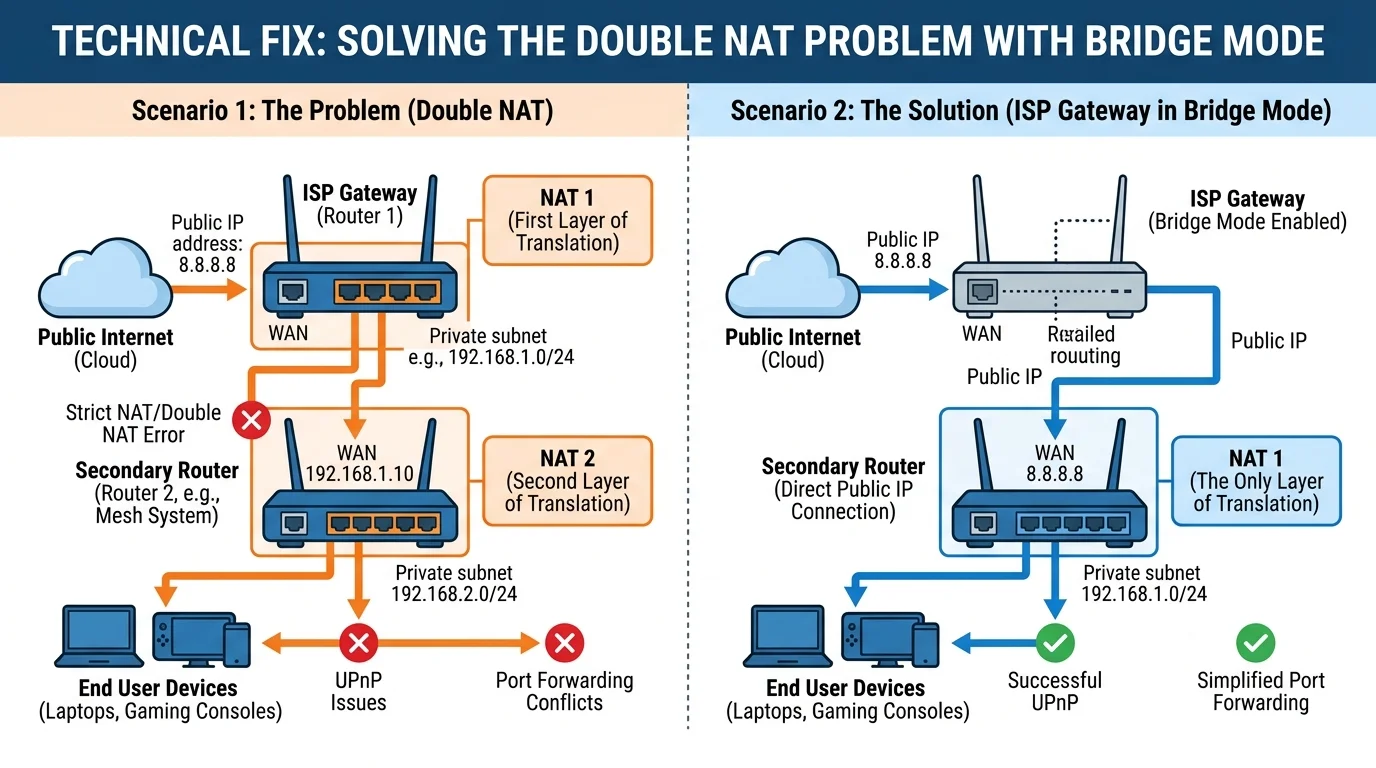
Network Address Translation (NAT) is how your router takes one public IP address from your ISP and shares it safely among all the private devices in your house. A "Double NAT" happens when this translation process occurs twice — usually because you have two routers fighting for control.
This breaks online gaming (Strict NAT), breaks port forwarding, and causes generic connectivity failures for IoT devices.
The Setup That Causes It
90% of Double NAT cases occur when a user buys a nice mesh network or gaming router (like an Eero, Orbi, or Asus) and plugs it directly into the "modem" provided by the ISP (Comcast Xfinity, AT&T, etc).
The problem is: the box the ISP gave you isn't just a modem. It's a "gateway" (a modem + router combo). So the ISP router performs NAT, hands it to your new Asus router, which performs NAT a second time.
How to Diagnose Double NAT
Open Command Prompt on a Windows PC and type: tracert 8.8.8.8
Look at the first two lines (Hops 1 and 2) of the result:
- Healthy network: Hop 1 is your router (e.g., 192.168.1.1). Hop 2 is your ISP's public infrastructure.
- Double NAT: Hop 1 is a private IP (e.g., 10.0.0.1). Hop 2 is ALSO a private IP (e.g., 192.168.1.254). If the first two hops are both private IP spaces, you have Double NAT.
The Solution: IP Passthrough / Bridge Mode
You must tell the ISP combo-box to stop acting like a router and act only as a dumb modem, letting your personal router do the heavy lifting.
- Connect a computer directly to the ISP modem/gateway via wire.
- Log into its web interface (IP address and password are usually on a sticker on the back of the box).
- Locate settings for Bridge Mode, IP Passthrough, or Modem-Only Mode.
- Enable it. The device will reboot.
- Plug your personal router into Port 1 of the ISP modem.
Your personal router will now receive the public external IP directly, completely curing strict NAT type and port forwarding issues in gaming.