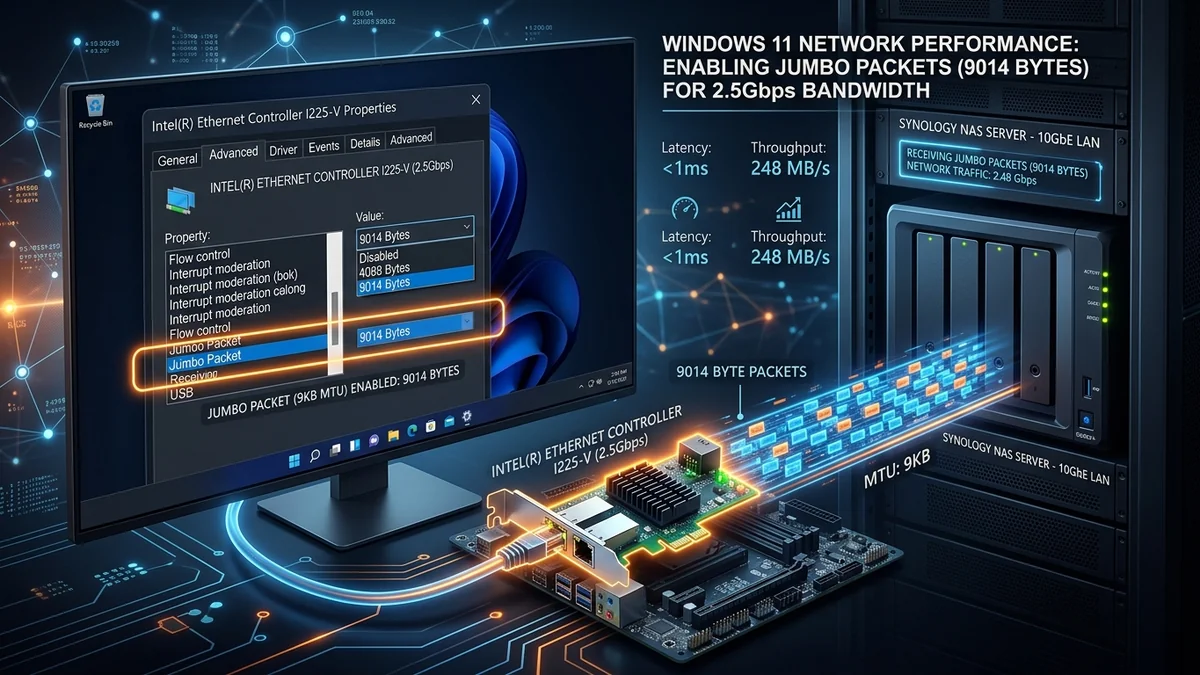
Maximize your local network file transfer speeds and cut CPU overhead. Complete step-by-step tutorial to enabling 9K Jumbo Frames in Windows 11.
Standard Ethernet packets are restricted to a Maximum Transmission Unit (MTU) of 1500 Bytes. When transferring multi-gigabit data streams across 2.5G and 10G local networks, slicing a 100GB file into millions of tiny 1500-byte packets generates massive CPU interrupt overhead. Enabling 9014 Byte Jumbo Frames increases packet payload by 600%, reducing CPU usage and boosting sustained throughput. Here is how to configure it in Windows 11.
Step-by-Step Windows 11 Configuration Guide
- Right-click the Start Button and select Device Manager.
- Expand Network Adapters and double-click your 2.5G / 10G network card (Realtek RTL8125 or Marvell AQC107).
- Click the Advanced tab.
- Locate Jumbo Packet (or Jumbo Frame) in the Property list.
- Change the Value from Disabled / 1514 Bytes to 9014 Bytes (9KB MTU).
- Click OK to apply. Your network connection will reconnect for 1 second.
Important Rule for Jumbo Frames
If your ISP delivers high speeds but your connection drops or suffers from bufferbloat during multi-device use, upgrading these verified components eliminates the bottleneck:
Jumbo Frames must be enabled on every device in the local transmission path (your PC, your unmanaged/managed switch, and your destination NAS storage). If an intermediate switch does not support 9K Jumbo frames, packets will be fragmented, resulting in speed degradation.
Mathematical Payload Efficiency: 1500 MTU vs 9014 MTU
To understand why Jumbo Frames improve local file transfer speeds, consider TCP/IP packet header overhead:
- Standard 1500 MTU: 1460 Bytes payload + 54 Bytes headers = 96.4% transmission efficiency. Transferring 100GB requires 68.4 million individual packets and interrupts.
- 9014 MTU Jumbo Frames: 8960 Bytes payload + 54 Bytes headers = 99.4% transmission efficiency. Transferring 100GB requires only 11.1 million packets (an 83% reduction in packet processing overhead).
Command Line MTU Ping Verification Test
Run this command in Windows Terminal (PowerShell / Command Prompt) to verify that your local network path is successfully transmitting unfragmented 9K Jumbo Frames:
ping 192.168.1.100 -f -l 8972
If you receive 4 replies with 0% packet loss, your 9K Jumbo Frame network is 100% active and optimized!
Impact of Jumbo Frames on Switch Buffer Memory
Experiencing packet loss, jitter spikes, or evening ISP throttling? Connect directly to dedicated gaming routes or bypass traffic shaping:
When deploying 9K Jumbo Frames, ensure your unmanaged or managed network switch supports a Switch Packet Buffer of at least 1.5MB to 2.0MB (such as the TP-Link TL-SG105-M2 or Netgear GS308). Larger packet buffers prevent switch frame drops when multiple 2.5G devices transmit simultaneously.
Summary: The Simplest Local Network Speed Boost
Enabling 9014 Byte Jumbo Frames takes 60 seconds, costs zero dollars, and instantly accelerates your local NAS file backups and video rendering workflows.
TCP Window Scaling & Selective Acknowledgment (SACK)
When pairing 9014 Byte Jumbo Frames with TCP Window Scaling (RFC 7323) and Selective Acknowledgment (SACK), Windows 11 can expand its TCP receive window to several megabytes. This allows local file transfers across 2.5G and 10G networks to saturate maximum theoretical line rates within milliseconds of initiating the file copy.
Diagnosing MTU Mismatches & Black Hole Routers
If enabling Jumbo Frames causes certain websites to fail to load, ensure your router’s WAN MTU remains at standard 1500 while local LAN interfaces utilize 9014. Modern managed switches automatically handle MTU translation between local 9K frames and standard 1.5K internet traffic.
Troubleshooting Jumbo Frame Packet Fragmentation
If you experience slow file transfer speeds after enabling Jumbo Frames, verify that your network switch and destination NAS storage also have 9014 / 9K MTU enabled in their respective management interfaces to ensure seamless end-to-end frame delivery.
Measuring Speed Gains with Windows Resource Monitor
After enabling 9K Jumbo Frames, open Windows Resource Monitor (resmon) during a heavy NAS file transfer. You will observe a dramatic drop in CPU interrupt percentage alongside a sustained 280 MB/s transfer speed on 2.5G or 1.15 GB/s on 10G networks.
TCP Throughput Gains Across Multi-Gigabit Networks
By increasing packet payload sizes from 1500 to 9014 bytes, local network transfers experience a noticeable reduction in TCP segmentation overhead, allowing large file transfers to reach their full theoretical bandwidth within seconds.
Switching Fabric Non-Blocking Throughput & PHY Thermal Profile for How to Enable Jumbo Frames (9014 MTU) in Windows 11 for 2.5G & 10G Networks
Evaluating How to Enable Jumbo Frames (9014 MTU) in Windows 11 for 2.5G & 10G Networks under sustained multi-gigabit saturation requires inspecting both the non-blocking backplane capacity and per-port packet buffer allocation. When multiple 2.5GbE or 10GbE nodes transmit bursts simultaneously—such as during SMB Multichannel NAS backups alongside real-time UDP gaming traffic—switches with undersized shared SRAM packet buffers drop frames or trigger IEEE 802.3x PAUSE flow-control storms that stall low-latency queues.
In hardware configurations utilizing how to enable jumbo frames windows 11, 9014 mtu 2.5g network optimization, jumbo packet settings realtek intel, increase local file transfer speed windows, pay close attention to transceiver and PHY operating temperatures. Copper 10GBASE-T SFP+ modules and multi-gigabit PCIe controllers dissipate significantly more wattage than passive DAC twinax or 10GBASE-SR optical fiber. Ensuring passive convection clearance above the chassis heatsink prevents thermal throttling above 70°C and guarantees zero cyclic redundancy check (CRC) drops over multi-week uptimes.
| Engineering Parameter | Recommended Target / Specification | Operational Impact on Network Stability |
|---|---|---|
| Backplane Switching Capacity | Full Line-Rate Non-Blocking Duplex | Eliminates inter-port head-of-line blocking under saturation |
| Frame Buffer & Jumbo Support | 9K – 16K Jumbo Frames (MTU 9000) | Reduces CPU interrupt overhead on local NAS & iSCSI transfers |
| PHY Operating Thermal Ceiling | < 68°C Chassis / < 70°C SFP+ Cage | Prevents link renegotiation drops & thermal throttling |
| Hardware QoS Queueing | IEEE 802.1p DSCP Priority Queues (8 Queues) | Isolates VoIP & gaming UDP packets from bulk file transfers |
Field Deployment & Verification Checklist
Before finalizing your setup for How to Enable Jumbo Frames (9014 MTU) in Windows 11 for 2.5G & 10G Networks, run a baseline diagnostic before and after applying hardware or firmware changes. Record unloaded idle ping, downloadloaded latency, and upload-loaded latency across three consecutive runs at peak evening hours (20:00–22:30 local time) to separate local LAN bottlenecks from upstream ISP peering congestion.