CS2's move to Source 2 and "subtick" processing changed how the game handles input timing compared to CS:GO's traditional tick-based system, which means some old assumptions about lag and rubberbanding no longer apply cleanly. Here's how to actually diagnose it on the current system.
What Subtick Changed (and Didn't Change) About Lag
Subtick lets the server process the exact moment an input happened rather than snapping it to the nearest tick boundary, which improves precision for shooting and movement — but it doesn't eliminate the fundamental client-prediction-vs-server-correction mechanism that causes rubberbanding. Packet loss and jitter still cause the same visible position disagreements as before; subtick just changes how precisely inputs are timestamped once they arrive.
Step 1: Use the In-Game Net Graph
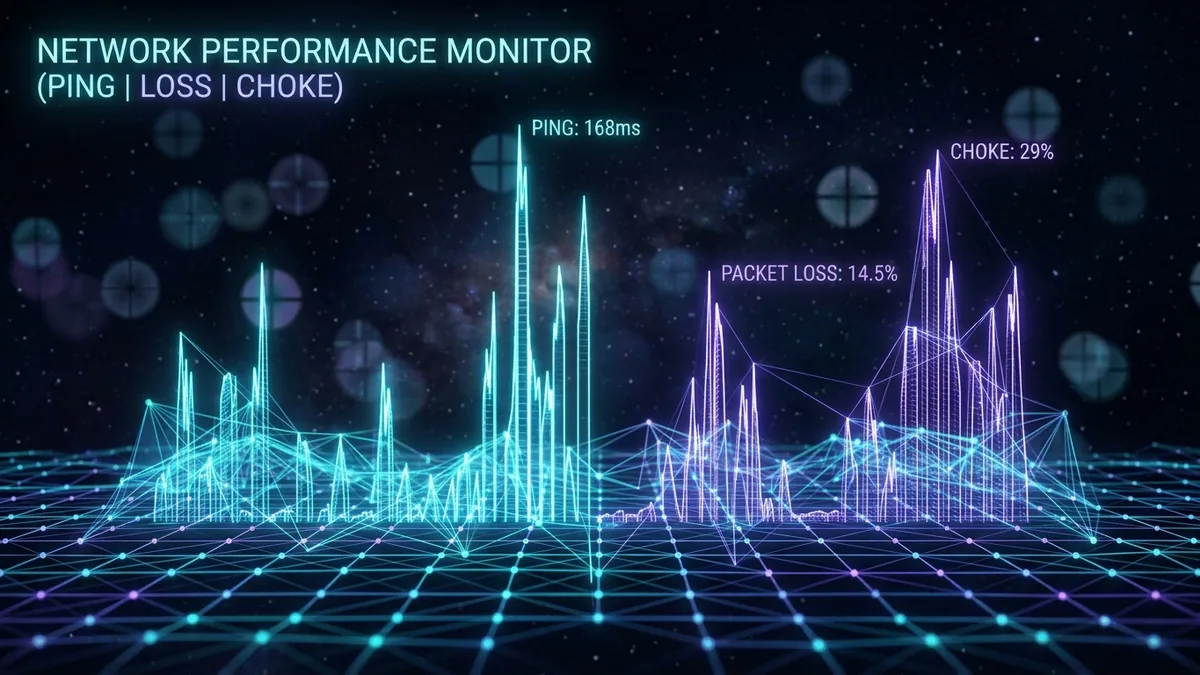
CS2's net graph (accessible via console command) shows real-time ping, loss, and choke (packets delayed due to rate limiting) simultaneously. This is far more useful for diagnosing rubberbanding than a standard speed test alone, since it shows exactly what's happening during actual gameplay rather than a separate test moment.
Step 2: Check for Packet Loss and Choke Specifically
"Loss" in the net graph indicates packets genuinely not arriving (usually your connection or ISP routing), while "choke" indicates packets arriving but being processed late due to rate limiting settings. High loss points to a connection problem; high choke with low loss can sometimes be adjusted via your rate and cl_interp console settings, which control how your client buffers incoming data.
Step 3: Confirm Your Server Region Selection
CS2 lets you select preferred datacenters manually in matchmaking settings. If auto-selection isn't picking your closest or best-performing region, manually testing ping to nearby alternatives (visible in the same menu) can reveal a better-routed option even if it's not the geographically nearest one.
Step 4: Rule Out a Valve Server-Side Issue
Valve's server status and community trackers report known matchmaking and server issues, which occasionally happen after major updates. Widespread reports across the CS2 community at the same time as your issue point to something outside your control rather than your home setup.
Diagnostic Table
| Net Graph Signal | Likely Cause | Fix |
|---|---|---|
| High "loss" | Packet loss on your connection | Switch to Ethernet, check WiFi signal |
| High "choke", low loss | Rate/interp settings or server-side congestion | Adjust rate settings, check server load |
| High ping despite good speed test | Poor datacenter routing | Manually test alternate regions |
| Widespread community reports | Valve server-side issue | Check status trackers |
Does a Wired Connection Matter More in CS2 Than CS:GO?
Subtick's improved input precision actually makes a stable, low-jitter connection more valuable than before, since the system is now capable of reflecting your exact input timing more faithfully — but only if the network data arrives consistently. A wired Ethernet connection remains the most reliable way to ensure that consistency, arguably more rewarding now than under the older tick system.
Should You Adjust Rate and Interp Settings Yourself?
CS2 mostly auto-manages these compared to older Source engine games, and manually overriding them without understanding the tradeoffs can sometimes make things worse rather than better. If the net graph shows genuine packet loss rather than a choke/interp-related pattern, focus on the connection-side fixes above before touching console settings that most competitive players now leave on default.
Does Trust Factor or Matchmaking Region Affect This?
Valve's matchmaking system considers various factors when placing you in a lobby, but your assigned datacenter is still governed by your manual or automatic region preference, not by trust factor or rank. If you suspect a routing issue, the region settings menu remains the correct place to investigate rather than assuming higher-level matchmaking factors are involved.
Testing After a Change
Play several matches after adjusting Ethernet, region, or checking for a server-side issue before concluding whether it helped. CS2's fast-paced rounds mean a single match with a lucky low-loss connection isn't a reliable enough sample compared to observing the net graph consistently across multiple sessions.
Community Servers vs Official Matchmaking
Community-hosted servers (common for casual and practice modes) can have very different performance characteristics from Valve's official matchmaking datacenters, since they're run by third parties with their own hosting quality. If rubberbanding only happens on certain community servers but not official matchmaking, that points to the specific server host rather than your own connection or Valve's infrastructure, and switching to a different community server or sticking to official matchmaking is the practical fix in that case.
What About Faceit and Other Third-Party Platforms?
Competitive platforms like Faceit run their own anti-cheat and server infrastructure separate from Valve's official matchmaking, which means a rubberbanding issue specific to one of these platforms should be diagnosed against that platform's own status page and support channels rather than assuming it reflects a problem with Valve's servers or your general connection setup.
Long-Term Monitoring for Recurring Issues
If rubberbanding keeps appearing across multiple sessions over several weeks, keeping a simple log of the net graph readings, the datacenter used, and roughly what time of day it happened builds a much clearer picture than trying to recall details from memory, and gives you solid evidence if you ever need to report a pattern to Valve support or discuss it with your ISP.