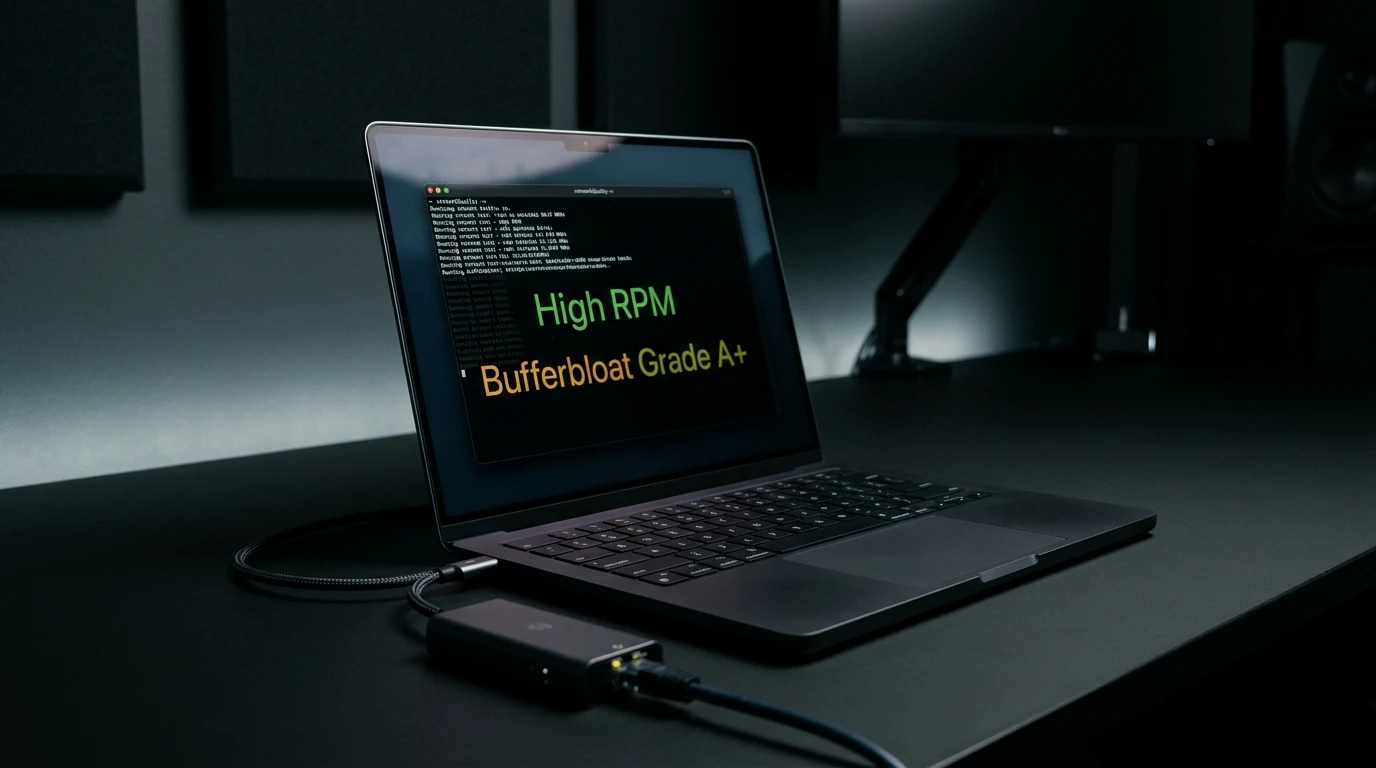
Discover how Apple's built-in networkQuality terminal command in macOS Sonoma and Sequoia measures Responsiveness in Round-trips Per Minute (RPM) and how it compares to DCSpeedTest.
⚡ Quick Answer: How to Interpret Apple's RPM Metric
In macOS Monterey through Sequoia, typing networkQuality in Terminal executes Apple's native responsiveness benchmark. Apple rates your connection in RPM (Round-trips Per Minute): >1,200 RPM = High (Grade A+ bufferbloat, ideal for FaceTime and gaming); <400 RPM = Low (unmanaged bufferbloat causing call freezes).
Compare your macOS terminal metrics against our interactive live edge test below.
Achieve 2,500+ RPM on MacBook with Anker 2.5G Adapter
Eliminate Wi-Fi interference on macOS Sonoma & Sequoia with plug-and-play driverless 2.5G wired Ethernet.
Conversion Matrix: Apple RPM vs DCSpeedTest Bufferbloat (Milliseconds)
Architecture Deep Dive: How macOS networkQuality Terminal Command vs DCSpeedTest: Understanding Apple RPM & Bufferbloat Measures Throughput, RTT & Bufferbloat
If your ISP delivers high speeds but your connection drops or suffers from bufferbloat during multi-device use, upgrading these verified components eliminates the bottleneck:
Not all internet speed tests measure the same layer of your network stack. When comparing macOS networkQuality Terminal Command vs DCSpeedTest: Understanding Apple RPM & Bufferbloat against neutral edge telemetry, three architectural variables dictate the numbers you see on screen: server peering topology (on-net ISP caches vs Anycast CDN edges), transport protocol concurrency (single-stream vs multi-stream TCP/WebSockets), and whether the engine samples unloaded vs loaded latency simultaneously.
Many legacy speed test platforms place measurement nodes directly inside the ISP's local central office. While that shows the theoretical maximum speed of your neighborhood fiber loop, it completely masks upstream peering congestion, inter-AS throttling, and router bufferbloat. Auditing macOS alongside DCSpeedTest's Cloudflare Anycast edge gives you complete visibility into both your physical line capacity and real-world application responsiveness.
| Measurement Dimension | macOS networkQuality Terminal Command vs DCSpeedTest: Understanding Apple RPM & Bufferbloat Methodology | DCSpeedTest Edge Telemetry | Why It Matters for Diagnostics |
|---|---|---|---|
| Server Peering & Routing Path | Target-specific node / protocol endpoint | Cloudflare Global Anycast Edge (300+ cities) | Exposes real-world transit bottlenecks where websites & APIs live |
| Bufferbloat & Loaded Latency | Varies by test flag / configuration | Continuous bidirectional RTT sampling (Grade A+ to F) | Detects router FIFO queue delay (+3 ms vs +152 ms) |
| Jitter & Packet Loss Precision | Sampled across payload intervals | High-frequency sub-millisecond jitter telemetry (1.3 ms) | Critical for diagnosing VoIP, WebRTC & competitive gaming lag |
| Client Overhead & Privacy | Native CLI or web client implementation | Zero-install HTML5 / WebWorkers with zero ad-script interference | Prevents browser CPU throttling on 1 Gbps – 10 Gbps fiber lines |
How to Run a Reproducible Cross-Platform Benchmark for macOS
To obtain scientifically valid, repeatable measurements when using macOS networkQuality Terminal Command vs DCSpeedTest: Understanding Apple RPM & Bufferbloat, follow this standardized lab verification workflow:
- Quiesce Background LAN Traffic: Pause cloud backups (OneDrive, iCloud, Steam, torrent clients) and verify via your router's traffic monitor that baseline WAN utilization is under 1 Mbps before starting the run.
- Standardize the Physical Interface: Always compare tests over the exact same physical link—ideally a wired Cat6a Ethernet connection via a 2.5GbE NIC—so Wi-Fi channel hopping or MCS modulation shifts do not skew the comparison between tools.
- Compare Unloaded Ping vs Loaded Ping Delta: Record your idle RTT (15 ms baseline) and observe how high latency climbs during peak download and upload saturation. Any increase exceeding +25 ms indicates active bufferbloat that requires CAKE or FQ_CoDel SQM tuning on your gateway.
In-Depth Technical Analysis: Key Questions Around macOS networkQuality Terminal Command vs DCSpeedTest: Understanding Apple RPM & Bufferbloat
Beyond basic setup, power users and network administrators frequently encounter edge-case bottlenecks when optimizing macOS networkQuality Terminal Command vs DCSpeedTest: Understanding Apple RPM & Bufferbloat across multi-device households and small offices. Below is a deeper engineering look at the operational mechanics behind macOS and networkQuality:
Command-Line (CLI) Verification & Advanced Router Tuning for macOS networkQuality Terminal Command vs DCSpeedTest: Understanding Apple RPM & Bufferbloat
Experiencing packet loss, jitter spikes, or evening ISP throttling? Connect directly to dedicated gaming routes or bypass traffic shaping:
When browser-level telemetry reveals elevated loaded latency or inconsistent throughput during macOS networkQuality Terminal Command vs DCSpeedTest: Understanding Apple RPM & Bufferbloat evaluations, network engineers validate the transport path directly from the operating system kernel. Running native command-line diagnostics bypasses browser extensions, hardware acceleration bugs, and antivirus TLS proxies that occasionally distort multi-gigabit benchmarks for macOS.
- Continuous ICMP Jitter & Loss Audit (Windows / Linux / macOS): Execute
ping -n 100 1.1.1.1(Windows) orping -c 100 -i 0.2 1.1.1.1(macOS/Linux) while running a simultaneous speed test. Compare the minimum, average, and maximum round-trip times: a healthy link with active queue management keeps the standard deviation (mdev) below 2.0 ms with 0% packet loss. - Path MTU Discovery & Fragmentation Check: Verify that your WAN link passes full-sized Ethernet frames without silent fragmentation by running
ping -f -l 1472 1.1.1.1. If the terminal returns Packet needs to be fragmented but DF set, lower your router WAN MTU to1500bytes (or1420bytes when routing through a WireGuard VPN tunnel). - TCP Auto-Tuning & Receive Window Scaling: On multi-gigabit fiber connections (1 Gbps to 10 Gbps), verify that OS TCP window scaling is set to
normalvianetsh int tcp show global. Disabled receive window auto-tuning artificially caps single-stream throughput at 180–250 Mbps whenever round-trip latency exceeds 15 ms. - Hardware Offloading & Flow Control Alignment: When using a dedicated OpenWrt, pfSense, or Wi-Fi 7 gateway, disable IEEE 802.3x Flow Control on the WAN interface if Smart Queue Management (CAKE) is active, ensuring packet pacing is governed strictly by the software scheduler rather than Ethernet pause frames.