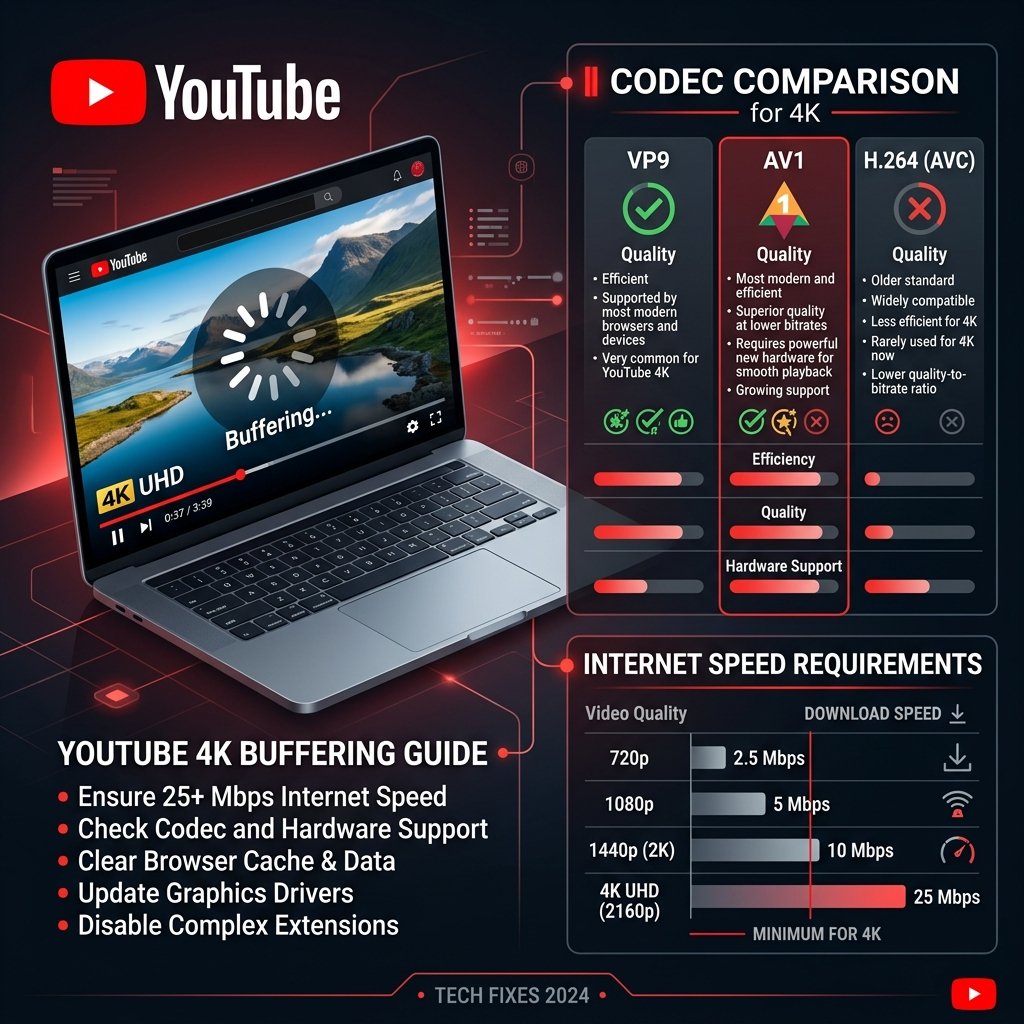
The 4K YouTube Paradox
Google officially recommends 20 Mbps for 4K streaming. Yet thousands of DCSpeedTest users with 200+ Mbps connections report consistent 4K buffering. The culprit is almost never the internet.
The Real Cause: Hardware Video Decoders
YouTube encodes 4K video using VP9 and the newer AV1 codecs. These are highly compressed formats that save internet bandwidth — but require dedicated hardware decoders to play back smoothly. If your TV, streaming stick, or old laptop lacks an AV1 hardware decoder, the CPU must decode each frame in software. It cannot keep up, causing pauses that look exactly like internet buffering — but your router is sitting idle.
How to Test The Codec Bottleneck in 30 Seconds
- Open any 4K YouTube video on a PC browser.
- Right-click the video → select Stats for nerds.
- Check the Codecs line (VP9 or AV1) and the Dropped Frames count.
- More than 50 dropped frames per minute = your device CPU is the bottleneck, not your internet.
Real Bandwidth Needed to Avoid Burst Buffering
YouTube uses Variable Bitrate (VBR). Complex scenes — like confetti or ocean waves — momentarily spike to 60 Mbps even in a “20 Mbps” 4K stream. For zero buffering on all 4K60 HDR content, a sustained 50 Mbps per stream is the safe target to handle these peaks.
Frequently Asked Questions
Why does 4K YouTube buffer even on a fast connection?
The most common cause in 2026 is codec compatibility. YouTube prioritizes AV1 encoding for 4K and higher resolutions — it’s more efficient but requires hardware decoding support. On devices without AV1 hardware decoding (older PCs, some smart TVs), the browser falls back to software decoding, which can’t keep pace at 4K and causes buffering even on fast connections. Check YouTube’s stats-for-nerds overlay: if you see “av01” in the codec field and your CPU usage spikes during 4K playback, hardware AV1 decoding is the missing piece.
How do I fix 4K YouTube buffering on my PC?
First, check if your GPU supports AV1 hardware decoding (Intel Gen 11+, AMD RDNA2+, Nvidia RTX 30-series+). If it does, ensure your browser’s hardware acceleration is enabled (Settings → System → Hardware Acceleration in Chrome). If your GPU doesn’t support AV1, install the AV1 Video Extension from the Microsoft Store (Windows) or use a player like MPV that handles software decoding more efficiently. Alternatively, force VP9 codec via browser extensions — it has wider hardware support and still delivers good 4K quality.