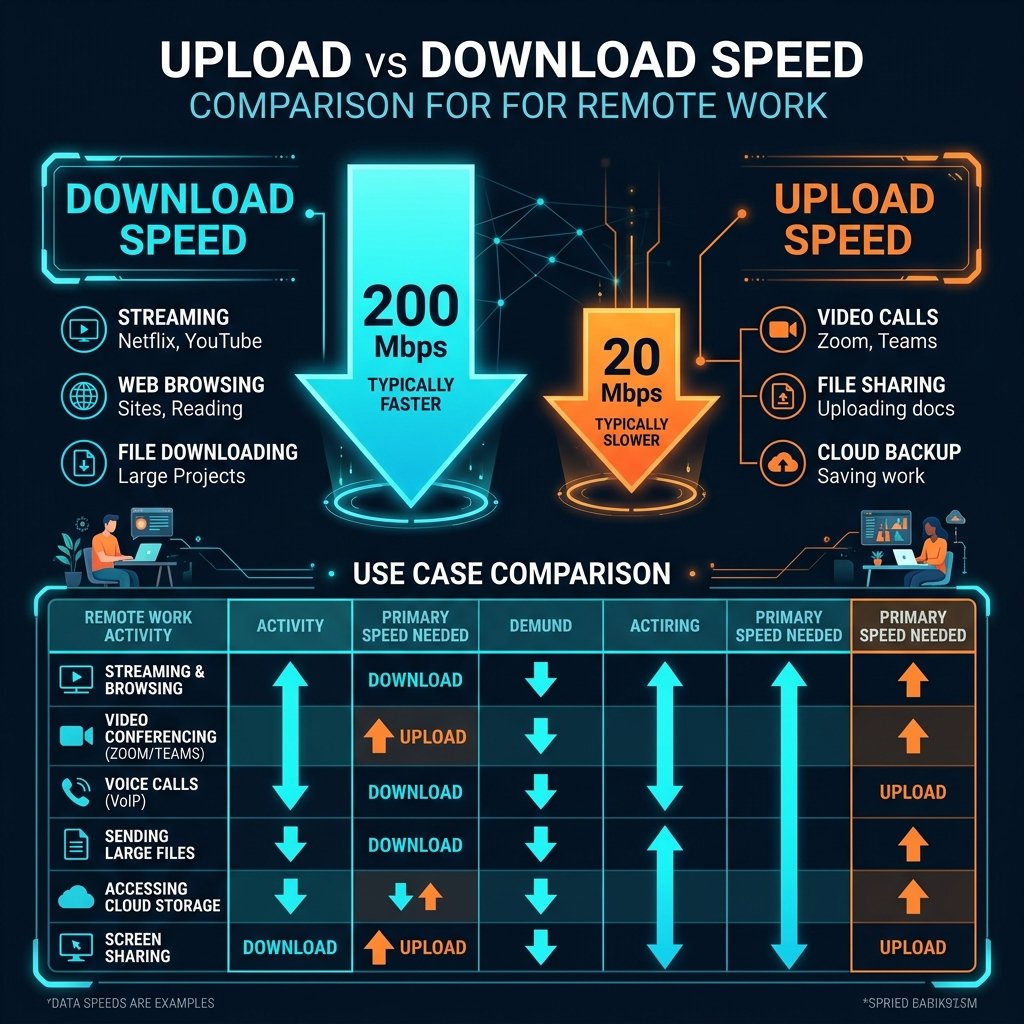
📊 Data Source: Upload vs download bandwidth analysis across Zoom, Teams, Slack, OneDrive, GitHub, Figma, and Google Workspace measured via network traffic monitoring during standard 8-hour WFH sessions.
The Fundamental Misunderstanding
The internet was designed for consuming, not creating. ISPs built infrastructure around download. But remote work breaks this model completely: you are constantly sending data — your voice, your video feed, your files, your design exports, your code commits.
What a Typical WFH Day Actually Uploads
- 3 hours of HD Zoom calls: 3.8 Mbps sustained × 3 hours = 5.1 GB uploaded. Requires consistent 5+ Mbps upload, not occasional bursts.
- Cloud file sync (10 file saves/hour via OneDrive): ~200 MB average upload across the day.
- Code pushes to GitHub: Variable peaks of 20–50 Mbps when pushing large branches.
- Slack/Teams file sharing: 2–10 MB per file, 5–20 uploads per typical workday.
The Upload Thresholds for WFH
- 5 Mbps: Barely functional for one video call. Any background file sync pauses the call.
- 20 Mbps: One HD call plus background sync. Comfortable for a single WFH user.
- 50 Mbps: Two simultaneous video calls plus all cloud sync. Optimal for most WFH professionals.
- 100+ Mbps: Multiple WFH people in the same household, or roles with heavy media/design file uploads.
Check Your Upload Vulnerability Right Now
Run DCSpeedTest and look at the upload number. If it is under 20 Mbps and you work from home full-time on video calls — you have just identified the primary cause of any call quality issues you experience. The download speed column is largely irrelevant to your WFH experience.