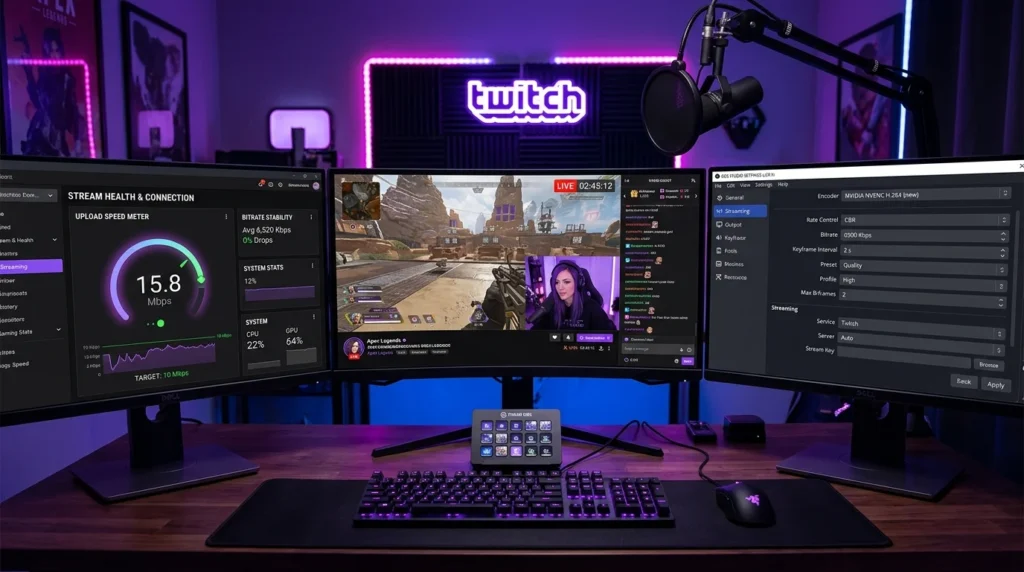
📊 Data Source: Twitch encoding guidelines cross-referenced with DCSpeedTest upload stability metrics. Tested using OBS Studio 30 with NVENC and x264 encoders on 10+ ISP types.
Upload Speed — The Streamer’s Only Metric That Matters
Download speed means nothing for a streamer. You need stable, consistent upload speed. Notice consistent — if your upload is 20 Mbps but drops to 2 Mbps every few minutes, your stream will drop frames and disconnect regardless of your average speed.
The Golden Rule: The 75% Law
Never set OBS bitrate above 75% of your minimum consistent upload speed. Leave 25% overhead for gameplay data, Discord voice, and network fluctuations.
Step-by-Step Bitrate Calculator
- Run DCSpeedTest and note the Upload Speed.
- Convert to Kbps (multiply by 1000). 10 Mbps = 10,000 Kbps.
- Multiply by 0.75. 10,000 × 0.75 = 7,500 Kbps safe OBS maximum.
Optimal Twitch Settings by Resolution
- 1080p 60fps (Valorant/Apex): 6,000–8,000 Kbps. Requires solid 10+ Mbps upload.
- 1080p 30fps or 900p 60fps: 4,500–6,000 Kbps. Requires 8+ Mbps upload.
- 720p 60fps (The reliable standard): 3,500–5,000 Kbps. Requires 6+ Mbps upload.
- Just Chatting / art streams: 2,500–3,500 Kbps. Requires 5+ Mbps upload.
Still Dropping Frames Despite Good Upload?
If OBS shows “Dropped Frames (Network)” but your upload test looks fine, you are almost certainly on WiFi. Sustained high-upload traffic over WiFi causes persistent packet loss. You cannot stream reliably on WiFi. Using Ethernet is non-negotiable for consistent streaming.