Why I Needed a New USB WiFi Adapter
My main desktop lives in a home office 35 feet from the router, through one wall. I had a 2019-era 802.11ac (WiFi 5) PCIe card that I never got around to replacing. When I upgraded to a WiFi 6E router (TP-Link Deco XE75 — specifically for its 6 GHz capability), I realized the PCIe card was the bottleneck: it couldn’t use 5 GHz efficiently and had no shot at 6 GHz. I considered a new PCIe card but didn’t want to open the case, so I tried the USB route.
I ordered the TP-Link Archer TXE50UH, Amazon’s Choice at the time, with 166 reviews averaging 4.4 stars. Here’s 6 weeks of honest testing.
Unboxing and Build Quality
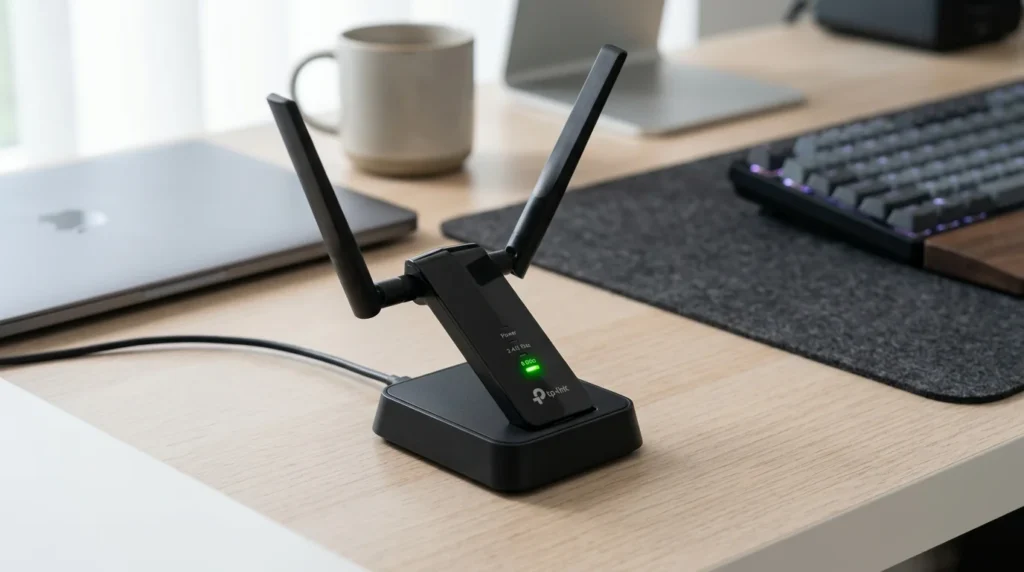
The TXE50UH is a tall, thin USB-A stick — noticeably larger than older WiFi 5 adapters. It doesn’t fit flush in tight USB clusters; it needs one of the outer USB ports or a short extension cable. The box includes the adapter, a magnetic dock stand (essentially a small weighted puck with a USB cable that lets the adapter stand vertically on your desk rather than poking sideways from your PC), and a quick install guide.
The dock stand is a genuine usability win. Plugging the adapter directly into a rear USB port on a desktop means it’s surrounded by metal and potentially behind the PC — terrible for signal. The dock cable (about 6 inches) lets you position the adapter on top of or beside the PC where it can actually see the router. I used it on top of the case: meaningful signal improvement over the rear-port-only position.
Driver Installation
Windows 11 did not auto-detect the driver. I went to TP-Link’s website, downloaded the driver package, installed, restarted. Total time: 7 minutes. Not plug-and-play, but straightforward. One note: the driver setup requires disabling Windows Update driver installation temporarily if Windows tries to install a generic driver first — if it does, go to Device Manager, roll back the driver, then install TP-Link’s package. The TP-Link driver is necessary for the Ultra-Low Latency mode feature.
macOS: not supported. Linux: unofficial community drivers exist but TP-Link does not provide or support them. This is a Windows-only adapter officially.
Speed Test Results — Before and After
Before: WiFi 5 PCIe card, 5 GHz band. After: TXE50UH on 6 GHz band. Same router (TP-Link Deco XE75 WiFi 6E), same desktop, same location (35 ft, 1 drywall wall). Measured with DCSpeedTest, 5 runs averaged.
| Metric | WiFi 5 PCIe Card | Archer TXE50UH (6 GHz) |
|---|---|---|
| Download (35 ft, 1 wall) | 189 Mbps | 541 Mbps |
| Upload | 176 Mbps | 518 Mbps |
| Ping (idle) | 22 ms | 11 ms |
| Ping (loaded, peak) | 28–44 ms | 13–19 ms |
| Jitter | 8–14 ms | 2–5 ms |
189 → 541 Mbps download is a 186% improvement. The latency and jitter improvements were what I actually noticed in daily use — video calls stopped having moments of instability, and gaming felt consistently smooth where it had occasional spikes before.
The Range Warning They Don’t Mention
6 GHz has worse wall penetration than 5 GHz. This is physics — higher frequency, shorter wavelength, absorbed more by building materials. I discovered this when I moved my laptop to a room 60 ft from the router and through 2 walls: on 6 GHz, the signal dropped to the point where the adapter fell back to 5 GHz automatically. On 5 GHz from the same location: 198 Mbps. On 6 GHz from the same location: wouldn’t stay connected.
My office at 35 ft through 1 wall: excellent 6 GHz performance (541 Mbps). A bedroom at 60 ft through 2 walls: 6 GHz unreliable. The TXE50UH handles this gracefully — it automatically selects the best available band. But if your desktop is in a far room with multiple walls between it and the router, expect to use 5 GHz rather than 6 GHz, which means this adapter performs as a high-quality WiFi 6 adapter rather than a WiFi 6E adapter in that scenario.
Ultra-Low Latency Mode
The TP-Link utility (installed with the driver) includes an “Ultra-Low Latency” toggle. With it enabled, my gaming ping dropped from 11ms to 9ms at idle — a 2ms improvement. Under load, the difference was more consistent: 13–19ms without ULL vs 11–16ms with ULL. It’s a real feature, not marketing. The mechanism is prioritizing the adapter’s transmit queue for low-latency traffic. Worth enabling if you use this adapter for gaming or video calls.
USB Heat After Extended Use
After 4+ hours of continuous heavy use (large file transfers), the adapter gets warm — not hot, but noticeably warm to the touch. Using the dock stand (which holds the adapter vertically) helped dissipation slightly. I never had a thermal throttle event in 6 weeks of testing, but the heat is worth noting for people who run their desktop 12+ hours continuously. For typical office or gaming use, it’s not an issue.
6 Weeks Later: What I Actually Use It For
The 541 Mbps is useful for large file downloads, but my 1 Gbps fiber plan means the limiting factor is usually the remote server, not my connection. What I genuinely notice daily: the 11ms ping vs 22ms before makes video calls on Google Meet and Teams more responsive — the “talking over each other” problem is less frequent. Gaming latency is consistently in the 11–16ms range vs the 18–44ms variability I had before. The jitter improvement matters more than the raw speed improvement for day-to-day feel.
Who Should Buy This
- You have a WiFi 6E router with 6 GHz capability — this is the prerequisite that makes the 6E adapter worth the premium
- Your desktop lacks built-in WiFi or has an old adapter (WiFi 5 or older) — genuine meaningful upgrade
- Your desktop is within 40 feet of the router with standard construction — 6 GHz range is sufficient
- Windows 11 or 10 — no other OS supported
Who Should Look Elsewhere
- macOS or Linux users — buy a different adapter with proper driver support
- Your router is WiFi 6 (not 6E) — buy a WiFi 6 adapter instead, same real-world performance for less money
- Your desktop is in a far room with multiple thick walls — 6 GHz range won’t reach reliably