WAN vs LAN
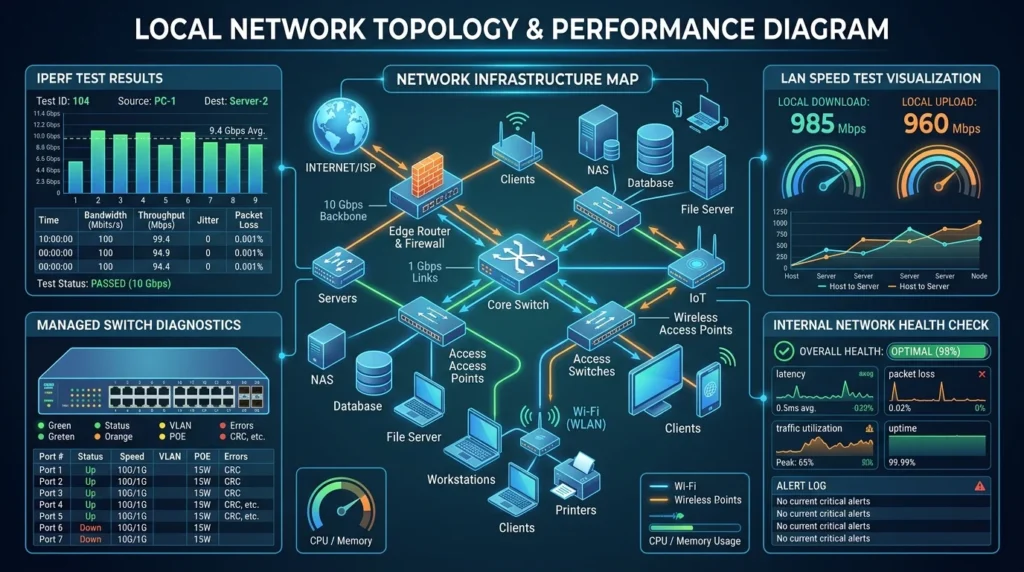
A standard web-based speed test checks your WAN (Wide Area Network). But a network speed test often needs to check your LAN (Local Area Network). If you are streaming Plex or transferring files to a NAS, your local gigabit switch matters more than your ISP.
Tools to Use
For a true local network speed test, professional tools like iPerf3 are the gold standard. They measure the raw throughput between two computers in your house, eliminating the internet variable.
The Usual Suspects
When a network speed test reveals your LAN is underperforming your WAN, the cause is almost always one of three things: an old Cat5 cable hiding in the wall (capped at 100 Mbps regardless of your gigabit router), a WiFi client still negotiating at an older standard, or a cheap unmanaged switch with a single slow port bottlenecking everything plugged in downstream of it. Our router benchmarking guide walks through isolating which device in the chain is the culprit.
The Five-Minute Diagnostic
Connect your two test devices with a known-good Cat6 cable directly into the same router port (no switch in between). If throughput jumps dramatically, your switch or original cabling is the bottleneck. If it stays low, the issue lives in the devices themselves — outdated network drivers and power-saving modes on network adapters are the most common culprits.
Frequently Asked Questions
Why is my local file transfer slower than my internet speed test result?
Your internet speed test measures your connection to your ISP — a single hop. A file transfer between two devices on your network crosses your WiFi (or Ethernet), your switch, and both devices’ network adapters — multiple hops, each adding its own ceiling. The slowest link in that chain determines your real-world transfer speed, regardless of how fast your internet plan is.
What’s the difference between Mbps and MB/s in these results?
Internet plans are advertised in megabits per second (Mbps), while file transfer tools usually report megabytes per second (MB/s) — and 1 byte equals 8 bits. So a transfer showing “100 MB/s” represents roughly 800 Mbps of throughput. Mixing these up is the single most common reason people think their network is underperforming when it’s actually working perfectly.