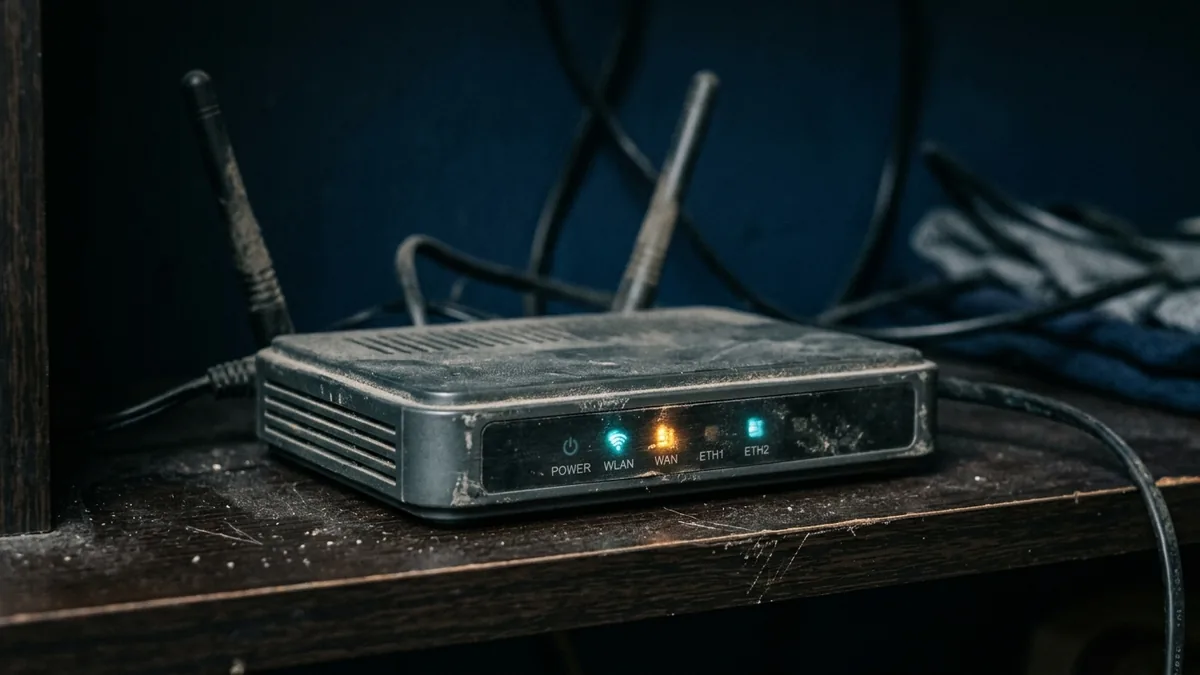
"Have you tried turning it off and on again" works often enough that it's become a reflex — and for genuine software glitches, it's still the right first move. The problem is when a reboot becomes a daily ritual instead of an occasional fix, because at that point you're not solving the problem, you're temporarily resetting a piece of hardware that's telling you something more permanent.
Why Rebooting Fixes So Much (Until It Doesn't)
A router is a small computer running continuously for months or years at a time, and like any computer, it accumulates memory leaks, stale connection tables, and minor software state issues the longer it runs uninterrupted. A reboot clears all of that in one shot, which is exactly why it works so reliably for intermittent slowdowns and random disconnects. What a reboot can't fix is a hardware component that's degrading — and the tell is simple: if the same problem comes back within hours or a day, every time, you're not looking at a software glitch anymore.
Sign 1: You're Rebooting More Than Once a Month, on a Schedule You Didn't Choose
An occasional reboot after months of stable operation is normal. Needing to unplug your router every few days, or noticing it needs a restart at roughly the same interval every time, is a different pattern — that regularity often points to a specific component (commonly memory or a capacitor on the board) degrading in a predictable way rather than a random software hiccup. If you find yourself reaching for the power cord on a schedule, that schedule is data, not a coincidence.
Sign 2: Your Speeds Don't Match Your Plan Even Standing Next to the Router
Testing your speed on a device sitting right next to the router, over a wired connection if possible, removes almost every other variable — distance, walls, interference, other devices. If that test consistently comes in well below what your plan promises, and your ISP confirms the line itself is delivering full speed to the modem, the router's internal hardware (its processor, its network chipset) may simply no longer be capable of pushing the throughput your current plan requires, especially if you've upgraded your plan since you bought the router. Routers bought for a 100 Mbps plan several years ago were never built to handle a 500 Mbps or gigabit upgrade, regardless of how well they're maintained.
Sign 3: It's Running a WiFi Standard Your Devices Have Outgrown
WiFi standards aren't just a marketing number — each generation (WiFi 5, WiFi 6, WiFi 6E, WiFi 7) genuinely changes how much data can move and how well a router handles many devices at once. If your phone, laptop, or TV supports WiFi 6 or WiFi 7 but your router is still running WiFi 5, you're not getting a fraction of a bad connection — you're capped at what the older standard can physically deliver, no matter how good the rest of the connection is. This isn't usually something a firmware update can fix, because it's a hardware radio limitation, not a software one.
Sign 4: It Gets Noticeably Hot to the Touch During Normal Use
Routers run warm as a matter of course — that's normal. A router that's hot enough to be uncomfortable to touch, especially during light, non-demanding use, is a different situation. Excess heat is one of the more reliable early indicators of a failing power supply or a component nearing end of life, and sustained heat also accelerates the failure of whatever's already struggling, which is part of why routers in this state often show worsening symptoms over a period of weeks rather than staying stable.
Sign 5: Security Updates Have Quietly Stopped Coming
This one doesn't show up as a performance problem at all, which is exactly what makes it easy to miss. Manufacturers eventually stop releasing firmware updates for older router models, including security patches — check your router's admin panel or the manufacturer's support page for your specific model number. If your model hasn't received a security update in over a year and the manufacturer's support page shows no recent activity for it, you're running hardware that's no longer being patched against newly discovered vulnerabilities, which is a real risk independent of whether the router still "feels" fast.
A Special Case: The Router Your ISP Gave You
If your "router" is actually a combo modem-router gateway provided by your ISP, the calculation is slightly different. These units are often built to a lower cost target than a dedicated third-party router, and ISPs vary widely in how often they refresh gateway hardware for existing customers versus only providing current-generation equipment to new sign-ups. If you've had the same ISP-provided gateway for several years, it's worth explicitly asking your provider whether a newer gateway model is available at no extra cost — many ISPs will swap it on request, and it's a considerably faster fix than diagnosing hardware fatigue yourself. This is also worth checking before buying a separate router, since some ISP gateways can be set to bridge mode, letting you keep the ISP's box only for the modem function while a separate, better router you control handles WiFi entirely.
What to Look for Instead
- Match the WiFi standard to your actual devices, not the newest available. If most of your devices support WiFi 6, a WiFi 6 router captures nearly all the practical benefit; WiFi 7 helps most if you already own WiFi 7 devices.
- Buy for your plan's real speed, with headroom. A router rated meaningfully above your current plan's speed avoids the same mismatch problem resurfacing the next time you upgrade your internet plan.
- Consider mesh if your home has persistent dead zones, rather than buying a single more powerful router and hoping raw signal strength solves a coverage problem — coverage and raw throughput are related but different problems.
- Check the manufacturer's stated firmware support window before buying, not just at replacement time — some manufacturers now publish how many years of security updates a given model will receive, which is worth checking upfront.
Frequently Asked Questions
How long does a router actually last?
Most consumer routers have a practical useful life of roughly 3-5 years before either hardware degradation, an outdated WiFi standard, or the end of security updates makes replacement the more sensible option — though a well-built router with light use can sometimes run well beyond that.
Can a firmware update fix a router that's showing these signs?
It depends on the sign. A firmware update can genuinely fix bugs, stability issues, and even some performance problems. It can't fix a WiFi standard the hardware doesn't physically support, a failing power supply, or a processor too slow for your current plan's speed.
Is it worth repairing a router instead of replacing it?
Rarely, for consumer hardware — the labor cost of diagnosing and repairing a specific component usually exceeds the cost of a new router with better specs, unless it's a high-end unit under manufacturer warranty.
The Bottom Line
A reboot is the right first move for almost any router problem — but if the same issue keeps returning on its own schedule, if your wired speed test doesn't match your plan right next to the device, or if security updates have quietly stopped, you're not looking at a glitch anymore. Those are signs of a router that's reached the end of what rebooting can fix.