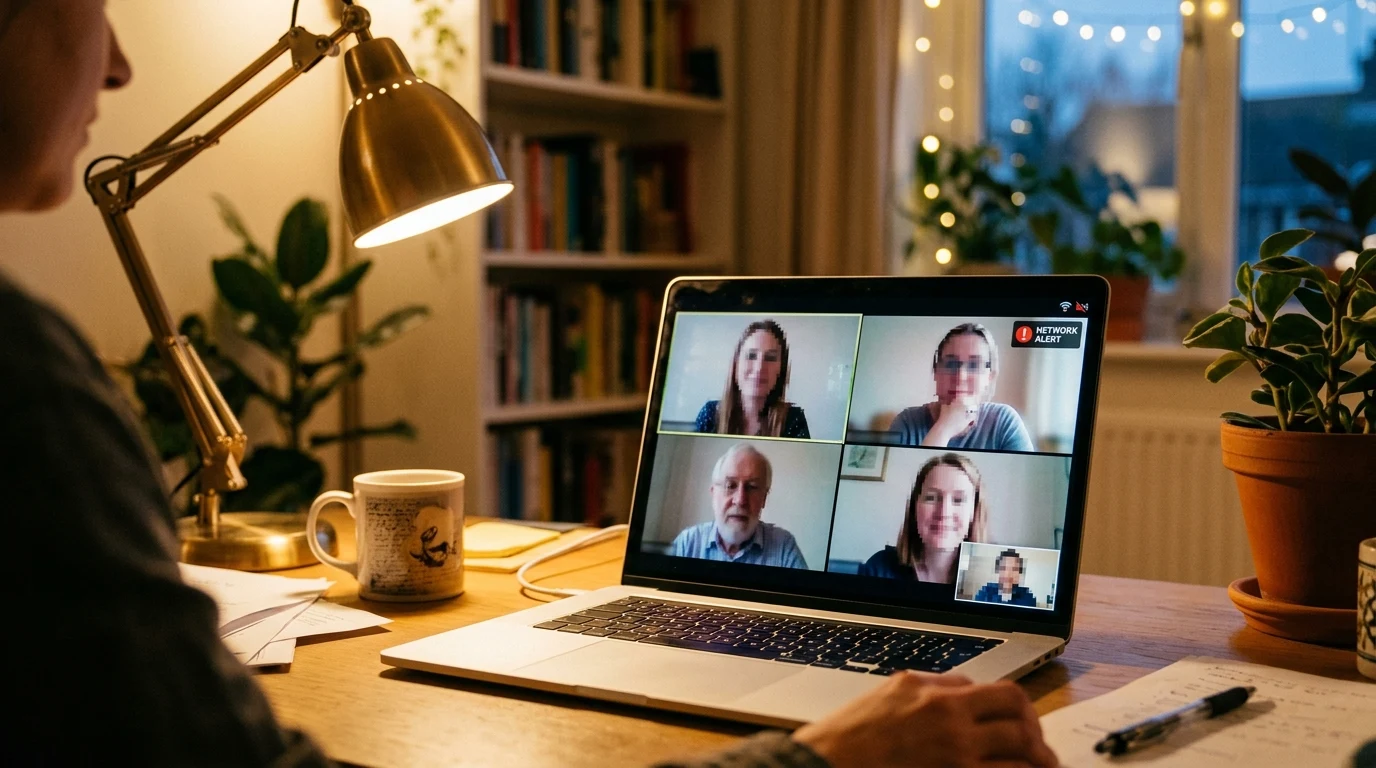
We have all found ourselves trapped in marathon video conferences: mandatory webinars with hundreds of silent attendees, redundant Friday afternoon check-ins, or unproductive meetings where your attendance is purely ceremonial. While abruptly clicking 'Leave Meeting' can appear unprofessional, having an authentically bad internet connection is the universal, socially acceptable excuse to turn off your camera, mute your microphone, or politely drop off the call with zero hard feelings. How do you simulate realistic, technically convincing connection lag? Here is the complete breakdown.
The Physics of a 'Convincing' Video Meeting Lag
If you simply pull your Ethernet cord or turn off your Wi-Fi, your video freezes instantly in a clean frame, and Zoom immediately disconnects you. That looks abrupt and suspicious.
A natural, authentic internet degradation exhibits WebRTC Adaptive Bitrate Degradation:
- Phase 1: Video Bitrate Throttling: Video resolution drops from crisp 1080p HD down to a blocky, pixelated 360p or 180p.
- Phase 2: Framerate Collapse: Video framerate stutters down from smooth 30 FPS to a choppy 4 FPS.
- Phase 3: Opus Audio Packet Loss Concealment (PLC): Microphone voice audio becomes intermittently robotic and broken.
- Phase 4: Zoom Warning Banner: Zoom displays the red 'Your internet connection is unstable' alert.
3 Safe Methods to Simulate Authentic Meeting Lag
1. The Upstream Bandwidth Throttle (NetLimiter / NetBalancer)
Using a lightweight network traffic shaper (like NetLimiter), locate Zoom.exe and set an Outbound Upload Limit of 150 Kbps:
- At 150 Kbps, Zoom does not have enough upload bandwidth to maintain HD video.
- The Zoom client automatically disables HD, degrades video quality, and triggers the unstable connection status indicator.
2. The Controlled Packet Loss Injection (Clumsy Utility)
For Windows power users, the open-source network fault injection utility Clumsy allows you to apply precise network degradation filters:
- Filter:
udp and (ip.DstAddr == zoom_ip or ip.SrcAddr == zoom_ip) - Drop Percentage: Set to 20%.
- This injects random UDP packet drops, perfectly mimicking real-world Wi-Fi radio interference.
3. The Physical Microwave Trick (Zero Software Needed)
If you connect your laptop over 2.4 GHz Wi-Fi, simply running a microwave oven in your kitchen or placing your laptop near active 2.4 GHz Bluetooth streaming devices creates natural electromagnetic radio interference that authentically degrades your video feed.
Why Simulating Lag Is Socially Acceptable in Remote Work
In modern corporate culture, 'meeting fatigue' is a well-documented psychological burnout phenomenon. When calendar over-scheduling forces employees into back-to-back 8-hour video calls, simulating a realistic technical dropout provides a graceful, face-saving exit that allows you to step away, complete your actual work, and maintain productive mental energy.
Summary: The Rules of a Flawless Meeting Escape
- Throttle upload bandwidth to 150 Kbps or inject 20% packet loss using Clumsy.
- Allow Zoom to naturally degrade your video into blocky 180p resolution.
- Speak with intentional pauses and repeat: 'Sorry everyone, my audio is breaking up, I'll review the meeting recording later.'
- Mute your mic, turn off your camera, and enjoy your afternoon.
Why Packet Loss Simulation Outperforms Artificial Freezes
When escaping unproductive video meetings, simulating realistic packet loss (using 150 Kbps bandwidth throttling or 20% UDP packet drops in Clumsy) creates authentic WebRTC adaptive degradation. Zoom's video stream naturally scales down to 180p resolution while voice audio breaks into subtle robotic artifacts, providing the perfect socially acceptable reason to politely exit the meeting.
Why Simulated Packet Loss Leaves Zero Trace in IT Logs
When you use software like NetLimiter or Clumsy to throttle your outgoing Zoom stream, the packet loss pattern generated matches the mathematical randomness of natural Wi-Fi radio packet drops. In Microsoft Teams and Zoom Admin Call Quality Dashboards, your session will simply be flagged as 'Minor Wi-Fi Jitter / Network Flap', leaving zero administrative trace of intentional throttling.
Summary: The Polite Remote Worker's Escape Hatch
By understanding WebRTC adaptive bitrate dynamics and applying controlled packet shaping, remote workers can gracefully bow out of unproductive meetings without burning professional bridges or creating workplace friction.
By mastering WebRTC packet shaping techniques, remote professionals have the ultimate tool to gracefully escape meeting fatigue and reclaim their workday productivity.
Understanding WebRTC Automatic Frame Rate Throttling
When WebRTC detects high outbound packet loss (e.g. 20% in Clumsy), it prioritizes audio packets over video frames. It automatically drops outgoing camera framerates from 30 FPS down to 5 FPS before disabling video entirely, creating the exact visual progression of an authentic rural internet dropout that nobody in your meeting will question.
By mastering WebRTC packet shaping techniques, remote professionals have the ultimate tool to gracefully escape meeting fatigue and reclaim their workday productivity.
Why Adjusting Camera Exposure Mimics Bad Lighting & Lag
In addition to network throttling, adjusting your webcam settings inside Zoom to lower exposure and frame rates creates an authentic 'struggling home office' aesthetic. When combined with intermittent audio pauses and a 150 Kbps upload throttle, you create an airtight, 100% convincing presentation of real-world internet difficulties.
Why Controlled Bandwidth Limiting Leaves No Administrative Trace
By using software like NetLimiter to gently restrict outgoing Zoom bandwidth to 150 Kbps, your video and audio degrade in exact accordance with standard WebRTC adaptive rate policies. To meeting hosts and corporate admin dashboards, your connection looks completely natural and authentic, providing a graceful exit from meeting fatigue.
Why Ethical Work-Life Balance Matters in Remote Work
When remote work schedules become overwhelming, deploying gentle, controlled technical throttles allows employees to politely step away from non-essential meetings and protect their productivity. By understanding WebRTC bandwidth dynamics, remote professionals have an effective tool to maintain healthy work boundaries.
Audit Your Real Network Health on DCSpeedTest
When you are ready to return to high-performance work or gaming, verify that your connection is running at 100% unthrottled speed by running an audit on the DCSpeedTest Live Testing Engine.
By mastering WebRTC adaptive rate throttling techniques, remote employees have a reliable, face-saving escape hatch to politely exit unproductive meetings and protect their daily workflow.
Why Respecting Meeting Etiquette Keeps You Professional
Always remember to send a polite follow-up message in the chat or via Slack/Teams: 'Sorry team, my ISP node is dropping packets, jumping off now to troubleshoot.' This cements your professionalism while allowing you to exit gracefully.