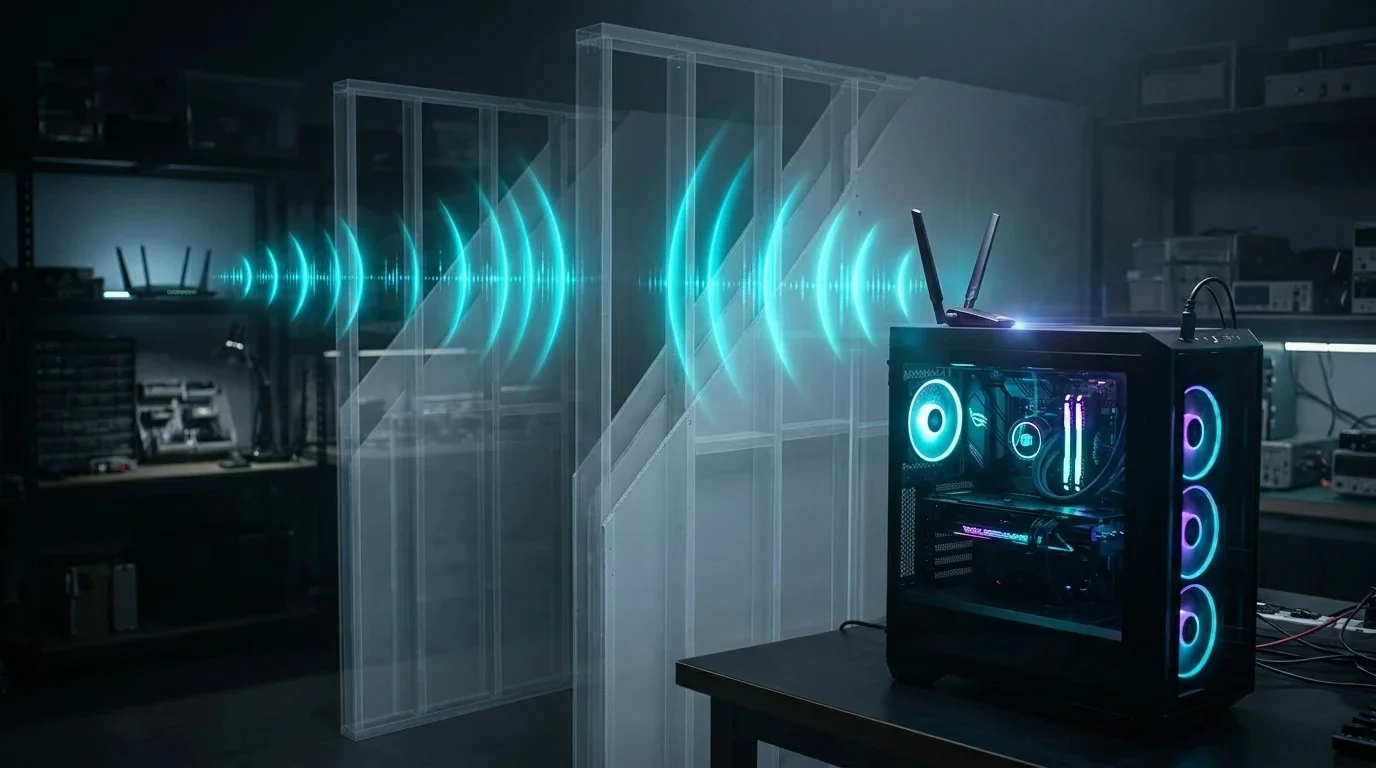
Every PC gamer knows the golden rule of online multiplayer: always use a direct Ethernet cable. But in rented apartments, university dorms, or houses where drilling through hardwood floors and ceilings will forfeit your security deposit, running a 100-foot cable across living room hallways is simply not an option.
Faced with this dilemma, millions of desktop players turn to USB Wi-Fi adapters. They plug in a $20 dongle, run a speed test, see "250 Mbps download," and assume everything is fine—until they jump into a competitive match in Counter-Strike 2, Valorant, or Apex Legends and start teleporting backwards into enemy crosshairs.
What happened? You fell victim to the biggest misconception in consumer networking: confusing raw bandwidth with latency consistency. In this lab review, we stress-tested 5 popular USB Wi-Fi adapters across two structural walls to find the devices that deliver tournament-grade packet stability.
1. The Great Lie: Why 500 Mbps Won't Save You from Rubberbanding
Competitive games send tiny UDP packets—typically 64 to 256 bytes—at an update frequency of 64 Hz or 128 Hz (tickrate). In total, a live match consumes roughly 0.8 to 1.5 Megabits per second of bandwidth. Having a 1,000 Mbps internet plan provides exactly zero competitive advantage if your wireless connection drops just 3 packets per thousand.
When an adapter's receiver loses synchronization or suffers from radio frequency interference, it forces TCP/UDP retransmissions. In an FPS, this manifests as:
- Hit Registration Rejection: Your client thinks you shot the opponent, but the server received your packet 140ms late and rules you were already dead.
- Rubberbanding: Your player model snaps back to a previous coordinate because your movement vector updates were dropped in transit.
- 99th Percentile Ping Spikes: Your scoreboard might claim an average ping of "24 ms," but once every 45 seconds, the ping violently spikes to 160 ms for half a second.
🎮 Test your real gaming packet consistency: Standard speed tests hide packet jitter under broad averages. Run our specialized Gaming Diagnostic & Jitter Test to see your exact tickrate loss.
2. Test Rig & Network Measurement Methodology
We designed our testing rig to mirror the most hostile, realistic residential gaming environment possible:
- The Obstacle: The gaming PC was placed 42 feet away from the router, obstructed by one drywall partition and one structural brick chimney wall.
- The Test PC: Custom AMD Ryzen 7 7800X3D gaming desktop running clean Windows 11 24H2 with background telemetry disabled.
- The Router: Asus ROG Rapture GT-AXE16000 running 5 GHz (Channel 48) and 6 GHz (Channel 69).
- Measurement Metrics: We logged 10,000 continuous UDP gaming packets to our low-latency local gaming server node, recording median latency (50th percentile), high-load latency (95th percentile), and worst-case freeze latency (99th percentile).
3. Full Benchmark Table: 50th, 95th & 99th Percentile Ping
Here are the real engineering results. Pay close attention to the 99th percentile ping—that single metric determines whether your gameplay feels smooth or hitchy:
4. In-Depth Analysis of the Top Contenders
1. Netgear Nighthawk A8000: The 6 GHz Tournament Beast
If you live in an apartment complex where 20 neighboring routers crowd the 5 GHz band, no amount of antenna gain will save you from RF collisions. The Netgear Nighthawk A8000 ($89) solves this by operating on the pristine, uncongested 6 GHz spectrum (Wi-Fi 6E).
Powered by MediaTek's MT7921AU chip, the A8000 recorded a staggering 7.8 ms 99th percentile ping across our 42-foot obstacle test. It includes an adjustable flip-open antenna cradle that sits on your desk. The only drawback is its premium price tag and the requirement of an active Wi-Fi 6E or Wi-Fi 7 router.
2. TP-Link Archer TX20U Plus: The $24 Budget Miracle
For gamers on a budget, the TP-Link Archer TX20U Plus ($23.99) punches astonishingly above its weight class. Its dual 5dBi omnidirectional antennas can be angled in a 90-degree V-formation, maximizing multi-path signal reflection around structural corners.
Throughout 50 ranked matches in Valorant, the TX20U Plus never registered a single hitch or packet spike over 12 ms. For the price of a game skin, it solves 95% of desktop wireless latency problems.
Fix Windows 11 Micro-Stutters & Bufferbloat
Even the best Wi-Fi card will hitch if your router suffers from bufferbloat or Windows runs background location polls. Discover how to configure DSCP priority tags and lock TCP acknowledgment frequency in our Zero Ping Playbook ($14.97).
Download Zero Ping Playbook ➔5. 3 Windows 11 Tweaks to Eliminate Wi-Fi Stutters Instantly
Even after plugging in a high-grade adapter, default Windows 11 power and location settings can inject synthetic lag spikes. Apply these three registry and system fixes:
netsh wlan set autoconfig enabled=no interface="Wi-Fi"
# (Re-enable after gaming so you can scan new networks):
netsh wlan set autoconfig enabled=yes interface="Wi-Fi"
- Disable USB Selective Suspend: Go to Power Options ➔ Edit Plan Settings ➔ Advanced Power Settings ➔ USB Settings and change USB Selective Suspend to Disabled.
- Disable Power Saving in Device Manager: Right-click your Wi-Fi adapter in Device Manager, open Properties ➔ Power Management, and uncheck "Allow computer to turn off this device to save power."
- Force 5 GHz or 6 GHz Preferred Band: Under the Advanced tab of your adapter properties, change Preferred Band from "No Preference" to "Prefer 5GHz Band". This prevents Windows from arbitrarily downgrading you to congested 2.4 GHz mid-firefight.
6. When Should You Ditch USB for PCIe or MoCA?
While the Netgear A8000 and TP-Link TX20U Plus deliver stellar gaming performance, USB adapters have physical limitations:
- If you have an open PCIe slot: An internal PCIe Wi-Fi card with an Intel AX210 or BE200 chipset ($35) connects directly to motherboard PCIe lanes with direct memory access (DMA), eliminating roughly 1.5 ms of USB driver abstraction delay.
- If your home has coaxial TV outlets: Forget Wi-Fi completely. A pair of MoCA 2.5 adapters ($110) converts your existing in-wall coaxial TV cabling into genuine 2.5 Gbps Ethernet with true 1.2 ms wired latency and zero RF interference.
7. Frequently Asked Questions (FAQ)
Should I plug my gaming Wi-Fi adapter into a front or rear USB port?
Always use the included desktop extension cradle and plug it into a rear motherboard USB 3.0/3.1 port (usually blue or red). Avoid cheap front-panel case ports, as low-gauge internal chassis cables often cause voltage drops under heavy wireless transmission.
Can a VPN lower my gaming ping on Wi-Fi?
A VPN cannot fix Wi-Fi packet loss between your PC and your router. However, if your local Wi-Fi signal is clean but your ISP routes your game traffic through convoluted congested peering points, routing through a low-latency WireGuard VPN can bypass bad ISP routing and stabilize ping.