192.168.100.1 Modem Signal Levels Explained: How to Read Downstream SNR & Power dBmV
QUICK VERDICT: Healthy DOCSIS 3.1 Signal Cheat Sheet
How to Check Your Signal: Open any browser and navigate to http://192.168.100.1.
The 4 Golden Health Numbers:
(1) Downstream Power: Must be between -7 dBmV and +7 dBmV (0 dBmV is perfection).
(2) Downstream SNR: Must be > 33 dB (ideally > 38 dB on 256-QAM and OFDM channels).
(3) Upstream Power: Must be between 38 dBmV and 48 dBmV (if > 50 dBmV, the modem is screaming and will trigger T3/T4 reboot timeouts).
(4) Uncorrectable Codewords: Must be near 0. If uncorrectables climb by thousands every hour, bad coaxial splitters or water inside the exterior drop cable are destroying your packets.
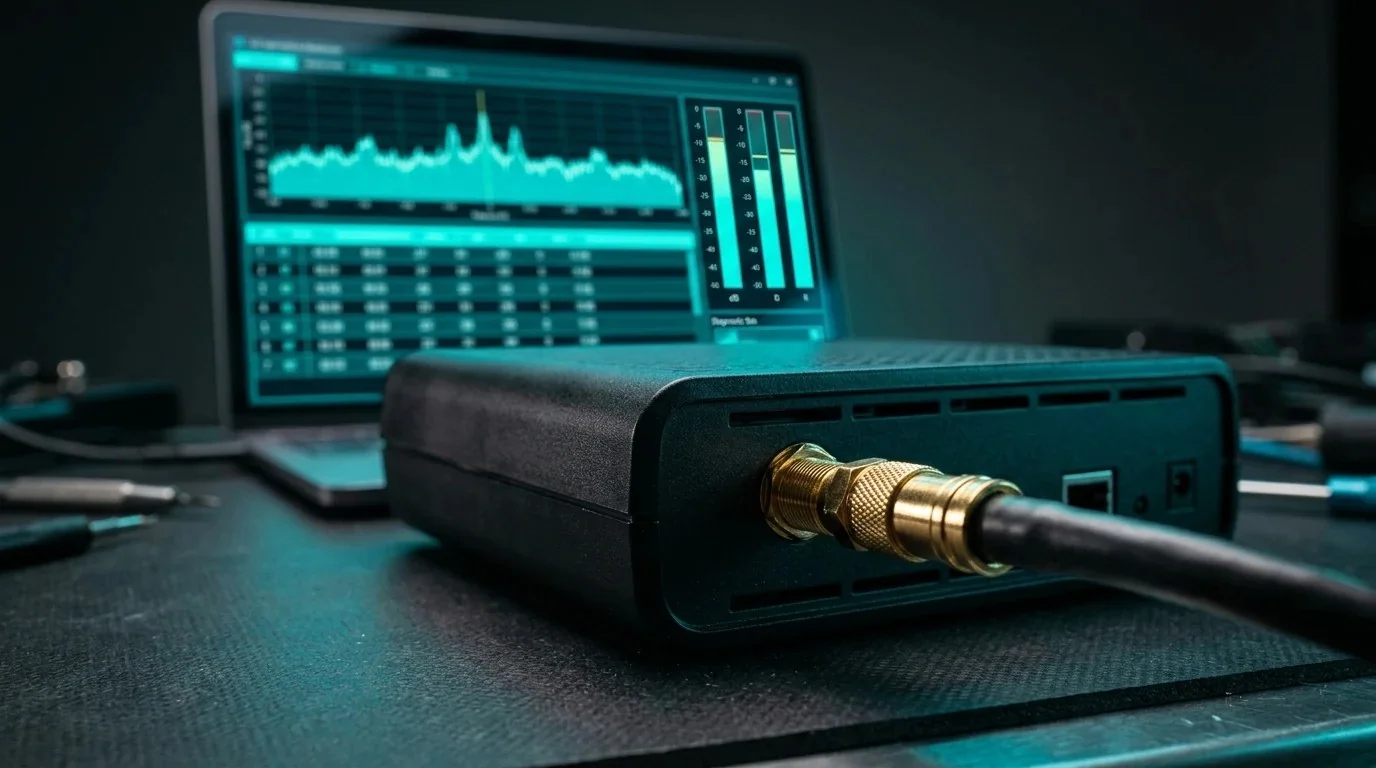
1. How to Access 192.168.100.1: Passwords & Gateway IPs
When your home internet experiences random 3-minute dropouts, slow downloads, or sudden ping spikes in competitive games, calling your ISP (Xfinity, Spectrum, Cox, Optimum) usually results in the same generic advice: "We sent a refresh signal, please reboot your modem."
Stop guessing. Inside your cable modem lives a built-in web server displaying real-time physical radio frequency (RF) telemetry.
To access your modem's diagnostic portal:
- Standalone Cable Modems (Arris S33 / SB8200, Motorola MB8611, Netgear CM2000): Open your web browser and navigate directly to http://192.168.100.1. This address bypasses your router and talks directly to the modem's diagnostic processor.
- ISP Combo Gateways (Xfinity xFi, Cox Panoramic, Spectrum Advanced Gateway): Typically accessible at
http://10.0.0.1orhttp://192.168.1.1. Default login credentials are usuallyadminwith passwordpassword, or the unique security key printed on the bottom sticker.
Run our baseline test at DCSpeedTest Bandwidth Meter before opening your modem page to correlate your throughput drops with physical line errors.
2. Downstream Power (dBmV) & Signal-to-Noise Ratio (SNR)
Once you navigate to the Connection Status tab, look at the table titled Downstream Bonded Channels. Modern DOCSIS 3.1 modems bond up to 32 SC-QAM channels plus 1 or 2 wideband OFDM channels.
Evaluate these two crucial metrics across every channel:
Downstream Technical Tolerances
- Downstream Power Level (dBmV): Measures the physical electrical strength of the incoming radio wave. Perfect: 0.0 dBmV. Acceptable: -7.0 dBmV to +7.0 dBmV. Danger: Below -10.0 dBmV (signal is too weak, causing packet loss) or above +10.0 dBmV (signal is too hot, causing receiver amplifier clipping).
- Signal-to-Noise Ratio (SNR / MER): Measures the clarity of the data signal compared to background electromagnetic noise in the copper wire. Minimum Required: 33.0 dB. Healthy: 36.0 dB to 42.0 dB. Failure: If any channel drops below 30.0 dB, radio frequency ingress (from cracked outdoor cables, bad splitters, or unshielded home appliances) is destroying data packets.
3. Upstream Power & The Dreaded T3/T4 Modem Reboot Loop
If your modem randomly reboots every few hours—lights cycling off and on while your internet disappears for 3 minutes—your problem almost certainly lives in the Upstream Bonded Channels table.
Upstream Power measures how loudly your modem must "shout" back down the street to reach the ISP's Cable Modem Termination System (CMTS):
- Ideal Upstream Power: 40 dBmV to 48 dBmV across all 4 to 8 bonded channels.
- The Red Line (> 51 dBmV): If attenuation on your street is high (due to corroded outdoor splitters or old distribution taps), your modem increases its transmission power. The absolute physical limit of DOCSIS hardware is ~54 dBmV. When your modem reaches 52–54 dBmV, it cannot shout any louder. It exhausts its ranging request retries, logs a "No Ranging Response received - T3 time-out", triggers a T4 timeout, and forcibly reboots its internal processor.
4. Corrected vs Uncorrectable Codewords: Detecting Packet Loss
At the far right of the downstream channel table, you will see two columns: Corrected Codewords and Uncorrectable Codewords.
This is the ultimate smoking gun for packet loss:
- Corrected Codewords: Thousands (or millions) of corrected codewords are completely normal, especially on OFDM channel 159/160. This indicates that DOCSIS Forward Error Correction (FEC) mathematically repaired minor transmission bits without dropping data.
- Uncorrectable Codewords: This number should be zero or near zero. If you reboot your modem and observe uncorrectables climbing by hundreds or thousands every minute, physical data frames are being permanently destroyed. This causes instant micro-stutter in games, rubberbanding, and video call audio dropouts.
Test for latency under load using our Bufferbloat Diagnostic to see if your uncorrectables explode during upload bursts.
5. Decoding Event Logs: MDD, SYNC Timing, and CMTS Alarms
Click on the Event Log tab at 192.168.100.1. This displays the chronological system journal of communications between your modem and the ISP headend.
Here is what the standard warning codes mean in plain English:
Crucial Modem Error Codes Decoded
- T3 Timeout (Ranging Request Retries Exhausted): The modem requested transmission synchronization, but the CMTS never replied. Cause: Upstream radio noise or physical amplifier degradation on your block.
- T4 Timeout (Critical Reset): The modem lost complete synchronization with the network. Result: Modem immediately triggers a hard reboot.
- SYNC Timing Synchronization Failure: The modem lost clock timing lock on downstream channels. Cause: Damaged drop cable or severe physical plant impedance mismatch.
- MDD Message Lost: Media Access Control (MAC) Domain Descriptor packets were dropped. Cause: Heavy RF ingress on low-frequency downstream channels.
6. Complete DOCSIS 3.1 Signal Health Specifications Matrix
Use this definitive reference table to diagnose your cable line quality:
| Telemetry Parameter | Optimal Target | Acceptable Window | Critical Failure (Call ISP) |
|---|---|---|---|
| Downstream Power (SC-QAM) | -2.0 to +2.0 dBmV | -7.0 to +7.0 dBmV | < -10.0 or > +10.0 dBmV |
| Downstream SNR (256-QAM) | > 38.0 dB | 33.0 to 37.9 dB | < 30.0 dB (Packet Loss Guaranteed) |
| Downstream OFDM Channel SNR | > 40.0 dB | 35.0 to 39.9 dB | < 32.0 dB |
| Upstream Power (3–8 Channels) | 40.0 to 46.0 dBmV | 36.0 to 49.0 dBmV | > 51.0 dBmV (Triggers T3 Reboots) |
| Uncorrectable Codewords | 0 across all channels | < 50 per 24 hours | Thousands / Rapidly Climbing |
7. 5 Physical DIY Fixes Before Calling an ISP Technician
Before scheduling an ISP technician (who may charge an $80 fee if they deem the fault inside your house), perform these 5 physical line audits:
- Eliminate Unnecessary Splitters: Every 2-way coaxial splitter attenuates your downstream signal by -3.5 dB and forces your upstream power to climb by +3.5 dB. A 4-way splitter introduces a devastating -7.0 dB loss. If you don't have cable TV boxes, run a direct home run cable from the exterior ground block directly to your modem.
- Remove Gold-Plated Hardware Store Splitters: Cheap 900 MHz splitters purchased at hardware stores are intended for analog TV antennas, not DOCSIS 3.1. Replace them with certified 5–1218 MHz or MoCA 2.5 (5–1675 MHz) splitters.
- Check for Loose F-Connectors: A loosely screwed coaxial collar acts as an antenna, sucking in ambient radio noise from LTE cell towers (cell phone band 700/850 MHz ingress). Hand-tighten all F-connectors, then add a 1/4-turn with a 7/16-inch wrench.
- Install a MoCA POE Filter: If you use MoCA adapters to send internet over coax, install a 70 dB MoCA Point of Entry (POE) filter on the input of your primary splitter. This reflects local signals inside your home and stops external noise from bleeding into your modem.
- Inspect the Exterior Drop Line: Walk outside to the grey demarcation box (NID) on the side of your house. Check for chewed rodent insulation, sun-cracked dry rot, or corroded copper center pins with green oxidation. If the exterior drop is damaged, the ISP must replace it free of charge.
Master Home Networking & Stop ISP Excuses
Take full control over your physical wiring, router SQM bufferbloat mitigation, and Wi-Fi dead zone elimination:
Frequently Asked Questions
What is the standard IP address to view cable modem signal levels?
The universal address for standalone modems (Arris, Motorola, Netgear, Hitron) is http://192.168.100.1. For all-in-one gateways from Xfinity, Cox, or Spectrum, the management page is located at 10.0.0.1 or 192.168.1.1.
What are ideal Downstream Power levels in dBmV?
Optimal downstream power is 0.0 dBmV. The acceptable operating range is -7.0 dBmV to +7.0 dBmV. Readings under -10 dBmV indicate severe line loss, while readings above +10 dBmV cause hardware distortion.
What causes T3 and T4 timeout errors in cable modem event logs?
A T3 timeout occurs when upstream radio frequency noise drowns out the modem's synchronization signals. If the modem exhausts its retries, it logs a T4 timeout and forcibly reboots, dropping your internet for several minutes.
What is the difference between Corrected and Uncorrectable codewords?
Corrected codewords are packets that suffered minor noise corruption but were mathematically repaired by Forward Error Correction (FEC) with zero loss. Uncorrectable codewords are corrupted packets that could not be saved and were thrown away, causing packet loss and lag.
Written by Dalto Cardoso
Founder of DCSpeedTest. Network infrastructure specialist dedicated to RF physical plant diagnostics, DOCSIS 3.1 channel telemetry, coaxial attenuation analysis, and broadband troubleshooting.
Connect on LinkedIn ➔